Installation Steps
We recommend to Install the Extension via Composer. For manual installation, please find the mentioned steps below:
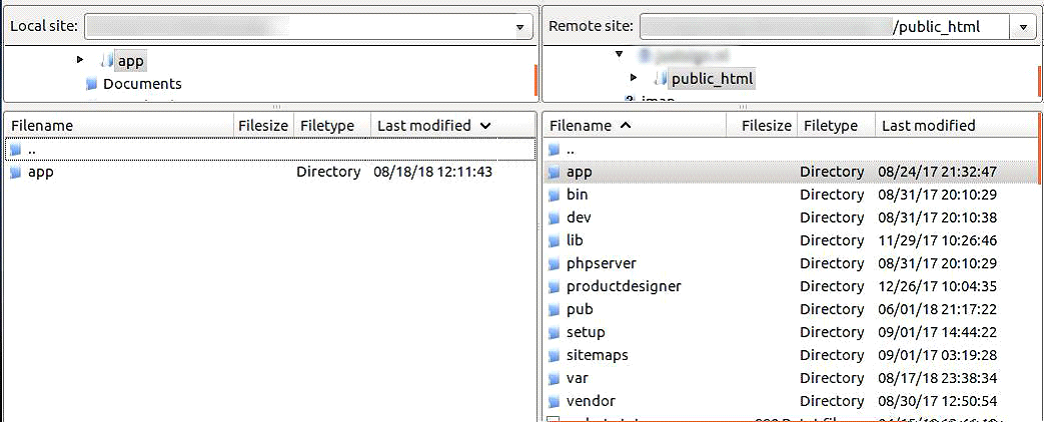
Step 1: Upload all folders from the extension package to the installation directory of your Magento software using an FTP client.
Step 2: Now you need to install the html2Pdf and php-sasslibraries using following commands:
composer require spipu/html2Pdf
composer require panique/php-sass
COMPOSER FILE:
{
    "name": "PrintXpand/productdesigner",
    "description": "Web to print solution",
    "require": {
        "php": "~7.0.0|~7.1.0|~7.2.0",
        "spipu/html2Pdf":"*",
     },
    "type": "magento2-module",
    "version": "2.0.0",
    "license": [
        "OSL-3.0",
        "AFL-3.0"
    ],
    "autoload": {
        "files": [ "registration.php" ],
        "psr-4": {
            "PrintXpandProductdesigner": ""
        }
    }
}
COMPOSER FILE THEME COLORS ADDON:
{
    "name": "PrintXpand/themecolors",
    "description": "Web to print solution",
    "require": {
        "php": "~7.0.0|~7.1.0|~7.2.0",
        "panique/php-sass":"*"
     },
    "type": "magento2-module",
    "version": "2.0.0",
    "license": [
        "OSL-3.0",
        "AFL-3.0"
    ],
    "autoload": {
        "files": [ "registration.php" ],
        "psr-4": {
            "PrintXpandThemeColors": ""
        }
    }
}
Step 3: After the successful installation you have to run the command on Magento2 root directory-
php bin/magento setup:upgrade
If you see blank page or permission error, go to Terminal (Linux)/ Command Prompt (Windows).
cd [magento root directory] [var]
Run the following command
$ chmod –R 777 *
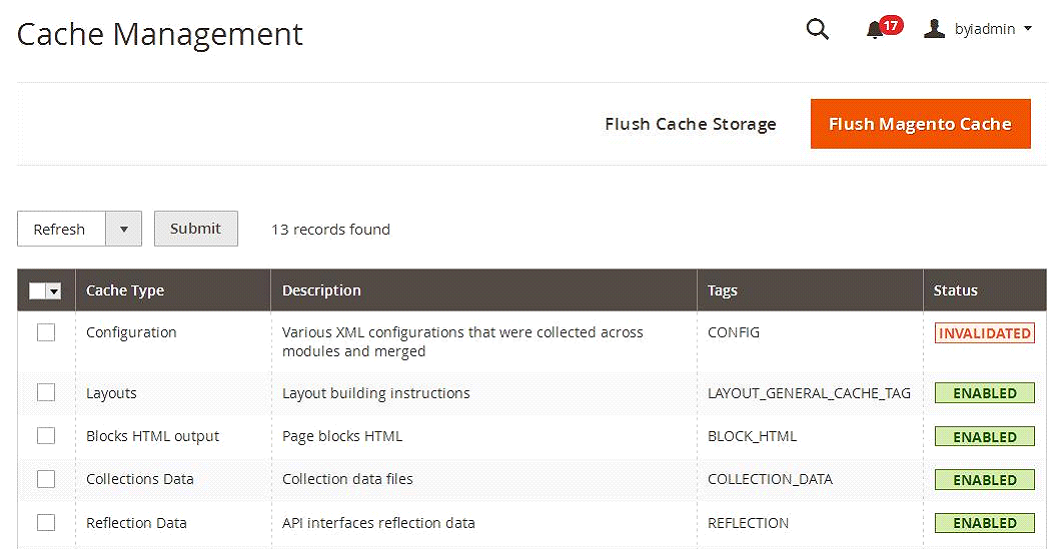
Step 4: After running the command, log into the admin panel and clear the Cache.
Go to SYSTEM ->Tools (section) -> CACHE MANAGEMENT to clear the cache.
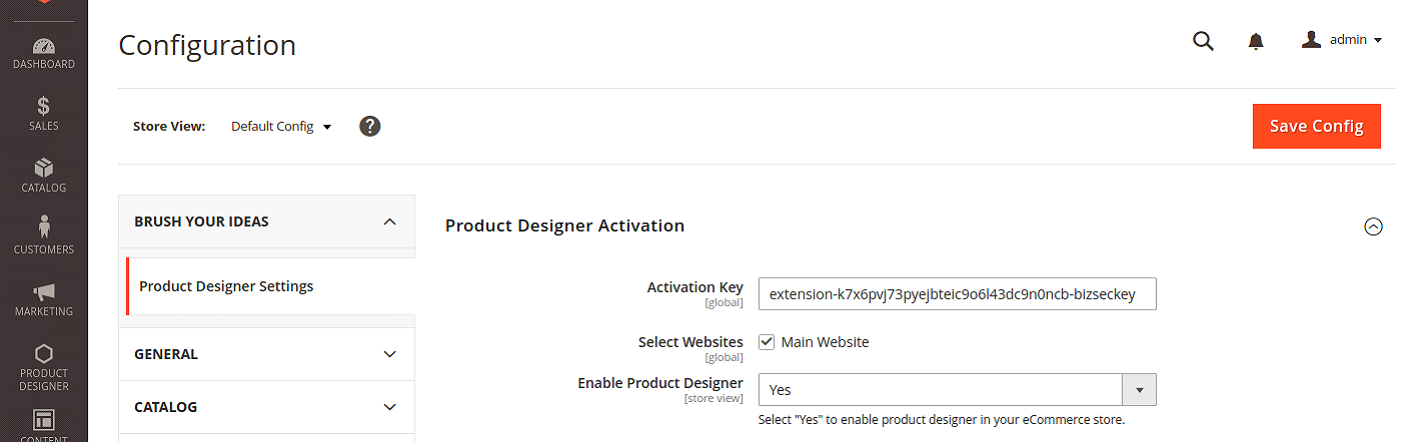
Step 5: After the successful installation, you can see the ‘Product Designer Settings’ under PrintXpand tab inside STORES->Configuration.
Extension Activation
Step1: Get an activation key
Copy the activation key from the Order Confirmation Mail. OR Login into your account at website using the e-mail and password that you provided at the checkout process.
Go to Downloadable Options and copy the activation key for the PrintXpand.
Step2: Activate your extensions
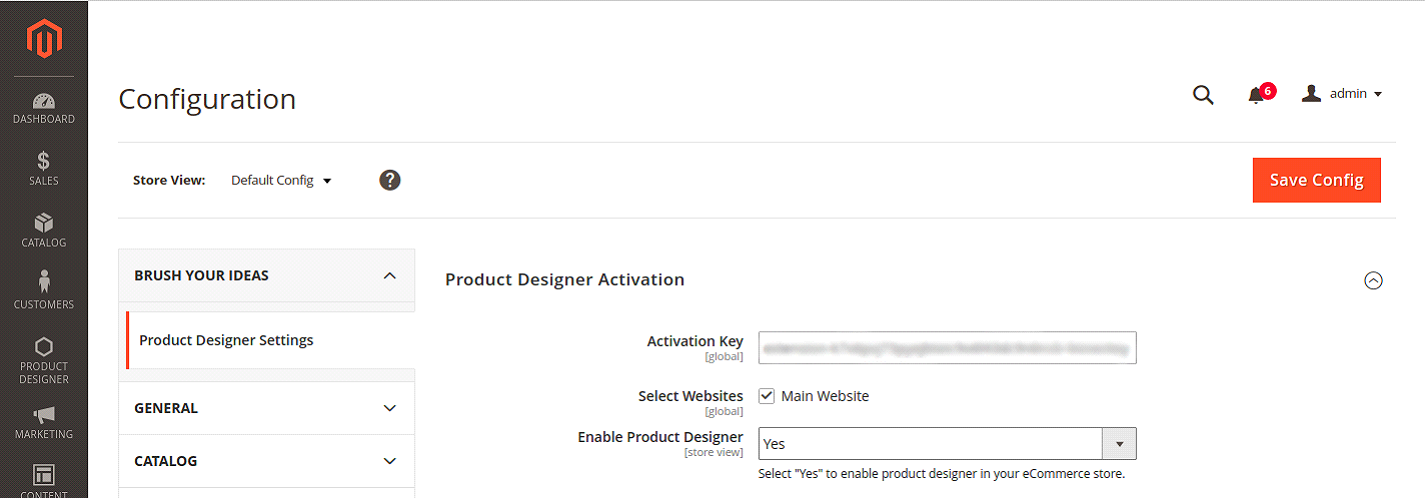
Log into Magento Admin Panel and go to STORES -> Configurations -> PrintXpand/ Product Designer Settings and enter the activation key in the ‘Activation Key’ field for the Product Designer extension then click the ‘Save Config’.
Once you will install our extension on your store then you will need to take care of below files on front-end and back-end.
Overridden Default Magento Front-end Files/Blocks:
1. For Category Page (Listing page, search page):
a) vendor/magento/module-catalog/view/frontend/templates/product/list.phtml ->
app/code/PrintXpand/Productdesigner/view/frontend/templates/product/list.phtml
2. For Product Page:
a) vendor/magento/module-catalog/view/frontend/layout/catalog_product_view.xml ->
app/code/PrintXpand/Productdesigner/view/frontend/layout/catalog_product_view.xml

b) vendor/magento/module-catalog/view/frontend/templates/product/view/addtocart.phtml ->
app/code/PrintXpand/Productdesigner/view/frontend/templates/product/view/addtocart.phtml
3. For Cart Page:
a) vendor/magento/module-catalog/view/frontend/layout/checkout_cart_item_renderers.xml ->
app/code/PrintXpand/Productdesigner/view/frontend/layout/checkout_cart_item_renderers.xml

b) vendor/magento/module-checkout/view/frontend/templates/cart/item/default.phtml ->
app/code/PrintXpand/Productdesigner/view/frontend/templates/cart/item/default.phtml
4. Call below observer For Quote Total (To add custom design price and additional options in product price):
	a) catalog_product_load_after
	b) sales_order_place_before
	c) checkout_cart_product_add_after
5. Call below observer for multiple currency support
a) controller_action_postdispatch
Overridden Default Magento Back-end Files/Blocks:
1. For Catalog Product Grid (To add “Make Design” column in grid):
a) vendor/magento/module-catalog/view/adminhtml/layout/catalog_product_index.xml ->
app/code/PrintXpand/Productdesigner/view/adminhtml/layout/catalog_product_index.xml
2. For Product Info Page Images Tab (To add “Image Sides” and “Edit Design Area” columns in media grid):
a) MagentoProductVideoObserverChangeTemplateObserver->
PrintXpandProductdesignerObserverChangeTemplateObserver

b) MagentoCatalogModelProductGalleryCreateHandler->
PrintXpandProductdesignerModelPluginCatalogProductGalleryCreateHandler

c) vendor/magento/module-catalog/Model/ResourceModel/Product/Gallery.php ->
app/code/PrintXpand/Productdesigner/Model/ResourceModel/Product/Gallery.php
3. For Order Page (To add “View Designs” link for designed product):
a) vendor/magento/module-sales/view/adminhtml/layout/sales_order_view.xml ->
PrintXpand/Productdesigner/view/adminhtml/layout/sales_order_view.xml

b) vendor/magento/module-sales/view/adminhtml/templates/items/column/name.phtml ->
app/code/PrintXpand/Productdesigner/view/adminhtml/templates/items/column/name.phtml
New file added in Default customer account section:
1. For My Designs page (Customer account section):
a) app/code/PrintXpand/Productdesigner/view/frontend/layout/customer_account.xml

b) app/code/PrintXpand/Productdesigner/view/frontend/templates/productdesigner/customer/account/
mydesign.phtml
Angular Installation Steps
Please fire below commands on terminal to install npm, nodejs and angular cli for specifically Linux servers.
sudo apt-get install -y nodejs
sudo apt-get purge nodejs npm
curl -sL https://deb.nodesource.com/setup_7.x | sudo -E bash –
sudo npm install -g @angular/cli
Install angular – https://cli.angular.io/
Please keep below version to make compatible angular with our tool
Angular CLI: 7.3.8
Node: 8.16.0
Angular: 7.2.12
npm: 6.4.1
"@ngu/carousel": "^1.5.5",
"angular-bootstrap-colorpicker": "^3.0.32",
"angular7-pubsub": "^2.1.1",
"bootstrap": "^4.3.1",
"cropperjs": "^1.5.1",
"fabric": "^3.2.0",
"fabric-customise-controls": "^2.0.2-beta",
"file-saver": "^2.0.2",
"intro.js": "^2.9.3",
"ng2-cache": "^0.2.1",
"ngx-bootstrap": "^4.0.1",
"ngx-facebook": "^2.4.0",
"ngx-filesaver": "^2.2.1",
"ngx-infinite-scroll": "^7.2.0"
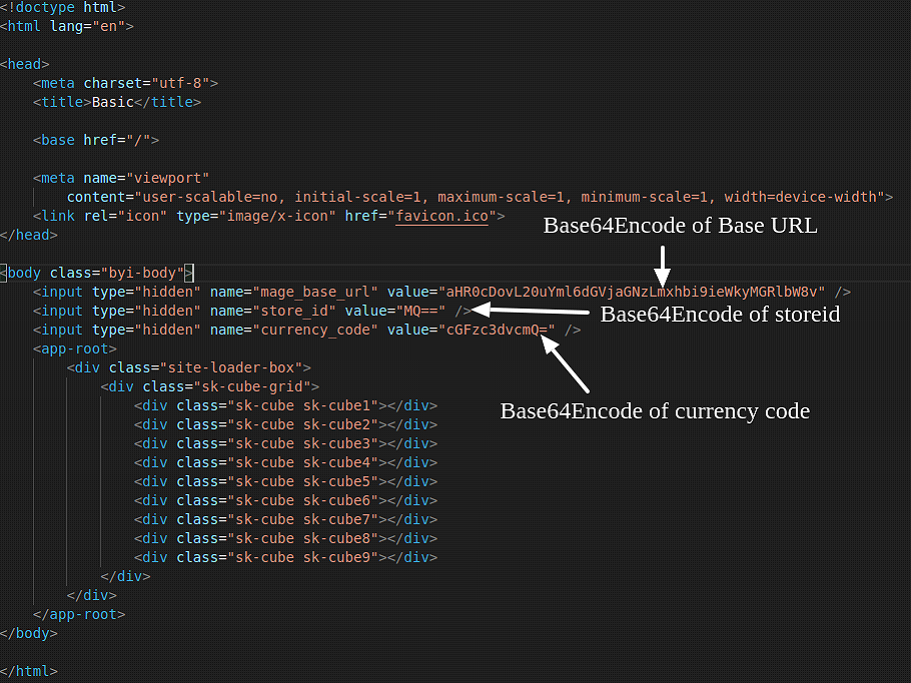
After installing angular and following above steps, extract angular.zip on the desired directory and merge it with your angular setup. We need to connect angular setup with Magento setup. For this, we need to change store id, currency code and base URL in index.html placed under ‘src’ directory. Please refer screen-shot.
After installing angular, extract angular.zip on the desired directory. We need to connect angular setup with Magento setup. For this, we need to change store id, currency code and base URL in index.html placed under ‘src’ directory. Please refer screen-shot.
After above changes, open terminal and go to the angular root directory. Then fire ng serve command and run localhost:4200/id/{productid} in the browser. (Please note that this URL will work only if ng serve compilation complete successfully)
Manage layout
Layouts help to build eCommerce websites with custom storefronts options. PrintXpand 4.0 provides 4 different Layouts (Themes): 3D, Photobook, Gangsheet and Master Layouts.
– 3D: This theme will be for 3D products.
– Photobook & Calendar: This theme will be for the Photobook and Calendar product.
– Gangsheet: This theme will be for the gangsheet products.
– Master Layout: This theme will be for all the Products you can customize as per their need.
Navigate to the Product Designer > Manage Layouts to manage the Designer Tabs and enable the required features for the designing tool.[1]
By clicking on the “Manage Layouts”, you will see the four default layouts: One for “3D”, second is for “Photobook and calendar”, the third is for “Gangsheet” and the fourth “Master layout” These are ready-to-use layouts.[2]
Being an admin, you can edit the layout and manage the Tabs, Sub-tabs, features for the storefront by clicking on the ‘edit’ icon of any layout.
Here, you can duplicate the default layouts and edit them as you want.
You can not delete and reset the default layouts. Only the duplicated layouts can be deleted and reset.
You can instruct and provide the user guide to the customers who are new to the PrintXpand tool from the “User Interactive Tour”.
If there is more than one theme, you can select per page records and navigate to the next page.
![Navigate to Manage Layouts [1]](https://docs.printxpand.com/wp-content/uploads/2026/03/Navigate-to-Manage-Layouts-1.png "Navigate to Manage Layouts [1]")
![Manage Layouts [2]](https://docs.printxpand.com/wp-content/uploads/2026/03/Manage-Layouts-2.png "Manage Layouts [2]")
Edit Layout
Now, click on the ‘Edit’ icon to manage the tabs and action panel options.
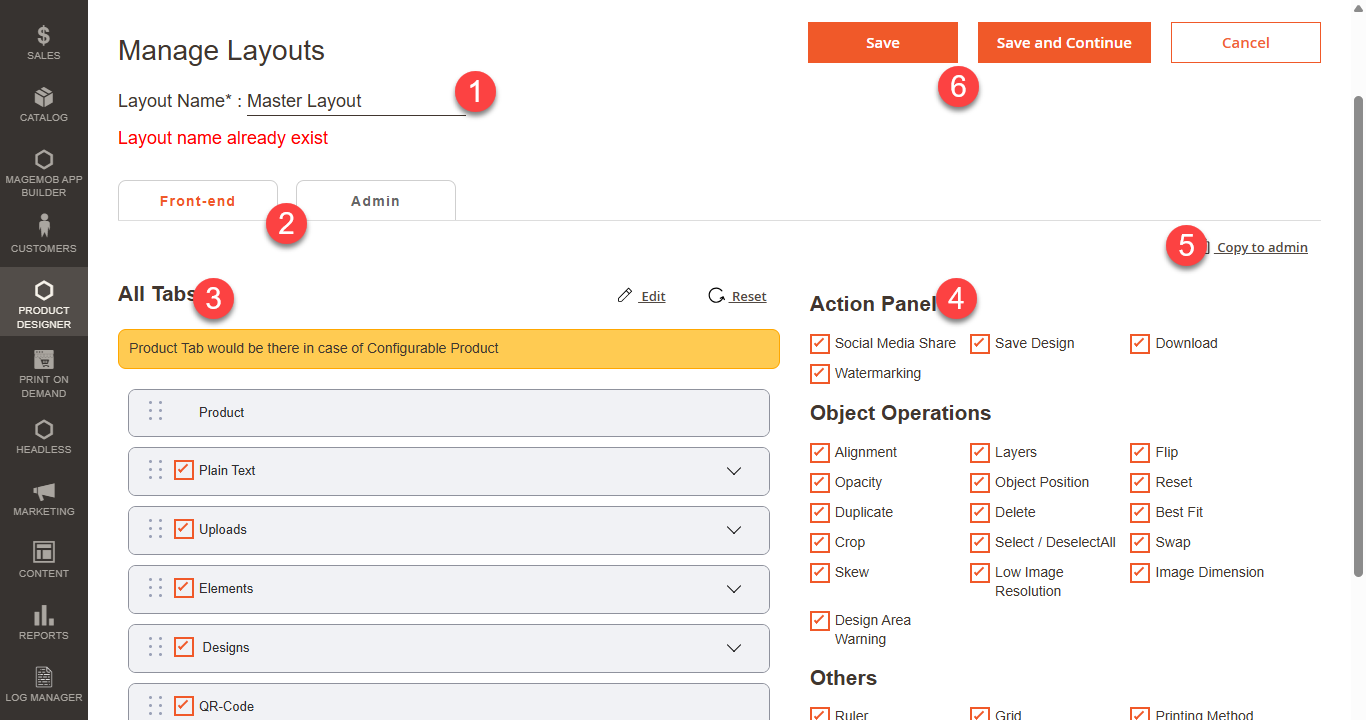
By clicking on the ‘Edit’ icon, you will navigate to the Layout’s editing page to manage and enable the storefronts options. The Admin will see the following options:
– Edit the “Layout Name” [1]
– You can manage the Tabs and Panel Action options for the Front-end and Admin.[2]
– Front-end: For the storefront that will be accessed by the end-users (customers)
– Admin: For internal use to design the templates, design the artwork, and others that will be accessed by the admin users.
– You will see the “All Tabs” to enable and manage the tabs to provide the designer explorer module access to the end-users (customers) in the storefront. You can manage the sub-tabs and other features under the Tabs. [3]
– You will see the Action Panel, Object Operations, and Other options on the right side.[4]
– Actions Panel: The options under the Action Panel will be displayed on the header (top-right side). You can enable or disable it by checking the options.
– Object Operation: Enable the object-related options that will be displayed above the designing area. These operations will enable when the customers add the objects to the design area of the product
– You can duplicate the Front-end options to the Admin layouts. [5]
– You can “Save” the layout changes or “Save and Continue” to manage the layout options.[6]
Tab options
All Tabs
The customers can see and access the designer explorer tabs from the left panel in the storefront. You can enable/disable any tab from the “All Tabs” to give access to the customers.
Click on the checkbox to enable/disable the Tabs for the product designer explorer. [1]
Sub-Tabs & features
You can enable/disable some of the features to be displayed as Sub-tabs that are object-related options.
You need to click on the down arrow to expand the tab. As you enable/disable the features for the tabs, they will be displayed to the customers in the storefront. So, being a store admin, You can manage the tabs and object-related features for the specific tabs as per the layout that you have selected. [2]
Adjust Tab order
You can easily manage the tabs’ order just by drag and drop. The customers will see the tabs in the designer explorer left panel in the same order as managed here by you. [3]
![Click to Enable / Disable [1]](https://docs.printxpand.com/wp-content/uploads/2026/03/Click-to-Enable-Disable-1.png "Click to Enable / Disable [1]")
![Click to show Sub-Tabs [2]](https://docs.printxpand.com/wp-content/uploads/2026/03/Click-to-show-Sub-Tabs-2.png "Click to show Sub-Tabs [2]")
![Drag and Drop to manage order of tabs [3]](https://docs.printxpand.com/wp-content/uploads/2026/03/Drag-and-Drop-to-manage-order-of-tabs-3.png "Drag and Drop to manage order of tabs [3]")
Feature-wise options
Action Panel
You can enable the designer tool options from the Action Panel. Action Panel options will appear on the header in the storefront above the designer canvas. You can enable the following options from the Action Panel: [1]
– Social Media Share
– Save Design
– Download
– Watermarking
Object Operations
You can enable the object-related operations from the Object Operations. The object that is added to the design area to design the product, You can enable/disable the following object operational options: [2]
– Alignment
– Layers
– Opacity
– Object Position
– Reset
– Duplicate
– Delete
– Best Fit
– Crop
– Select / DeselectAll
– Swap
– Skew
Others
You can enable the measurement of the design area, printing methods and get the guide about the designer tool from the Others. You can enable the following options: [3]
– Ruler
– Grid
– Printing Method Details
– User Guide
3D Preview
You can enable the 3D preview for the designer product and get the 3D preview for 2D + 3D product or 3D products only. [4]
Image Side-Horizontal
You can enable the Horizontal Image side selection in the Designer tool. [5]
Reset
You can reset the changes to the default by clicking on the ‘Reset’ icon. The changes that you made will be reset to the default layout. [6]
Edit
You can edit the default tab titles by clicking on the ‘Edit’ icon. The tabs title will be editable. [7]
Copy to Admin
If you want to keep similar product designer layout settings for the Admin side, click on the “Copy to Admin” option. By clicking on the “Copy to Admin”, all the layout settings will be copied to the designer tool from the Admin side. [8]
Layout Settings for Admin
Similar to “Front-end”, you can manage the Tabs, designer tool-related features, object-related operations, and other options for the Admin side designer tool settings. [9]
You can manage the layout for the “Front-end” and the “Admin” side designer tool as per the layout that you have selected.
After managing layout settings, click on the Save button. After clicking on the Save button, the changes will be applied to the storefront.
Warnings
Note: If you want to give a warning related to the Low Resolution, Image Dimension and Design Area then you have to enable the Low Image Resolution, Image Dimension, and Design Area Warning under the Object Operations section.[10]
![Action Panel [1]](https://docs.printxpand.com/wp-content/uploads/2026/03/Action-Panel-1.png "Action Panel [1]")
![Object Operations [2]](https://docs.printxpand.com/wp-content/uploads/2026/03/Object-Operations-2.png "Object Operations [2]")
![Others [3]](https://docs.printxpand.com/wp-content/uploads/2026/03/Others-3.png "Others [3]")
![3D Preview [4]](https://docs.printxpand.com/wp-content/uploads/2026/03/3D-Preview-4.png "3D Preview [4]")
![Image Side [5]](https://docs.printxpand.com/wp-content/uploads/2026/03/Image-Side-5.png "Image Side [5]")
![Reset [6]](https://docs.printxpand.com/wp-content/uploads/2026/03/Reset-6.png "Reset [6]")
![Edit [7]](https://docs.printxpand.com/wp-content/uploads/2026/03/Edit-7.png "Edit [7]")
![Copy to Admin [8]](https://docs.printxpand.com/wp-content/uploads/2026/03/Copy-to-Admin-8.png "Copy to Admin [8]")
![Admin side Designer Tool [9]](https://docs.printxpand.com/wp-content/uploads/2026/03/Admin-side-Designer-Tool-9.png "Admin side Designer Tool [9]")
![Low Image Resolution, Image Dimension, and Design Area Warning [10]](https://docs.printxpand.com/wp-content/uploads/2026/03/Low-Image-Resolution-Image-Dimension-and-Design-Area-Warning-10.png "Low Image Resolution, Image Dimension, and Design Area Warning [10]")
Product Layout Selection
You can set the layout for the product by navigating to the Product > Designer Settings. Here select the Layout for the product form Select Layout dropdown. [1]
![Select Layout [1]](https://docs.printxpand.com/wp-content/uploads/2026/03/Select-Layout-1.png "Select Layout [1]")
Add a Simple Product
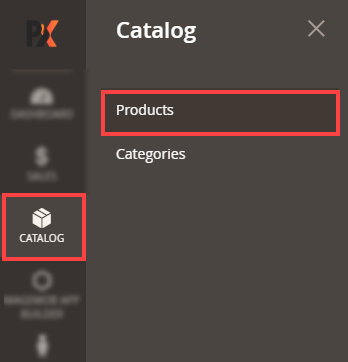
To add a product and enable the product designer, go to Catalog → Products. You will be redirected to the product list page where you can see the list of all inserted products. To add a new product, click on the “Add Product” button. [1]
In the new product page, select the attributes and insert all required details related to the product like product name, price, quantity, category, etc. [2]
Now, navigate to the “Images & Videos” option to upload product images with their sides.
To upload an image for the product, click on the “Browse to find” text label or drag the image there to upload the image. You can also select the relevant images as per sides. [3]
After uploading images of a product, click on the Save button to save the product details. Once the image is uploaded and the product is saved, only then the “Designer Settings” button will be enabled. [4]
By clicking on the product’s image, the ‘Image Detail’ pop-up window will appear on the screen. [5]
Add ‘Alt Text’ as per your requirement and select the option of Role: Decorated Image ,Base, Small, Thumbnail, Swatch, Simple Image and Hover accordingly for the product view and any other area to display the image. Checkmark the Hide from Product Page to hide image in PDP. After adding all the details, don’t forget to save it.
![Add Product Button [1]](https://docs.printxpand.com/wp-content/uploads/2026/03/Add-Product-Button-1.png "Add Product Button [1]")
![Add New Product [2]](https://docs.printxpand.com/wp-content/uploads/2026/03/Add-New-Product-2.png "Add New Product [2]")
![Images as per sides [3]](https://docs.printxpand.com/wp-content/uploads/2026/03/Images-as-per-sides-3.png "Images as per sides [3]")
![Designer Settings Button [4]](https://docs.printxpand.com/wp-content/uploads/2026/03/Designer-SettingsButton-4.png "Designer Settings Button [4]")
![Image Detail Pop-up [5]](https://docs.printxpand.com/wp-content/uploads/2026/03/Image-Detail-Pop-up-5.png "Image Detail Pop-up [5]")
Designer Settings
Once you have added the product details and its images, you must set the “Image Sides” and the “Design Area” for the product.
Click on the Designer Settings button to configure the sides and the design area as per the sides. [6]
As you click on the “Designer Settings” button, you will navigate to the designer setting page, here you can enable the product designer features, set layout and also add the product pricing details.[7]
To configure the designer area for front users, set the Designer type from drop-down. Here you can configure different designer types based on industry/market.
– General
– Photo Album
– Custom Size
– 3D Preview
– Gangsheet
![Designer Settings Button [6]](https://docs.printxpand.com/wp-content/uploads/2026/03/Designer-Settings-Button-6-1.png "Designer Settings Button [6]")
![Designer Settings [7]](https://docs.printxpand.com/wp-content/uploads/2026/03/Designer-Settings-7-1.png "Designer Settings [7]")
General Designer Area settings
You need to configure the following details related to configuring the design areas:
You can configure the product with different aspects:[8]
-DPI: You have an option to specify the resolution of the product image in dots per inch.
– Unit: you can configure the image height and width using different units (pixel, Inch, millimeter, centimeter)
– Output Based On: Output options can be selected based on the following criteria: Design Area Size, Product Image Size, and Custom Size.
– Printing Method Type : Printing Method option can be selected based on following options : Global and Location.
– Image Side:Enter location Name and select the image side from the drop-down selection. Here, you will get the Images Sides drop-down selection as per the “Product Designer → Manage Image Sides”. Select the relevant side for the product (for the selected image). [9]
– Location Icon (Optional) : Upload the Location icon to reflect on the PDP for customers to recognize the Location. [10]
– Full Design Area : To use the full canvas for the design area enable the Full Design Area toggle.
To select a masking image for your product, choose from the dropdown list of masking images available in the “Making Image” section. [11]
Note: Ensure to select the appropriate masking image according to your product.
Additionally, you have the option to upload a masking image directly by clicking on the masking section. Any image uploaded here will be added to the Manage Masking Image section and automatically assigned to the product.
– Multiple Design Areas: You can set up different design areas for various sides of the product and you can also add different pricing details based on the chosen design areas.
– Price: You can add the pricing details for the selected design area.
– Output Width and Height: You can set the width and height of the output image size. [12]
– Multiple Design Areas: You can set up different design areas for various sides of the product and you can also add different pricing details based on the chosen design areas click on the “Add More” button to add Multiple Design Area.[13]
![Design Area Configurations [8]](https://docs.printxpand.com/wp-content/uploads/2026/03/Design-Area-Configurations-8.png "Design Area Configurations [8]")
![Image Side [9]](https://docs.printxpand.com/wp-content/uploads/2026/03/Image-Side-9.png "Image Side [9]")
![Location Icon [10]](https://docs.printxpand.com/wp-content/uploads/2026/03/Location-Icon-10.png "Location Icon [10]")
![Masking Image [11]](https://docs.printxpand.com/wp-content/uploads/2026/03/Masking-Image-11-1.png "Masking Image [11]")
![Output Width and Height [12]](https://docs.printxpand.com/wp-content/uploads/2026/03/Output-Width-and-Height-12.png "Output Width and Height [12]")
![Add More Button [13]](https://docs.printxpand.com/wp-content/uploads/2026/03/Add-More-Button-13.png "Add More Button [13]")
Output-Based On
Now, you need to select the specific “Output File Generation” option from the Output Based on drop-down selection. You will have 3-options to select the Output File:
– By Product Image Size
– By Custom Size
– By Design Area Size
By Product Image Size
If you select the “By Product Image Size”, the system will take the product’s Design Area’s measure i.e. Width, Height, Left, and Top.[14]
You need to insert the Design Area on the product by filling up the Width, Height, Left, and Top. Here, the Width and Height define the actual size of the design area, and the Left and Top define the exact position of the design area on the product.
You can also set the design area by dragging the mouse on the product’s image. As you drag the mouse pointer on the design area (product image), the values will be changed in the “Design Area” section (Height, Width, Left, and Top).
By Custom Size
If you select the “Custom Size”, the system will take the inputs for Custom output Size: Width & Height. [15]
Note: You need to keep the output ratio according to the product image size for the best output result.
You can also set the design area by dragging the mouse on the product’s image. As you drag the mouse pointer on the design area (product image), the values will be changed in the “Design Area” section (Height, Width, Left, and Top).
You will see the alignment grids when moving the mouse pointer on the design area while holding the mouse pointer.
By Design Area Size
If you select the “Design Area Size”, the Output Image Size for that Design area Image needs to be captured as soon as the design area is added. [16]
Note: You need to keep the output ratio according to the Width & Height of the design area for the best output result.
![Output Based On Product Image Size [14]](https://docs.printxpand.com/wp-content/uploads/2026/03/Output-Based-On-Product-Image-Size-14.png "Output Based On Product Image Size [14]")
![Output Based On Custom Size [15]](https://docs.printxpand.com/wp-content/uploads/2026/03/Output-Based-On-Custom-Size-15.png "Output Based On Custom Size [15]")
![Output Based On Design Area Size [16]](https://docs.printxpand.com/wp-content/uploads/2026/03/Output-Based-On-Design-Area-Size-16.png "Output Based On Design Area Size [16]")
Multiple Design Areas
You will see the design areas thumbnail for the image side at the top of the “Design Areas” section. Some products could have multiple design areas on the single side. You can insert the multiple design areas on a single side of the product’s image.
By clicking on the “Add More” button, you can add the new Design Area. [17]
You must select the output methods for each design area. If you want to remove the design area, you need to click on the ‘Delete’ icon of the design area list view. [18]
![Add More Button [17]](https://docs.printxpand.com/wp-content/uploads/2026/03/Add-More-Button-17.png "Add More Button [17]")
![Delete Button [18]](https://docs.printxpand.com/wp-content/uploads/2026/03/Delete-Button-18.png "Delete Button [18]")
Design Area for Other Sides
If the product has multiple sides, you can set the Design Area for that side as well. You can customize the design areas as per the output and you can select the multiple design areas for other sides, too.
Here, you will find the other images you have uploaded under the “Images & Videos” that will be displayed tab-wise on the top. The product has a backside as well, so if you allow the customers to design the product for the backside. [19]
![Other Image Side [19]](https://docs.printxpand.com/wp-content/uploads/2026/03/Other-Image-Side-19.png "Other Image Side [19]")
Add a configurable product
You can create configurable products with various configurable attributes like product color, brand, size, and more. Configurable products allow customers to choose from available options while placing an order.
To create a configurable product, navigate to Catalogue → Products. To configure the existing product, click (edit) on that specific product, or if you want to create a new configurable product, navigate to the “Add Product” button.
If you are adding a new product, you need to insert all required details related to the product like product name, price, quantity, category, etc. [1]
Now, navigate to the “Images & Videos” option to upload product images with their sides. [2]
To upload an image for the product, click on the “Browse to find” text label or drag the image there to upload the image. You can also select the relevant images as per sides.
After uploading images of a product, click on the Save button to save the product details. Once the image is uploaded and the product is saved, only then the “Design Area” button will be enabled.
![Add New Product [1]](https://docs.printxpand.com/wp-content/uploads/2026/03/Add-New-Product-1.png "Add New Product [1]")
![Image of Product [2]](https://docs.printxpand.com/wp-content/uploads/2026/03/Image-of-Product-2.png "Image of Product [2]")
Product Configuration Steps
Now, You can create configurable products (associated products) under the Configurations section. By clicking on the “Create Configurations” button, the Create Product Configurations window will pop up on the screen. [3]
You need to follow the below steps to create the configurable product with associated products:
Step-1
Now select the attributes of the associated products from the ‘Select Attributes’ section by checking the checkbox beside the attributes. Click on the ‘Next’ button to proceed further. [4]
Step-2
After selecting the attributes, you have to select their attribute values. You can select by ticking the checkbox for relevant attribute values from the ‘Attribute Values’ section. Click on the ‘Next’ button to proceed further. [5]
Step-3
Now, you can upload the unique product images for all the associated products and add price & quantity as per all the combinations and attributes of a product. [6]
To upload a unique image, click on the “Browse” to find or drag images here’ link and upload the respective image for the product.
Follow the same procedure to upload the images for all the associated products and click on the “Next” button to view the summary of the product and its attributes.
Step-4
Now, by clicking on the ‘Generate Products’ button, the products with all the uploaded images, attributes & values will be added. [7]
After clicking on Generate Products, all the associated products will be displayed in the “Configuration” options. You can edit/disable/remove the products as per your requirement.
Note: Admin needs to set image-side manually for associated products images. The design area will be applied from the parent product.
![Create Configurations [3]](https://docs.printxpand.com/wp-content/uploads/2026/03/Create-Configurations-3.png "Create Configurations [3]")
![Select Attributes [4]](https://docs.printxpand.com/wp-content/uploads/2026/03/Select-Attributes-4.png "Select Attributes [4]")
![Select Attribute Values [5]](https://docs.printxpand.com/wp-content/uploads/2026/03/Select-Attribute-Values-5.png "Select Attribute Values [5]")
![Add Bulk Images, Prices, Quantity [6]](https://docs.printxpand.com/wp-content/uploads/2026/03/Add-Bulk-Images-Prices-Quantity-6.png "Add Bulk Images, Prices, Quantity [6]")
![Generate Products [7]](https://docs.printxpand.com/wp-content/uploads/2026/03/Generate-Products-7.png "Generate Products [7]")
Design Areas for Child Products
Once you add and configure the associated/child products, you also set the Design Areas and Output setup.
Now, by clicking on any associated product, you will be redirected to that product’s details page. Here click the Designer Settings button to set the design area for the associated product.
You will get the Use Parent Design Area to set the similar design area and output settings that are selected for the Parent product.
By ticking the “Use Parent Design Area” checkbox, all the design area options including Masking Image, price of the design will be selected as per the design area configuration of the parent product. You cannot change the design area options. [8]
![Use Parent Design Area [8]](https://docs.printxpand.com/wp-content/uploads/2026/03/Use-Parent-Design-Area-8.png "Use Parent Design Area [8]")
Associated Product
When you have added a Configured Product, you should have also uploaded images as per the different attributes and variations.
You can also “Configure the Associated Products Side” for associated products. Navigate to the Associated Products section on the parent Designer settings page and click on “Configure the Associated Products Side”. [9]
Select the Images side from the drop-down list for each variant after the selection click on the Save and Close button.[10]
Note : Select the same side selected for the parent design area.
![Configure the Associated Products Side [9]](https://docs.printxpand.com/wp-content/uploads/2024/05/Configure-the-Associated-Products-Side-9.png "Configure the Associated Products Side [9]")
![Save and Close [10]](https://docs.printxpand.com/wp-content/uploads/2024/05/Save-and-Close-10.png "Save and Close [10]")
Backend Configuration
You can upload the masking image for the product design. Go to the Product Designer → Masking Image. [1]
By clicking on the “Masking Image”, you will see the list of the uploaded masking images.
You will get the list with the details like ID, Masking Label, Masking Thumbnail, Status, and Action. [2]
Add Masking
– To add the new masking image click on the “Add Masking” button. You will navigate to the “Add Masking Image” page.
– You need to insert following option: [3]
-Masking Label : Enter the label to identify the masking file during selection for product.
-Masking Image: Upload the Masking image in SVG format file. You must have an SVG format file for the masking image.
-Output masking Image: Upload the Output masking image file for the product output file.[4]
-Status: Set the status of masking image to Enable/ Disable. Click the “Save”button to save the Masking image.
Note : You must have an SVG format file for the masking image.
Select Masking Image
Now, if the masking image is required for any product, go to Catalog → Products. Edit the product for which you want to select the masking image.
You can select the masking image for the products from the Design Areas. Click on the Design Areas button from the product details page.
You will find the Masking Image drop-down selection in the “Design Areas” section. You will see the list of the masking images that are added from the “Product Designer → Manage Masking Images”.
Select the required masking image from the drop-down list and save the “Design Areas” and then save the product. The masking image will be applied to that product. [5]
Note: If you have any doubts regarding the SVG file and how to mask the image, you can contact us. Our support team will guide you on how to mask the image.
![Navigate to Manage Masking Image [1]](https://docs.printxpand.com/wp-content/uploads/2026/03/Navigate-to-Manage-Masking-Image-1.png "Navigate to Manage Masking Image [1]")
![Add Masking Button [2]](https://docs.printxpand.com/wp-content/uploads/2026/03/Add-Masking-Button-2.png "Add Masking Button [2]")
![Masking Information [3]](https://docs.printxpand.com/wp-content/uploads/2026/03/Masking-Information-3.png "Masking Information [3]")
![Output Masking Image [4]](https://docs.printxpand.com/wp-content/uploads/2026/03/Output-Masking-Image-4.png "Output Masking Image [4]")
![Select Masking Image [5]](https://docs.printxpand.com/wp-content/uploads/2026/03/Select-Masking-Image-5.png "Select Masking Image [5]")
Frontend View
When the customers design the product, it will be designed as per the masking image for that product. [6]
![Front View [6]](https://docs.printxpand.com/wp-content/uploads/2026/03/Front-View-6.png "Front View [6]")
Sub Tabs & Features
You can enable/disable some of the features to be displayed as Sub-Tabs that are object-related options. Manage the Sub-Tabs and its features for the below tabs: [1]
– Plain Text
– Designs
– Uploads
– Name Number
– Elements
– Data
Plain Text
You can enable the options that you want to allow customers to access in the Sub-Tabs of the “Plain Text” tab. You enable the following Sub-Tab options: [2]
– Bold, Italic, Underline
– Shadow
– Stroke
– Text Transform
– Drop
Uploads
You can enable the options that you want to allow customers to access in the Sub-Tabs of the “Uploads” tab. You enable the following Sub-Tab options: [3]
– Image Effects
– Image Filter
Elements
You can enable the options to allow customers to access in the sub tab of the “Elements” tab. You can enable following Sub-tab options: [4]
– Clipart
– Artworks
– Shapes
– Background
Designs
You can enable the options to allow customers to access in the sub tab of the “Designs” tab. You can enable following Sub-tab options: [5]
– Templates
– My Design
Name Number (Add-On)
As you enable/disable the features for the tabs, they will be displayed to the customers in the storefront. So, being a store Admin, you can manage the tabs and object-related features for the specific tabs as per the layout that you have selected. [6]
Data (Add-on)
You can enable the options to allow customers to access in the sub tab of the “Data” tab. You can enable following Sub-tab options: [7]
– VDP (Add-On)
![Sub-Tabs [1]](https://docs.printxpand.com/wp-content/uploads/2026/03/Sub-Tabs-1.png "Sub-Tabs [1]")
![Plain Text [2]](https://docs.printxpand.com/wp-content/uploads/2026/03/Plain-Text-2.png "Plain Text [2]")
![Uploads [3]](https://docs.printxpand.com/wp-content/uploads/2026/03/Uploads-3.png "Uploads [3]")
![Elements [4]](https://docs.printxpand.com/wp-content/uploads/2026/03/Elements-4.png "Elements [4]")
![Designs [5]](https://docs.printxpand.com/wp-content/uploads/2026/03/Designs-5.png "Designs [5]")
![Name Number [6]](https://docs.printxpand.com/wp-content/uploads/2026/03/Name-Number-6.png "Name Number [6]")
![Data (Add-on) [7]](https://docs.printxpand.com/wp-content/uploads/2026/03/Data-Add-on-7.png "Data (Add-on) [7]")
Manage Layouts
First of all, you need to enable the “Designer Tools” options from the specific theme (Layout). Navigate to the Product Designer → Manage Layouts. By editing the layout, you will see two options: Front-end and Admin.
Front-end
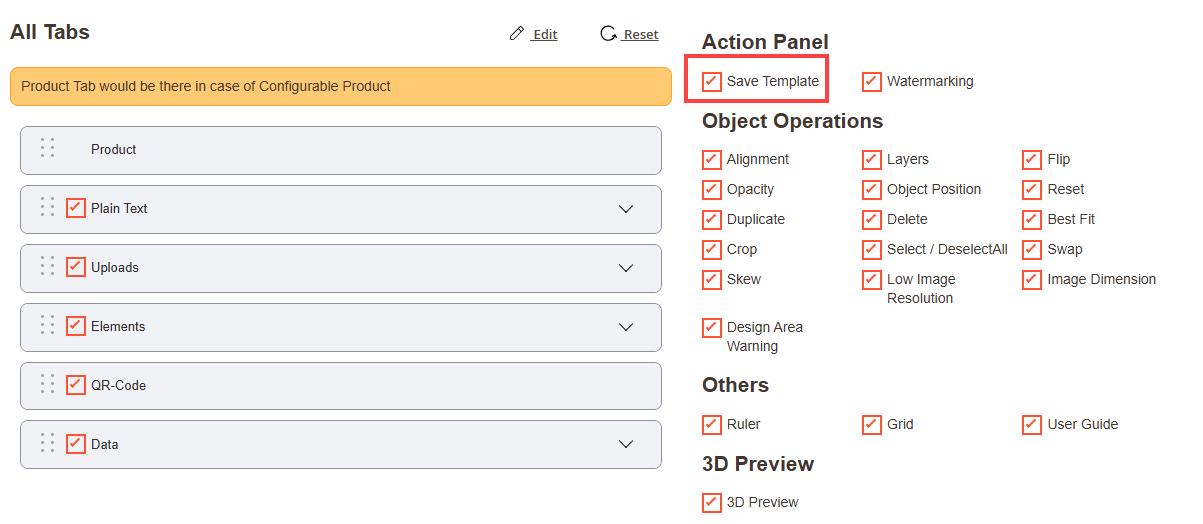
You must enable the “Template” sub- tab from the Layout if you want to allow customers to access the Templates tab in the designer explorer panel to the online store. [1]
Admin
You must enable the required options for the “Template Design” to create a product template using the designer tool.[2]
![Template [1]](https://docs.printxpand.com/wp-content/uploads/2026/03/Template-1.png "Template [1]")
Create Templates
Now, go to the Product Designer → Manage Templates to create and manage the templates for the specific products.[1]
You will see the list of the templates by navigating to the “Manage Templates” page. You will see the detail in grid views like ID, Template Name, Product Name, Price, Template Thumbnail (template image), Store View, Visible on Front, and Action. [2]
To add a new “Design Template”, click on the Create Template button. You will navigate to the “Add Design Templates” page. You need to select the product from the product list. [3]
After selecting the product, click on the “Design Templates Information” option to insert the Template’s information. You need to insert the following information of the template: [4]
– Template Name: Insert the relevant name of the template that will be displayed on the storefront.
– Visible in front: Enable this option to make the template visible in the storefront.
– Methods: You will get three methods to create and manage the template for the product.
-Upload Artwork
-Choose Artwork
-Go To Design
– Available for Seller : Make the templates for your seller. This template will be visible to the seller store.
Upload Artwork
To upload a ready-made artwork (SVG file) you have to choose the Upload Artwork option. [5]
Click on Save once you have uploaded the file.
NOTE: The price of the template will be 0, if the admin designs that artwork then the decoration price will be added and displayed in the grid.
Choose Artwork
You can choose the existing artworks that are created under the “Product Designer → Manage Artwork”. By clicking on the Choose Artwork method, the “Select Artwork” popup will appear.[6]
You can also filter the Artwork by selecting the “Category”. By clicking on the “Please Select Category” drop-down selection, you will get the list of the artwork categories. You need to select the artwork and save the Template. [7]
Artwork selected will be used as a template and admin will be redirected to the template listing page. [8]
NOTE: Price of the template will be the price which is added at the time of creating artwork.
Create Template using Designer Tool
To create a template using the designer tool, click on the Design It option and then click on the Save and Go to Design button. [9]
The template will be saved and you will be redirected to the “Product Designer tool” page to create a design. [10]
Admin users or product designers for the online store will have free hands to design the template for the specific product. Similarly, if the product has another side, you can design for another side as well.
After adding any decorations, final pricing will be displayed on the top right side of the page, that price will be considered as template final price.
By clicking on the ‘Save & Back to store’ icon, the template will be saved with the created design.
It could take a few minutes to appear in the Templates record. Now, navigate to the Manage templates listing page, you will get the newly added template.
In the Actions drop down menu you will be able to see following options which you can perform by selecting the templates by clicking on the respective checkboxes : [11]
– Delete : This option will delete all the selected templates.
– Enable : By selecting the templates you will be able to enable all the selected templates.
– Disable : By selecting Disable you will be able to disable all the selected templates.
– Mark As Featured: Set the template as the Featured template.
– Remove from Featured : By selecting Remove from Featured you will be able to remove the template from featured templates.
Now, you will get the three Action options by clicking on the “Select” drop-down option: Edit, Copy, and Design.[12]
– Design: You can redesign the template by clicking on the “Design” option.
– Delete : This option will delete all the selected templates.
– Copy: You can copy the existing template.
– Enable : By selecting the templates you will be able to enable all the selected templates.
– Disable : By selecting Disable you will be able to disable all the selected templates.
–Mark As Featured: Set the template as the Featured template.
– Remove from Featured : By selecting Remove from Featured you will be able to remove the template from featured templates.
Copy:
You can copy the existing template and create the template for the new product using the same template design. By clicking on the “Copy” option, you will get the Product Selection popup to select the product.
Once the product is selected, click on the Continue button to copy the template.
It will take a few seconds to copy the template for the selected product and to get listed in the “Manage Templates”. You will see the template design (thumbnail) after a few minutes.
![Navigate to Manage Templates [1]](https://docs.printxpand.com/wp-content/uploads/2026/03/Navigate-to-Manage-Templates-1.png "Navigate to Manage Templates [1]")
![Manage Templates [2]](https://docs.printxpand.com/wp-content/uploads/2026/03/Manage-Templates-2.png "Manage Templates [2]")
![Products in Template [3]](https://docs.printxpand.com/wp-content/uploads/2026/03/Products-in-Template-3.png "Products in Template [3]")
![Design Template Information [4]](https://docs.printxpand.com/wp-content/uploads/2026/03/Design-Template-Information-4.png "Design Template Information [4]")
![Upload Artwork [5]](https://docs.printxpand.com/wp-content/uploads/2026/03/Upload-Artwork-5.png "Upload Artwork [5]")
![Select Artwork [6]](https://docs.printxpand.com/wp-content/uploads/2026/03/Select-Artwork-6.png "Select Artwork [6]")
![Select Category [7]](https://docs.printxpand.com/wp-content/uploads/2026/03/Select-Category-7.png "Select Category [7]")
![Template List [8]](https://docs.printxpand.com/wp-content/uploads/2026/03/Template-List-8.png "Template List [8]")
![Save and Go to Design Button [9]](https://docs.printxpand.com/wp-content/uploads/2026/03/Save-and-Go-to-Design-Button-9.png "Save and Go to Design Button [9]")
![Product Designer Tool [10]](https://docs.printxpand.com/wp-content/uploads/2026/03/Product-Designer-Tool-10.png "Product Designer Tool [10]")
![Actions [11]](https://docs.printxpand.com/wp-content/uploads/2026/03/Actions-11.png "Actions [11]")
![Template Actions [12]](https://docs.printxpand.com/wp-content/uploads/2026/03/Template-Actions-12.png "Template Actions [12]")
Product Level Configuration
You can see the preloaded (default template) at the product level for the single and configurable product. If you have a single product, you need to select the “Pre-Loaded Template” to load the template on the product.
To set a “Pre-Loaded Template” which would be displayed on the storefront for the specific product, select the template from the Pre-Loaded Template dropdown list. [13]
After selecting the default template, click on the ‘Save’ button to save all the configurations.
![Pre-Loaded Template [13]](https://docs.printxpand.com/wp-content/uploads/2026/03/Pre-Loaded-Template-13.png "Pre-Loaded Template [13]")
Frontend View
Once the design templates are managed and configured from the backend, your customers can load the Default Templates by clicking on the Design Tab. [14]
They can view the Design Templates as per the assigned Design Template categories to the product under All Design Section. [15]
The customers can also search the templates by name from the ‘Search’ text field. Also, the product will be shown with the default template assigned at the product level while searching in the product tab.
![Front View [14]](https://docs.printxpand.com/wp-content/uploads/2021/08/Front-View-14.png "Front View [14]")
![All Design Section [15]](https://docs.printxpand.com/wp-content/uploads/2021/08/All-Design-Section-15.png "All Design Section [15]")
Mobile Responsive
PrintXpand 4.0 Designer Tool is also responsive for mobile/tab devices. So, the customers can easily access the online store from Mobile or Tablet devices to design their desired products. [1]
![Mobile Responsive [1]](https://docs.printxpand.com/wp-content/uploads/2021/08/Mobile-Responsive-1.png "Mobile Responsive [1]")
Backend Configuration
To add and manage the sides of the product images, navigate to Product Designer → Manage Image Sides. By clicking on it, you will get the list of inserted image sides with the details like ID, Image Side, Status, Action. [1]
To add a new image side, click on the “Add Image Side” button. By clicking on it you will be redirected to the “Add Image Side” page. [2]
Enter the following details: [3]
– Image Side: Enter the name of the Image side. (e.g Front, Back)
– Status: Select the current status for Image Side.
After inserting the details, click on the “Save” button and you will be redirected again to the list of Images sides
You can edit any Image side by clicking on the “Edit” option. If you want to delete any image, select it and click on “Delete” from the ‘Actions’ dropdown. By clicking on it, a confirmation message will appear. Press “OK” to delete the selected image side. [4]
You can select the Images side position from Layout management enable the Horizontal Image side selection in the Designer tool. [5]
Image sides selection
You need to select the sides for the product images. The side selection is provided at the product level. Navigate to the product details from the Catalog → Products. [6]
You will see the “Designer setting” button from the product details page on the header.
By clicking on the Designer settings, you will be redirected to the design setting page. In the Designer Areas select the side, click on the Save button to save changes.
![Navigate to Manage Image Sides [1]](https://docs.printxpand.com/wp-content/uploads/2026/03/Navigate-to-Manage-Image-Sides-1.png "Navigate to Manage Image Sides [1]")
![Add Image Side [2]](https://docs.printxpand.com/wp-content/uploads/2026/03/Add-Image-Side-2.png "Add Image Side [2]")
![Image Side Information [3]](https://docs.printxpand.com/wp-content/uploads/2026/03/Image-Side-Information-3.png "Image Side Information [3]")
![Actions [4]](https://docs.printxpand.com/wp-content/uploads/2026/03/Actions-4.png "Actions [4]")
![Image Side [5]](https://docs.printxpand.com/wp-content/uploads/2026/03/Image-Side-5-1.png "Image Side [5]")
![Select Image Side [6]](https://docs.printxpand.com/wp-content/uploads/2026/03/Select-Image-Side-6.png "Select Image Side [6]")
Frontend View
The customers will see the sides of the product on the PrintXpand- Product Designer Tool in the storefront. The customers will get the sides on the right side of the designer canvas that is available for the product. [7]
Here, the customers can see the Front side of the product image where they can design their own style.
By clicking on the “Back”, the customers will see the Backside of the product image where they can design the product. [8]
![Front View Design [7]](https://docs.printxpand.com/wp-content/uploads/2026/03/Front-View-Design-7.png "Front View Design [7]")
![Front View Design [8]](https://docs.printxpand.com/wp-content/uploads/2026/03/Front-View-Design-8.png "Front View Design [8]")
Backend Configuration
First of all, you need to enable the “Object Operations” options from the Manage Layouts for the specific Theme (Layout). Navigate to the Product Designer → Manage Layouts. [1]
After enabling the required options, click on the Save button.
![Object Operations [1]](https://docs.printxpand.com/wp-content/uploads/2026/03/Object-Operations-1.png "Object Operations [1]")
Frontend Configuration
The customers will get the “Object Alignment” and “Layer Management” options as enabled from the Manage Layout for the specific Theme (Layout).
Object Alignment
The customers can manage the alignment of objects in the product design. They can select all the objects by clicking on the “Select All” icon from the header. If they want to deselect all the objects, they will find the “Deselect All” icon beside the Select All icon. [1]
They will get the “Object Alignment” option as a floater on the product design. The following options are given to manage the alignments: [2]
– Align Left: Click on this icon to align the object towards the left in the canvas.
– Align Horizontal Center: Click on this icon to align the object in the center horizontally in the canvas.
– Align Right: Click on this icon to align the object towards the right in the canvas.
– Align Top: Click on this icon to align the object towards the top in the canvas.
– Align Vertical Center: Click on this icon to align the object in the center vertically on the canvas.
– Align Bottom: Click on this icon to align the object towards the bottom of the canvas.
Layer Management
Using the PrintXpand 4.0 product designer tool, the customer can View/Hide any object, Lock and Delete the objects. It is possible to manage the order of the objects with the ‘Back’ and ‘Front’ options with regard to other elements. [3]
By clicking on the “Layer” icon, it will expand and display all the options of layer management for individual design objects. These options include View/Hide, Back/Front, Lock and Delete.
View / Hide:
The customers can View & Hide any object by clicking on the View/Hide icon. In the layer management panel, the view icon of the hidden object can be seen in Red.
Back / Front:
By clicking on the Front/back icons, the customers can manage the Forward/Backward positions of the object as per their need.
Lock:
Click on the lock icon, to lock the position of an object. This will prevent the user from changing the position of an object. But, users can still edit the properties of an object and can place text above it.
Delete:
To delete any of the object layers, click on the ‘Delete’ icon beside that particular object.
Bring Forward: To forward an object. i.e. 3rd position to 2nd position. (This option is also available in the layer management panel).
Bring Backward: Too backward an object. i.e. 1st position to 2nd position. (This option is also available in the layer management panel).
Your customers will get the option to group the objects together and edit them in the group easily. [4]
The selected objects will be set in the group. Ungroup them by clicking on the ‘group’ icon from the header or clicking ungroup for individual objects. [5]
You can Hide/Unhide the group you have created. You can also lock the position and delete the created group.[6]
![Alignment Configurations [1]](https://docs.printxpand.com/wp-content/uploads/2026/03/Alignment-Configurations-1.png "Alignment Configurations [1]")
![Object Alignment [2]](https://docs.printxpand.com/wp-content/uploads/2026/03/Object-Alignment-2.png "Object Alignment [2]")
![Layer Management [3]](https://docs.printxpand.com/wp-content/uploads/2026/03/Layer-Management-3.png "Layer Management [3]")
![Group [4]](https://docs.printxpand.com/wp-content/uploads/2026/03/Group-4.png "Group [4]")
![Ungroup [5]](https://docs.printxpand.com/wp-content/uploads/2026/03/Ungroup-5.png "Ungroup [5]")
![Hide / Unhide Group [6]](https://docs.printxpand.com/wp-content/uploads/2026/03/HideUnhide-Group-6.png "Hide / Unhide Group [6]")
Manage Printable Colors
You can provide the Printable Colors to the customers as per the compatibility of your printer or availability of printable colors. The customers can select only those colors which you have added and enabled.
Backend Configuration
You can add and manage the Printable Colors from the backend configuration. To manage the Printable Colors, go to Product Designer → Manage Printable Colors. [1]
You will get the list of already inserted printable colors by clicking on “Manage Printable Colors”. You will get the list with the details like Printable Color ID, Color Name, Color, Store View, Status, and Action to Edit. [2]
To add a new Printable Color, click on the Add Printable Color button. By clicking on the “Add Printable Color” button, you will be navigated to the “Add Printable Color” page. [3]
Now, add the following details:
– Name: Insert the printable color name.
– Store View: Select the stores on which the color will be accessible.
– Color Code: Choose the color using the color picker tool or you can insert the hex color code of the specific color.[4]
– Select Status: Choose the default status of the printable color. (Enable/Disable)
After inserting all the details, click on “Save Printable Color” and then a Color will be saved.
Now, the newly added printable color will be added to the list. You can edit any color just by clicking on “Edit” under the Action column. [5]
Delete and Enable/Disable Status
If you want to ‘Delete’ any Color, select the color and click on the ‘Delete’ option from the ‘Actions’ dropdown list. A confirmation pop-up will appear after you click on the ‘Delete’ option. Select “OK” to perform the delete action. [6]
Similarly, you can change the printable color status to Enable / Disable from the ‘Actions’ dropdown list.
Import Color
You can import the colors using the CSV file. Click on the Import button beside the “Add Printable Color”. You will redirect to the “Import Printable Colors” page to import the CSV file of the Printable Colors. [7]
Download the “Sample File” to see the format of the Printable Colors in the CSV file. You need to add the exact format as in the Sample File. Once data is added, upload the file and click on the Import button. The data will be added to the list.
![Navigate to Manage Printable Colors [1]](https://docs.printxpand.com/wp-content/uploads/2026/03/Navigate-to-Manage-Printable-Colors-1.png "Navigate to Manage Printable Colors [1]")
![Manage Printable Colors [2]](https://docs.printxpand.com/wp-content/uploads/2026/03/Manage-Printable-Colors-2.png "Manage Printable Colors [2]")
![Printable Color Information [3]](https://docs.printxpand.com/wp-content/uploads/2026/03/Printable-Color-Information-3.png "Printable Color Information [3]")
![Choose Color Code [4]](https://docs.printxpand.com/wp-content/uploads/2026/03/Choose-Color-Code-4.png "Choose Color Code [4]")
![Printable Colors List [5]](https://docs.printxpand.com/wp-content/uploads/2026/03/Printable-Colors-List-5.png "Printable Colors List [5]")
![Actions [6]](https://docs.printxpand.com/wp-content/uploads/2026/03/Actions-6.png "Actions [6]")
![Import Printable Colors [7]](https://docs.printxpand.com/wp-content/uploads/2026/03/Import-Printable-Colors-7.png "Import Printable Colors [7]")
Store Configurations
Set Default Color
The customers will get the pre-selected color and the text objects will appear in that default color when they add to the design area. To set the default color, go to Stores → Configuration → Text Configuration.
Here, you will find the “Font Color” option to set the default color for all the color selection properties. [8]
The color that is selected here for the Font will be the default color for all the color properties in the storefront.
![Select Font Color [8]](https://docs.printxpand.com/wp-content/uploads/2026/03/Select-Font-Color-8.png "Select Font Color [8]")
Backend Configuration
Enable the Image Effects & Filter options for the image object while the customer is designing the product. Go to Product Designer Tool → Manage Image Effects And Filters. [1]
You will get a list of the different image effects. You will see the details like ID, Effect Name, Status, is Filter, and Action to edit in grid view. [2]
To ‘edit’ any of the image effects from the list, click on the “Edit” option. You will redirect to the “Edit Image Effect” page to edit the image effect details. [3]
– Effect Image: You can update the image for the specific image effect. Click on the ‘Upload’ button and select the file to be uploaded for the Image Effect. The image must be in JPG, JPEG, GIF, or PNG format.
– Status: Choose the current status for the image effect. (Enable/Disable).
After editing the image effects, click on the Save button to apply the changes to the store.
![Navigate to Manage Image Effects and Filters [1]](https://docs.printxpand.com/wp-content/uploads/2026/03/Navigate-to-Manage-Image-Effects-and-Filters-1.png "Navigate to Manage Image Effects and Filters [1]")
![Manage Image Effects and Filters [2]](https://docs.printxpand.com/wp-content/uploads/2026/03/Manage-Image-Effects-and-Filters-2.png "Manage Image Effects and Filters [2]")
![Image Effects and Filters Information [3]](https://docs.printxpand.com/wp-content/uploads/2026/03/Image-Effects-and-Filters-Information-3.png "Image Effects and Filters Information [3]")
Frontend View
When the customers upload the image having formats like JPG, JPEG, GIF, or PNG, they will get the Image Filters and Image Effects options in the sub-tab that are enabled from the “Manage Image Effects And Filter” backend configuration.
Image Filters
The customers will see the “Image Filters” in the top object operation bar. [4]
The customers can apply the different filters to their images using the “Image Filter” option.
The customers can remove the applied filter by clicking on the ‘refresh’ icon beside the “Image Filters” label. [5]
Image Effects
The customers will see the “Image Effects” option with a slider to increase/decrease the intensity. The customers can apply the effects of the image by moving the slider left-right. [6]
The customers can remove the applied effects by clicking on the ‘refresh’ icon beside the percentage of the intensity.
Note: These Image Effects and Image Filter will apply only to the JPG, JPEG, GIF, and PNG formats. But, if the file format is SVG, the customers can only change the internal colors of that image.
![Image Filters [4]](https://docs.printxpand.com/wp-content/uploads/2021/08/Image-Filters-4.png "Image Filters [4]")
![Refresh [5]](https://docs.printxpand.com/wp-content/uploads/2021/08/Refresh-5.png "Refresh [5]")
![Image Effects [6]](https://docs.printxpand.com/wp-content/uploads/2021/08/Image-Effects-6.png "Image Effects [6]")
Backend Configuration
You can customize the Images options from the Layout (Theme) and configure the default option at the store level.
Manage Layout
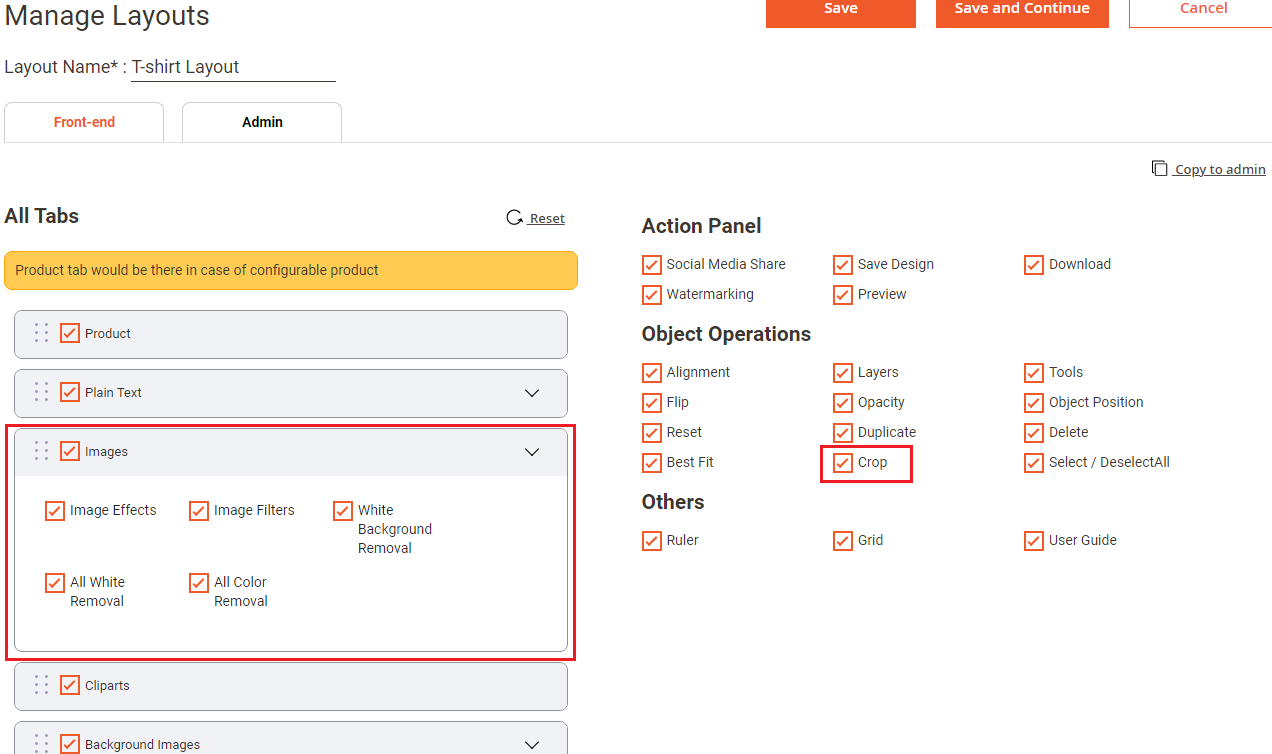
First of all, you need to enable the “Image” tab from the Manage Layouts for the specific Theme (Layout). Navigate to the Product Designer → Manage Layouts. [1]
The customers must enable the “Images” tab to enable the custom image upload functionality to the customers in the storefront.
Additionally, you can enable the Image properties and the object operations (i.e. Crop and others) as per requirement.
After configuring the layout options, click on the Save button.
![Manage Layout [1]](https://docs.printxpand.com/wp-content/uploads/2021/08/Manage-Layout-1-1.png "Manage Layout [1]")
Store Configuration
For custom image upload configurations, go to Stores → Configuration → Custom Image Upload. [2]
Configure the custom image upload options as follows:
–User’s Confirmation Before Uploading Image: Select ‘Yes’ to ask for the customer’s confirmation.
–Text for User Confirmation: Enter the relevant confirmation message which will be displayed above the Upload Image button.
–Allowed Extension for Upload: You need to select the file format to allow the customers to upload the images with the selected formats. They can upload the images having PNG, JPG, JPEG, PDF, SVG, EPS, AI and HEIC formats.
–Enable Image Limit: Select ‘Yes’ to set a limit for uploading a custom image. This avoids the overlapping of more images in the product design area. [3]
–Image Limit: Enter the limit for uploading maximum images.
–Error Message: Enter the error message to be displayed if the number of images exceeds the limit of custom images.
–Minimum Size of Image: Enter the minimum size of an image in MegaByte (MB).
–Maximum Size of Image: Enter the maximum size of an image in MegaByte (MB).
–Show Instruction: Select ‘Yes’ to show instructions while uploading a custom image.
–Instruction Text: Enter the instructions to be displayed while uploading the custom image.
–Minimum Image Width(In Pixels) : Enter the Minimum Width(In Pixels)required for the uploaded image. Images smaller than this width will not be allowed. [4]
–Maximum Image Height (In Pixels) : Enter the Maximum Height (In Pixels) required for the uploaded image. Images smaller than this height will not be allowed.
–Error Message : Enter error message this message will be displayed if the uploaded image is smaller than the allowed dimensions.
![Custom Image Upload [2]](https://docs.printxpand.com/wp-content/uploads/2021/08/Custom-Image-Upload-2.png "Custom Image Upload [2]")
![Image Configurations [3]](https://docs.printxpand.com/wp-content/uploads/2021/08/Image-Configurations-3.png "Image Configurations [3]")
![Image Configurations [4]](https://docs.printxpand.com/wp-content/uploads/2021/08/Image-Configurations-4.png "Image Configurations [4]")
Frontend View
The customers can design their product by uploading their desired images from their devices (system/mobile). They will get the Custom Image Upload tab from the designing explorer panel.
The customers can upload images by clicking on the “Upload Image” sub-tab of the Images. [5]
Now, the customers can browse the desired images that they want to upload for the product design by clicking on the ‘upload’ icon. [6]
If you have enabled the “User’s confirmation before uploading image” option from the backend (Custom Image Upload), the customers will have to check the confirmation checkbox to upload any image from the system’s folder. [7]
When the image is uploaded, it will display in the sub-tab. By clicking on it, the images will be added to the product designer area. [8]
When the customers click on the ‘layer’ icon, they can see the icon of the image which helps the customers to easily manage it with the other elements. [9]
Image Editing
After uploading the images, users can edit the image from the ‘Designer Tools’ like “Image Filters”, “Image Effects”, “Skew”, “Opacity”, and ”Object Position”. [10]
These image options will enable as per the Layout configuration (Manage Layouts).
The customers who have signed up to your online store will see their uploaded images by clicking on “Customer Uploaded Image”. [11]
Note: Customers should be logged in to their accounts to get the previously uploaded images.
Crop Image
The ‘Crop’ option will appear as a floater in the designing area. The customers can ‘crop’ uploaded images that are in PNG, GIF, JPEG, and JPEG formats but the SVG format images will not support the cropping features. [12]
To ‘Delete’ any of the uploaded images, customers can click on the ‘Delete’ icon which would appear by dragging the mouse cursor on a particular image. [12]
![Upload Images [5]](https://docs.printxpand.com/wp-content/uploads/2026/03/Upload-Images-5.png "Upload Images [5]")
![Upload Images [6]](https://docs.printxpand.com/wp-content/uploads/2026/03/Upload-Images-6.png "Upload Images [6]")
![User’s confirmation before uploading image [7]](https://docs.printxpand.com/wp-content/uploads/2026/03/Users-confirmation-before-uploading-image-7.png "User’s confirmation before uploading image [7]")
![Image Preview [8]](https://docs.printxpand.com/wp-content/uploads/2026/03/Image-Preview-8.png "Image Preview [8]")
![Layer [9]](https://docs.printxpand.com/wp-content/uploads/2026/03/Layer-9.png "Layer [9]")
![Image Editing [10]](https://docs.printxpand.com/wp-content/uploads/2026/03/Image-Editing-10.png "Image Editing [10]")
![Customer Uploaded Image [11]](https://docs.printxpand.com/wp-content/uploads/2026/03/Customer-Uploaded-Image-11.png "Customer Uploaded Image [11]")
![Crop - Delete [12]](https://docs.printxpand.com/wp-content/uploads/2026/03/Crop-Delete-12.png "Crop - Delete [12]")
Download Designed Images
PrintXpand 4.0 product designer tool allows customers to download their designed product’s image to their system easily. [1]
You can enable the download options from the specific Theme (Layout).
After designing the product image, your customers can easily download the designed product images. They will find the Download icon on the header.
By clicking on the ‘Download’ icon, the designed image will be downloaded where you want to save it.
![Download [1]](https://docs.printxpand.com/wp-content/uploads/2026/03/Download-1.png "Download [1]")
Backend Configuration
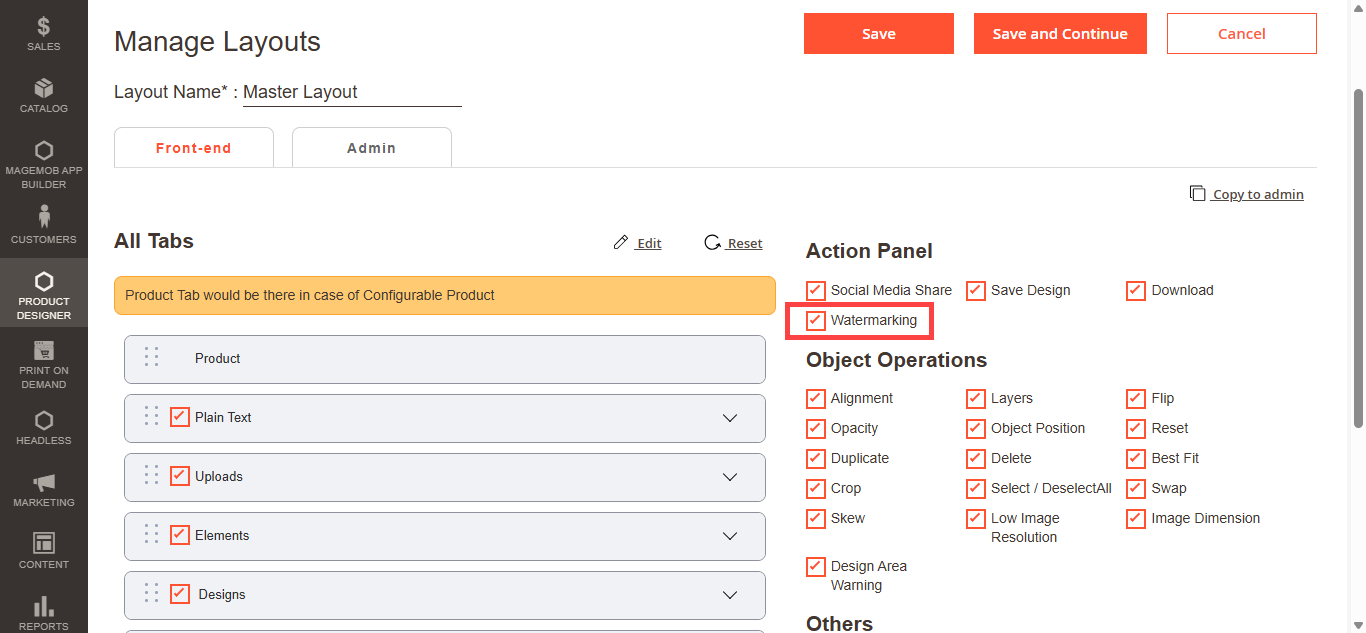
You must enable the Watermark from the Product Designer → Manage Layout → Enable “Watermarking”. You need to enable the watermarking option to add the watermark during the download of the designed product. [1]
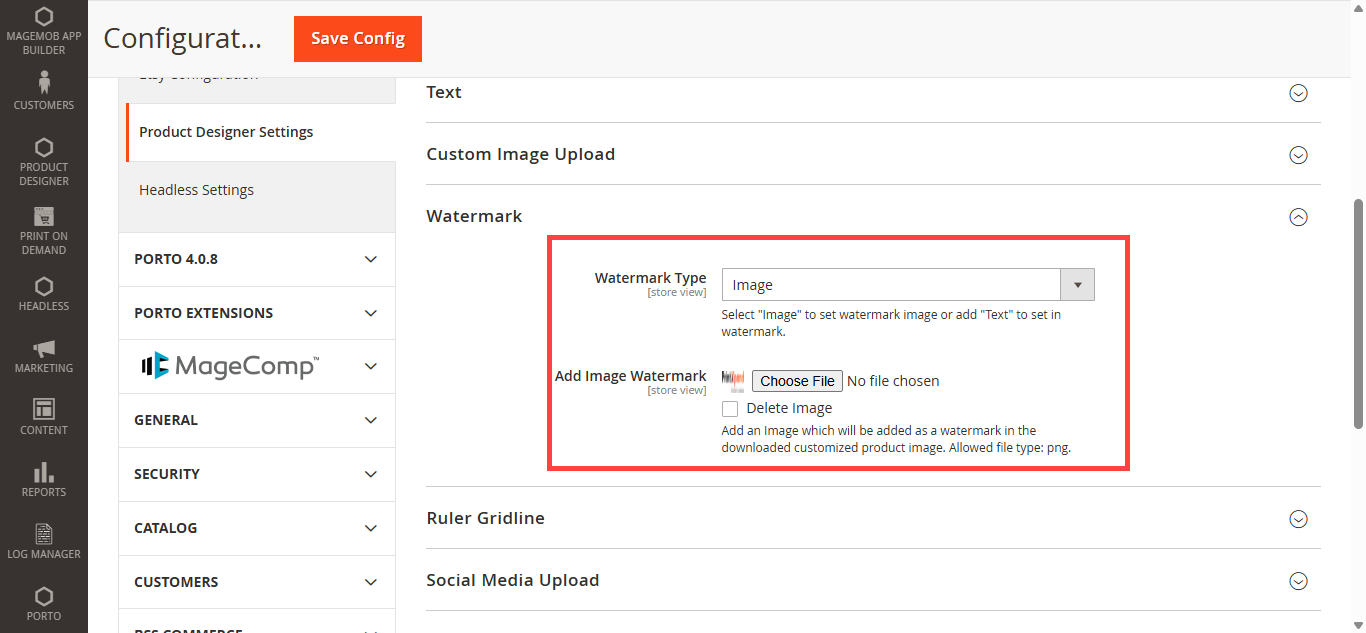
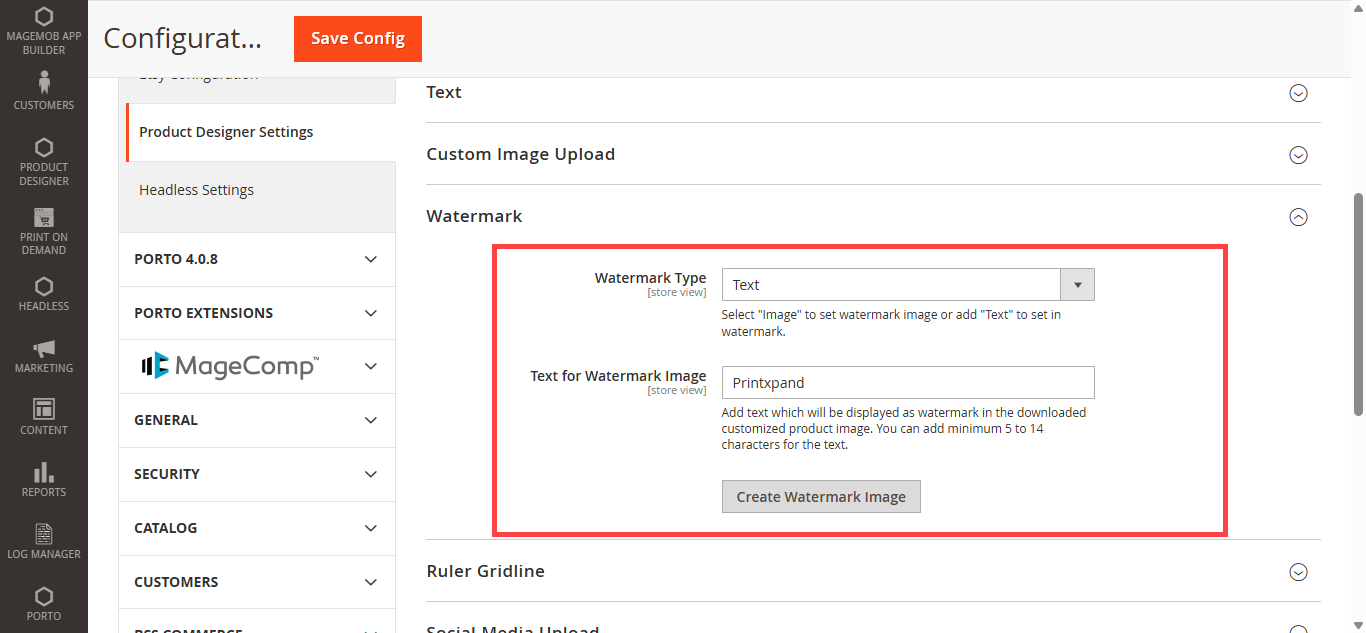
The customers can see the watermarked product image when they preview and download the designed product. To set the watermark to be displayed, go to Stores → Configuration → Watermark. [2]
Configure the following options for the Watermark:
– Watermark Type: By selecting the watermark, choose the available options to set the watermark as ‘Image Or ‘Text’.
– Image Watermark: Choose and upload an image that you want to add as a watermark when customers preview and download the designed products. The image must be in PNG format.
– Text Watermark Image : Insert the text to be displayed as a watermark in the designed product’s preview and downloaded image. [3]
You must create a watermark image to display the text as a watermark. Click on “Create Watermark Image” to create a watermark image.
You will get a popup message when the text watermark is generated. Click on OK and save the configuration.
Frontend View
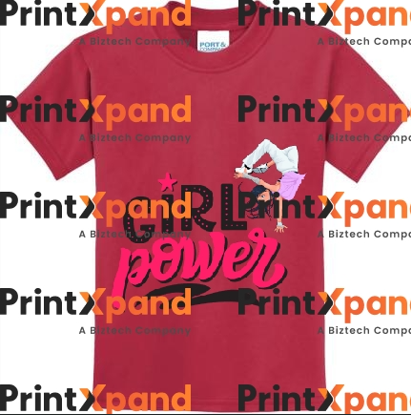
After configuring the watermark from “Stores Configuration”, the customers will get the watermark when they preview the designed product.
Image Watermark: It will display the uploaded image/logo over product preview. When the customers download the designed product’s image, they will get the image watermark including it. [4]
Text Watermark: It will display the uploaded image/logo over product preview. When the customers download the designed product’s image, they will get the image watermark including it. [5]
If they download the designed product’s image, the image will contain the watermark as well.
Backend Configuration
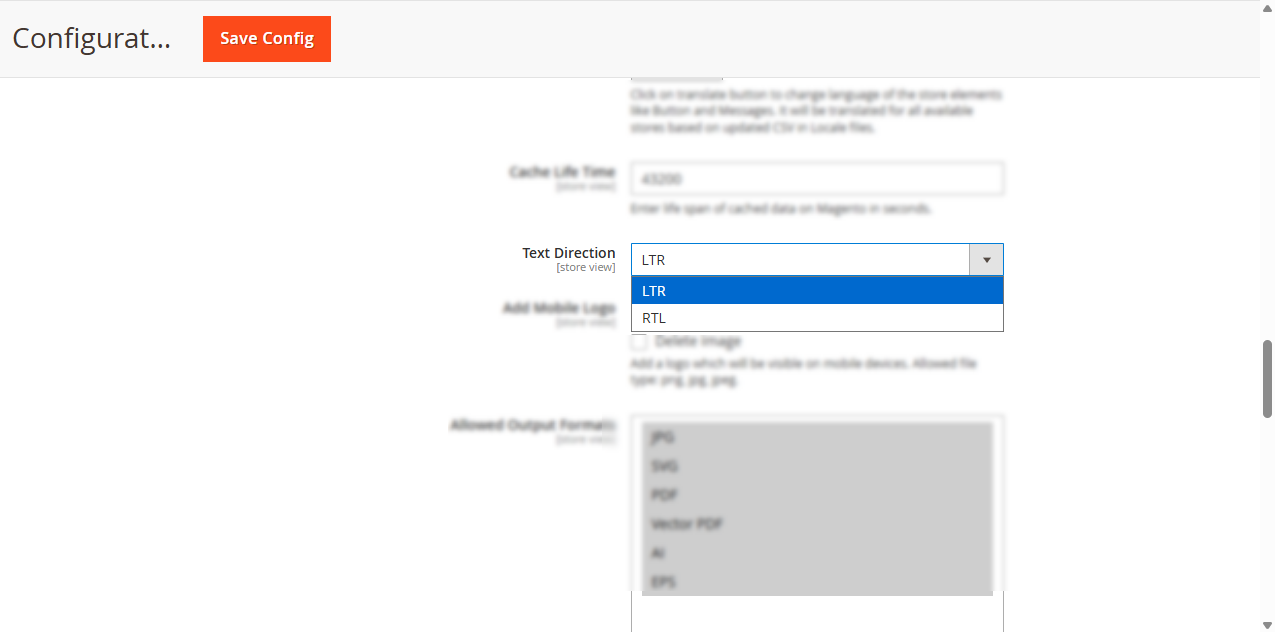
To change the text direction and layout position “Left to Right” to “Right to Left”, navigate to the Stores -> Configuration -> Product Designer Tool. [1]
Under the “General” settings, you will find the “Text Direction” setting to change the Text direction & the layout “LTR to RTL”.
Cliparts
Designer Tool customers can spice up their product designs with attractive and stylish Cliparts!
Our PrintXpand 4.0 designer tool provides Clipart Gallery for your customers that contains pre-loaded unique designs which they can add to their products.
Manage Layout
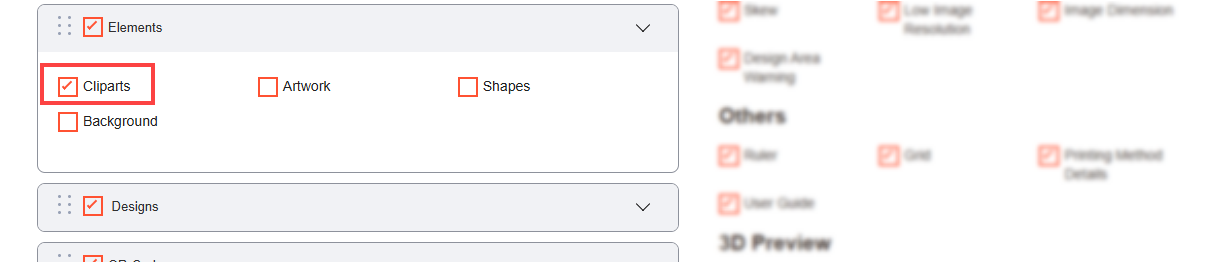
First of all, you need to enable the “Cliparts” tab from the Manage Layouts for the specific Theme (Layout). Navigate to the Product Designer > Manage Layouts. [1]
You will see the “Cliparts” under the Element tab.
The customers will see the Clipart tab in the storefront only if it is enabled from the Manage Layout
Manage Clipart Categories
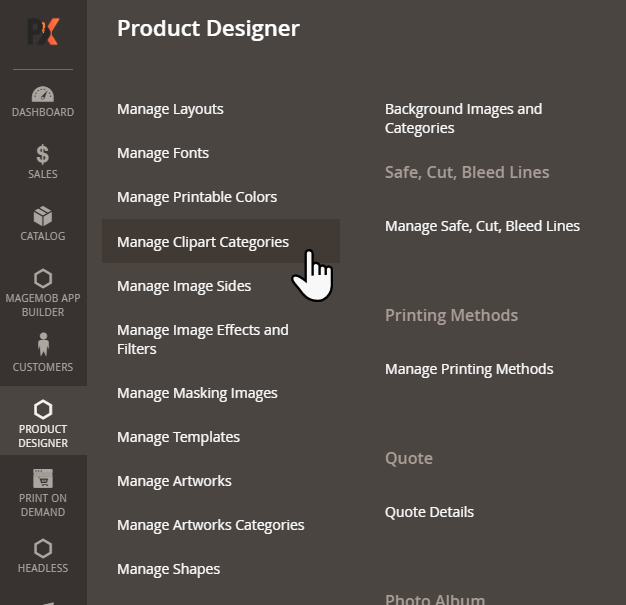
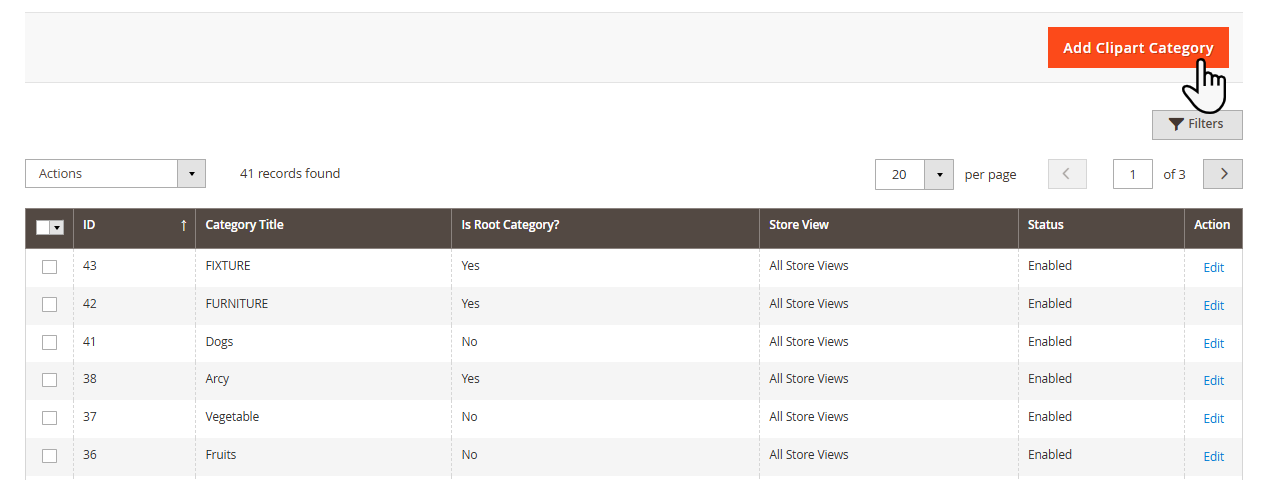
You can manage and categorize the Clipart images. It is easy to set the parent and child categories for the Cliparts. To add and manage the Clipart and its Category, go to Product Designer → Manage Clipart Categories. [2]
As you click on “Manage Clipart Categories”, you will navigate to the Cliparts listing page. You can manage and edit them as per your requirement. [3]
Add New Clipart Category
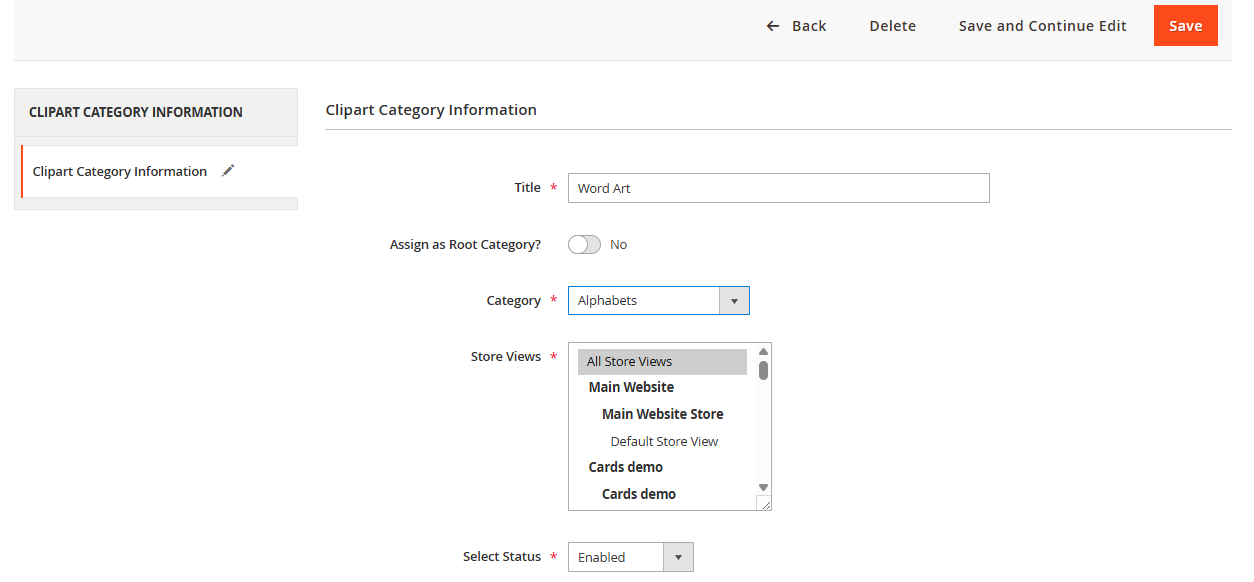
Click on the Add Clipart Category button to add and manage the Cliparts. You will be redirected to the “Add Clipart Category” page where you need to insert the details and assign the Root Category (Parent) with the images. Now, insert and configure the following details : [4]
-
-
- – Title: Insert the relevant name of the Clipart.
-
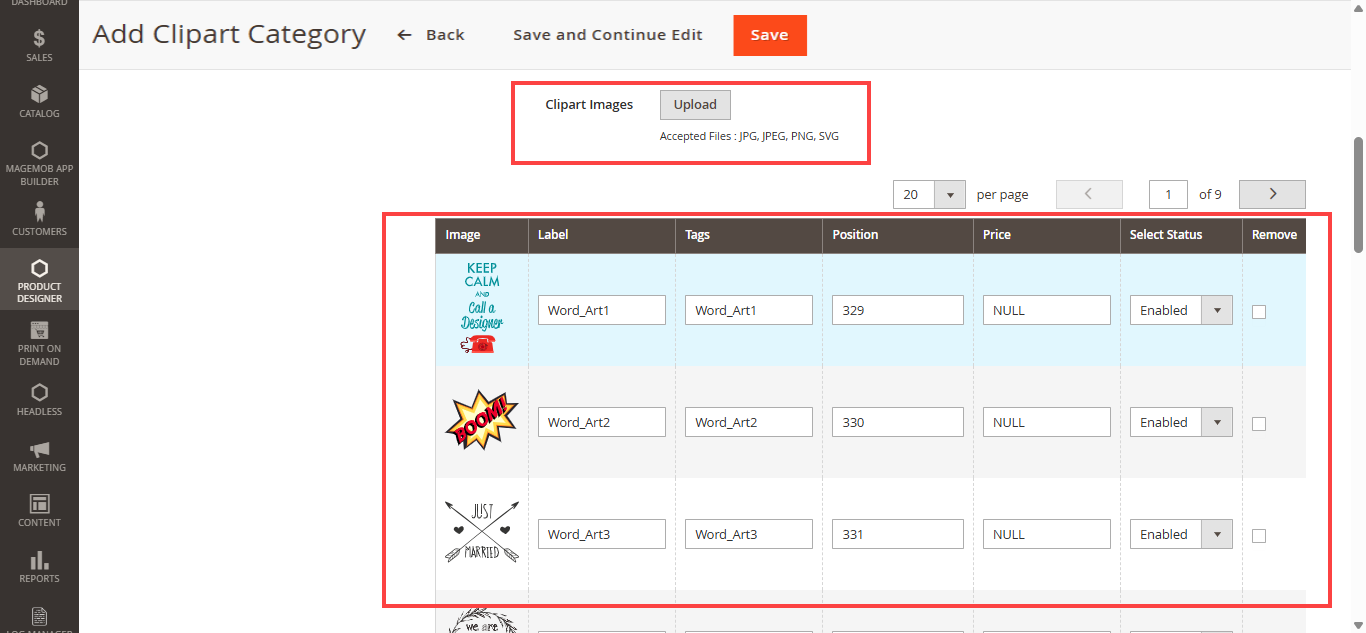
You will see the uploaded clipart images in the grid view. Here, you need to insert the following details:
-
- – Label: Insert the clipart image’s text label, so the customers can search the image by inserting the text label.
-
- – Tags: Insert the Tags for the clipart image.
-
- – Position: Insert the position to manage the sequence of clipart images.
-
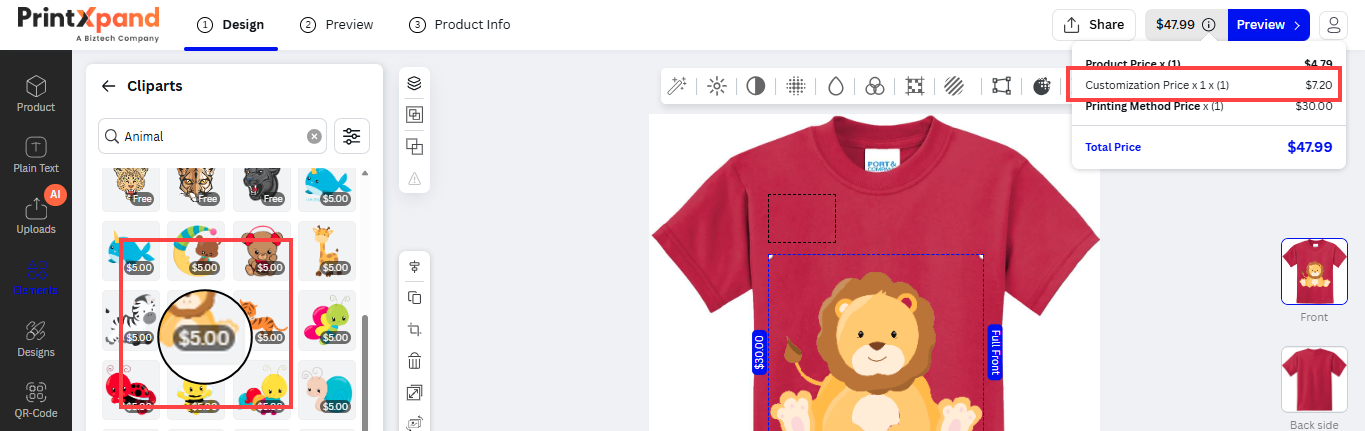
- – Price: Insert the price for the clipart images individually. The price will be shown as a tag on the clipart image in the storefront. When the customers add any clipart image to the designer area, its price will be added to the total amount.
-
- – Select Status: You can set the default status of the clipart image (Enabled/Disabled).
-
- – Remove: If you want to delete any image, check the checkbox of the “Remove” and save the configuration.
After inserting all the details for the clipart, click on the Save button to add a new Clipart Category. Now, the newly added Clipart will be added to the list. [5]
Root Category
-
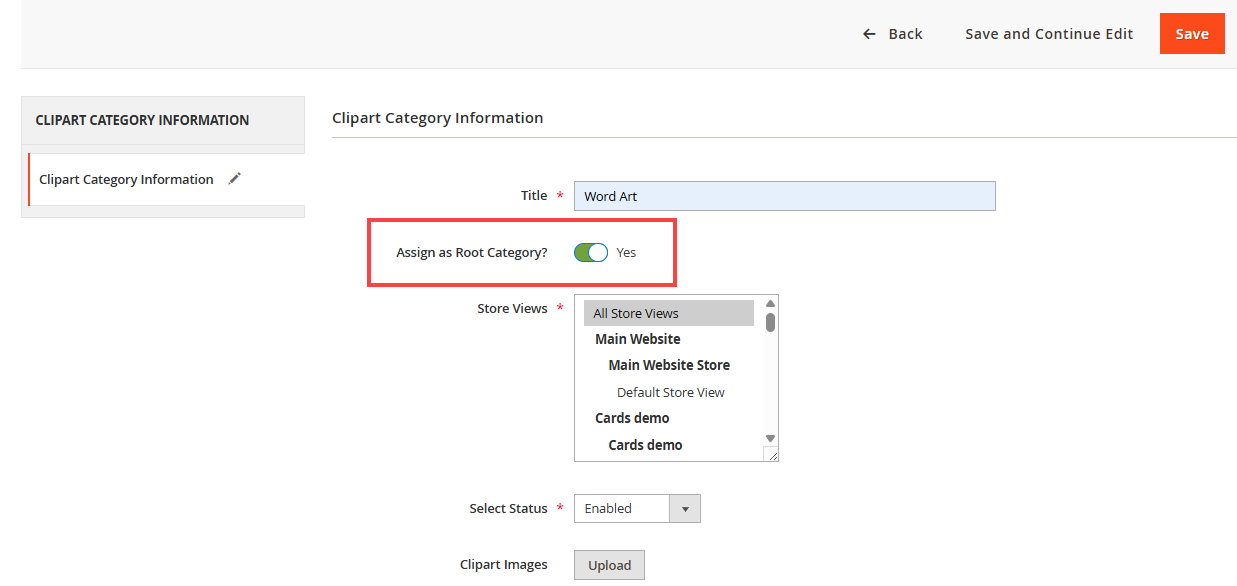
- Here, You can see the added clipart category is not a Root Category because its parent category is selected.
-
- But, if you want to add a new clipart category as a parent (root) category, you need to enable the “Assign as Root Category?” option.So now, the Clipart Category is added as a parent category. You can upload the clipart images with the specific formats only like JPG, JPED, PNG, and SVG. [6]
-
- After saving the clipart images, the category will be listed and you can see the added clipart category is a Root Category. [7]
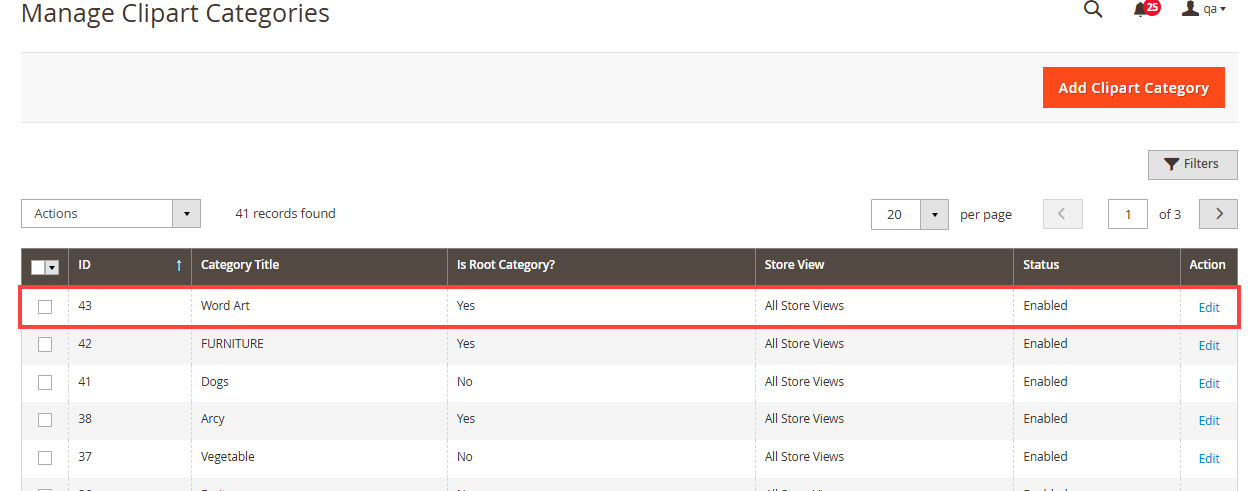
Edit, Delete, and Status
-
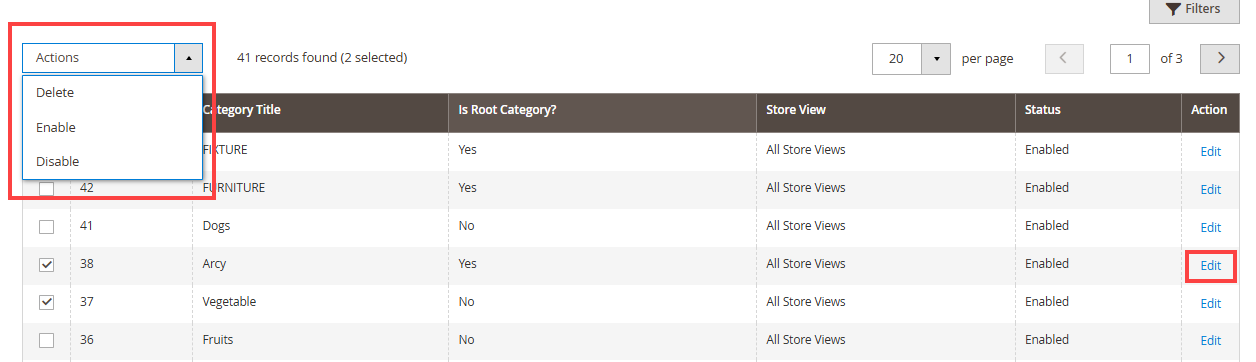
- You can edit any category just by clicking on “Edit” under the Action column.
-
- Similarly, You can change the clipart category status to Enable / Disable from the ‘Actions’ dropdown list. [8]
Clipart Configuration (Store)
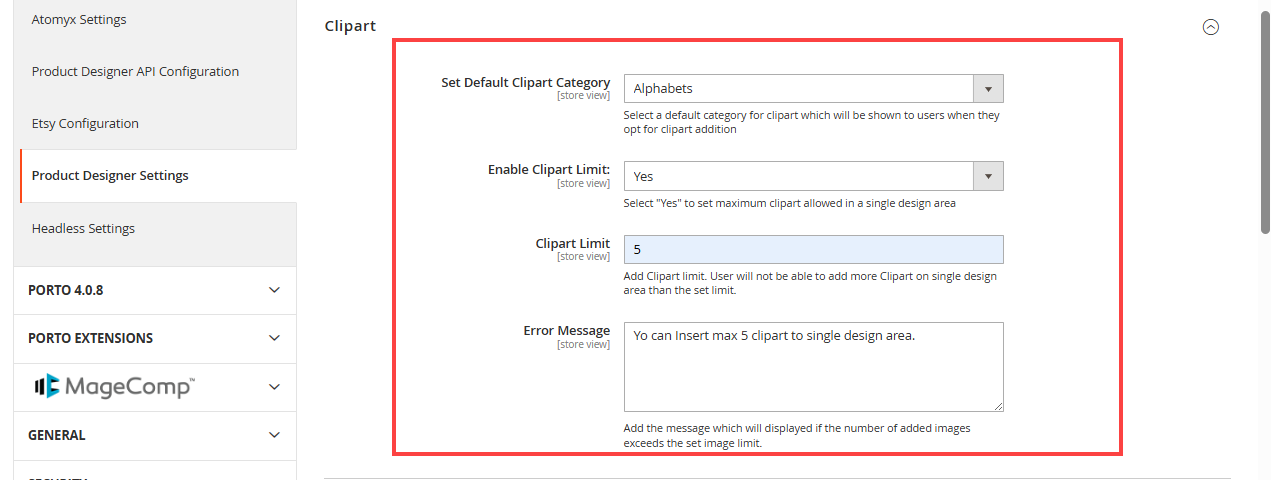
You need to configure the General Settings of the Clipart to be displayed as default in the storefront. Go to the Stores → Configurations → Clipart. The general clipart configuration is shown below: [1]
– Set Default Clipart Category: Select a default Clipart Category which will be displayed in the storefront when the customers click on the “Cliparts” tab. Here, You will get all the Clipart records in the drop-down selection. You need to select Category to make it default.
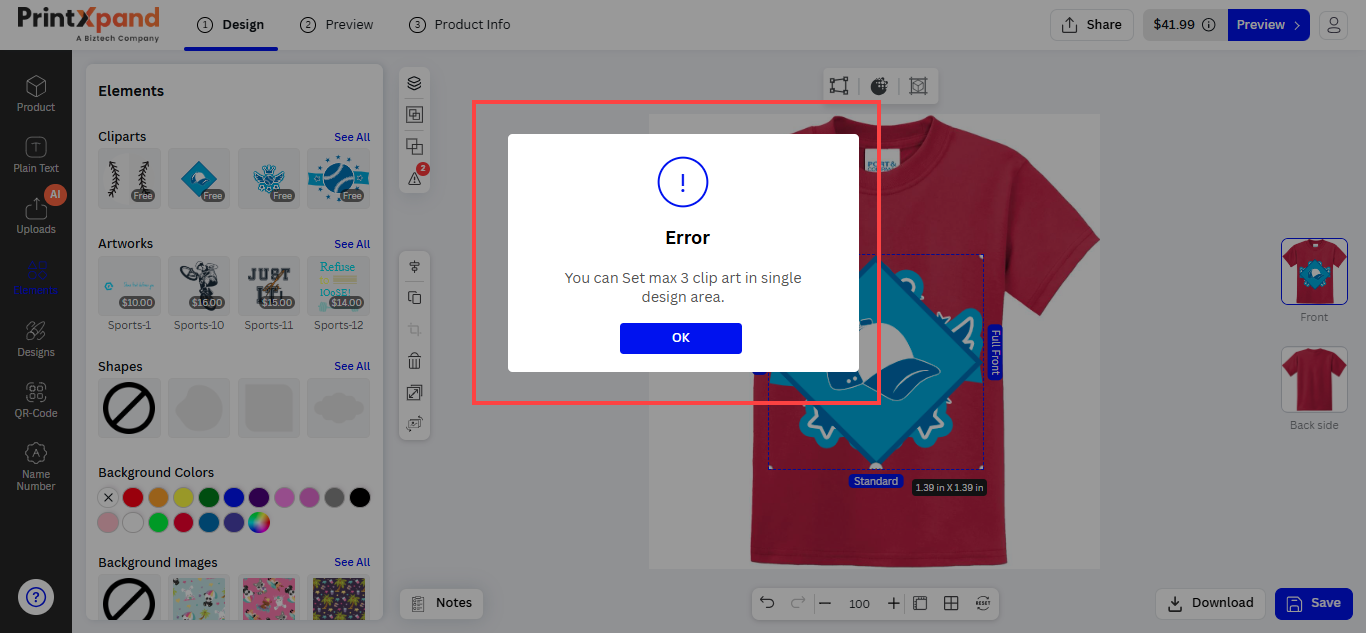
– Enable Clipart Limit: Select ‘Yes’ to set maximum clipart allowed in a single design area.
– Clipart Limit: Insert the No. of the Clipart limit so the customers cannot exceed that limit on the single design area.
– Error Message Clipart: Insert the relevant Error Message which will be displayed when the customers exceed the limit.
Clipart Configuration at Product level
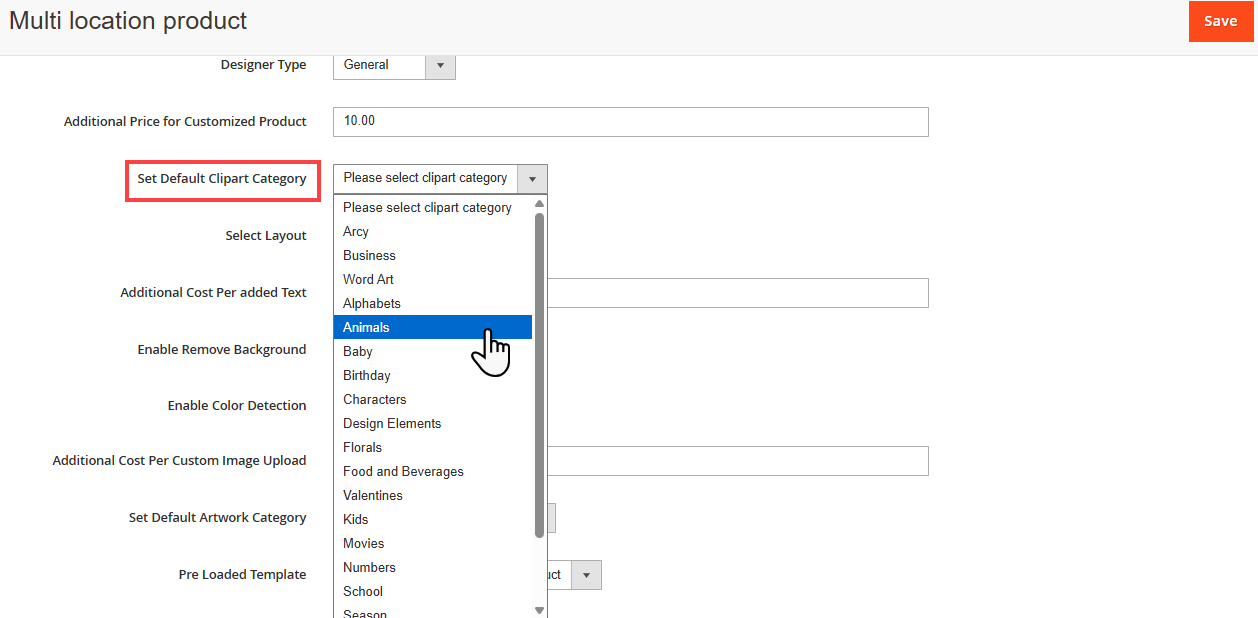
You can also select the default clipart category for the specific products. When the customers load the product to design using Clipart images, they will see the default clipart category that is selected as Default Clipart Category in the product. [1]
You will get the list of the “Clipart Category” in the drop-down. After selecting the Default Clipart Category, click on the Save button to apply the changes.
Note: If you have not selected the “Default Clipart Category” at the product level by default, the customers will see the default clipart category that is selected at the store level (Store Configuration).
Frontend View
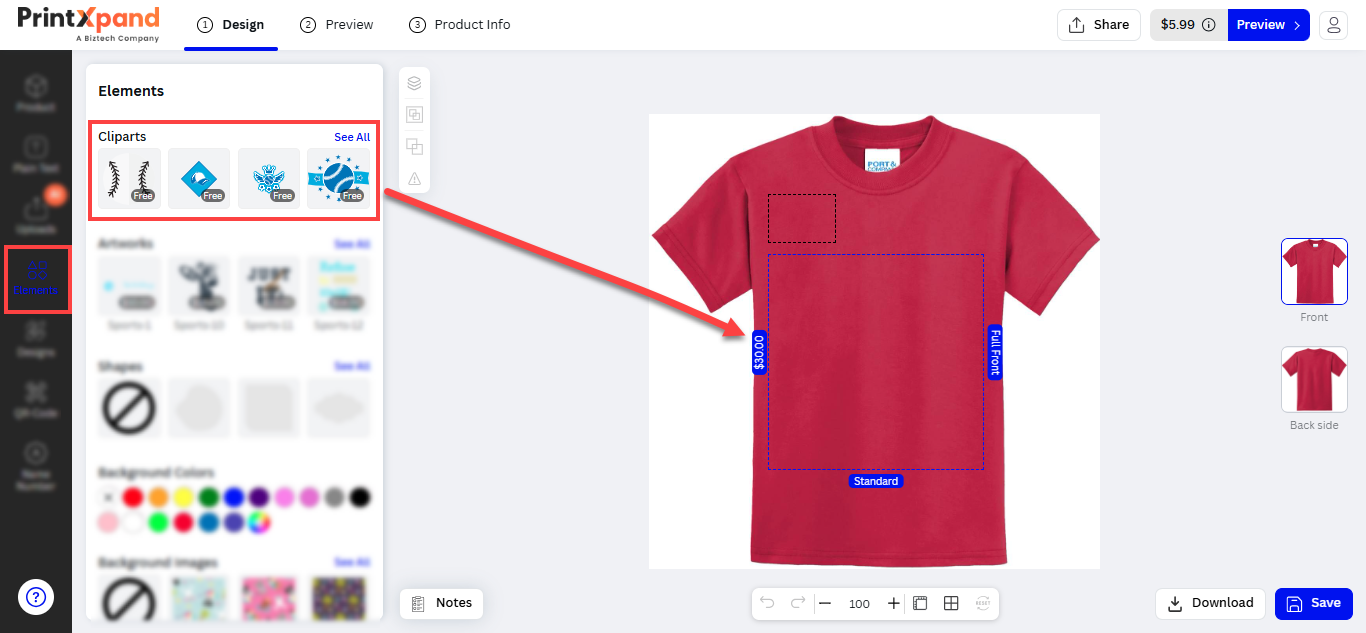
After configuring all the Cliparts settings from the designer tool backend configuration, the customers can add the clipart and design their product with some unique design! [2]
The customers can see the Cliparts in Elements Tab On the designer explorer panel (left side). The customer will see the default Cliparts in the sub-panel when they click on the Cliparts. If you have added the price for the clipart images, the customers can see the price tag on the clipart images. too.
Now, the customers can add their favorite Clipart image by clicking on the clipart image or simply dragging the clipart to the designing area.
Image File & Edit options
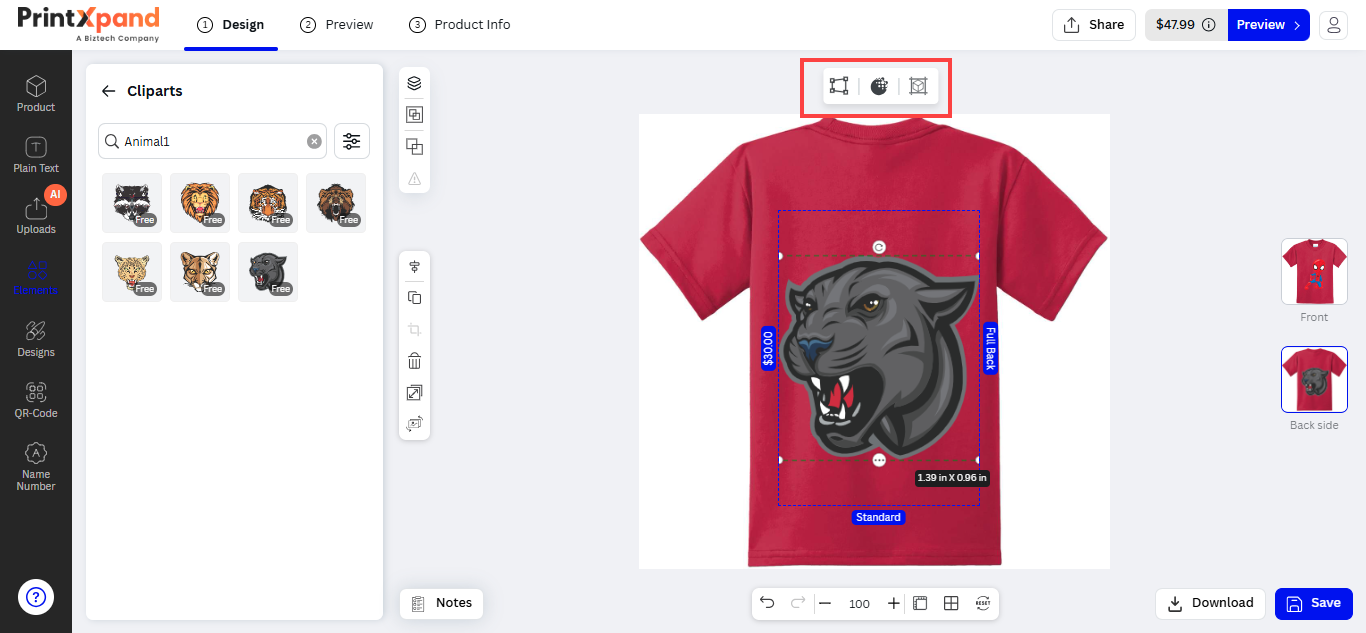
If the added clipart’s format is an SVG file, the customers can apply the “Clipart Colors”. [3]
The customers can also set different properties of the clipart image. (i.e. Opacity and Skew)
The customers will have a free hand to design their product using clipart images. They can design and edit the clipart image using the designer tools that are enabled by you (Admin).
Note: The customers can crop the Clipart Images but the cropping will not be applied on SVG format images.
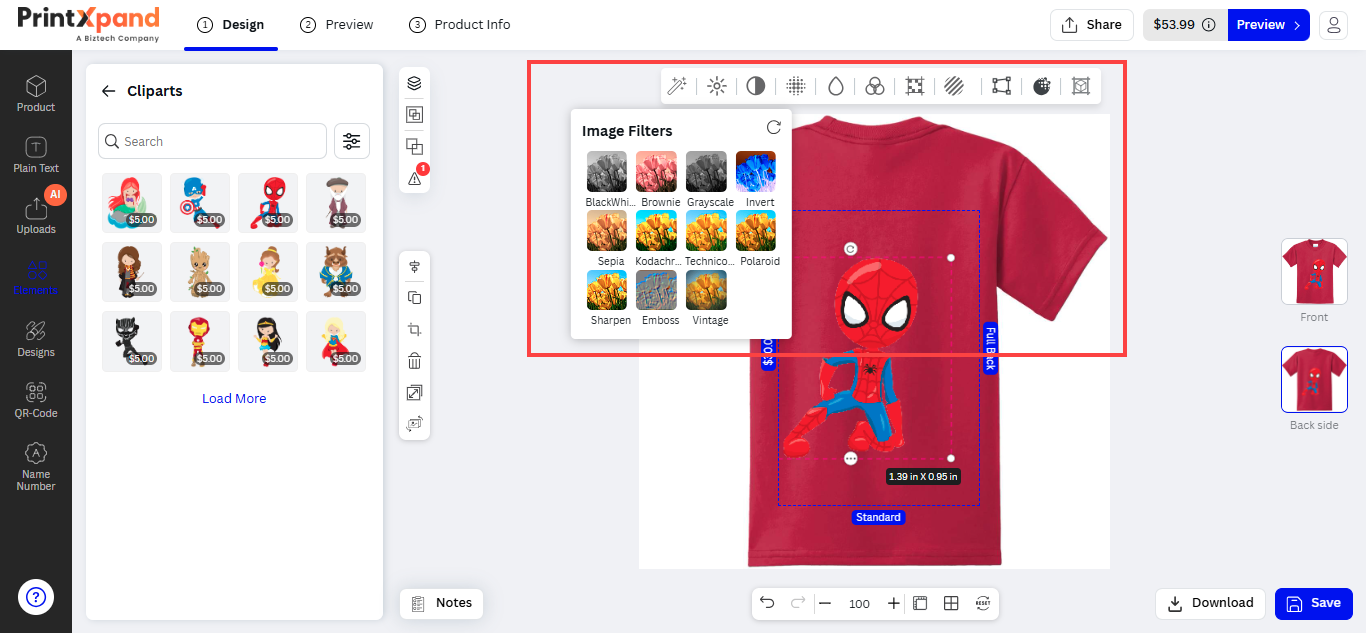
If the customers have added the clipart image other than the SVG file (PNG or JPG), they will get the “Image Effects and Filter” options. [4]
– The customers can filter the clipart image. The filter options will appear as per the “Image Filter” configuration.
– The customers can also set different properties of the clipart image. (i.e. Opacity and Skew)
Maximum Clipart
The customers can add the clipart images to the design area that are set from the store configuration for the Clipart. If they exceed the limit, they will get an alert message. [5]
Filter and Search Clipart Categories
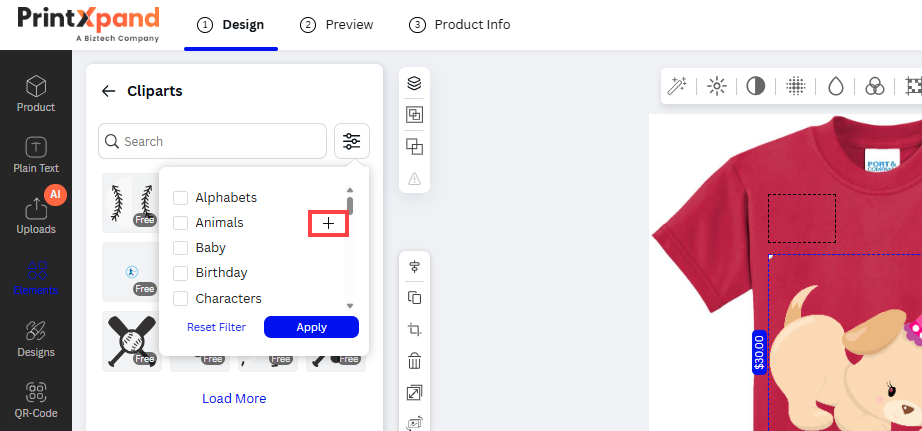
The customers can select the clipart category from the list. If any child category is there, the customers will see the “+” icon beside the clipart category’s name. [6]
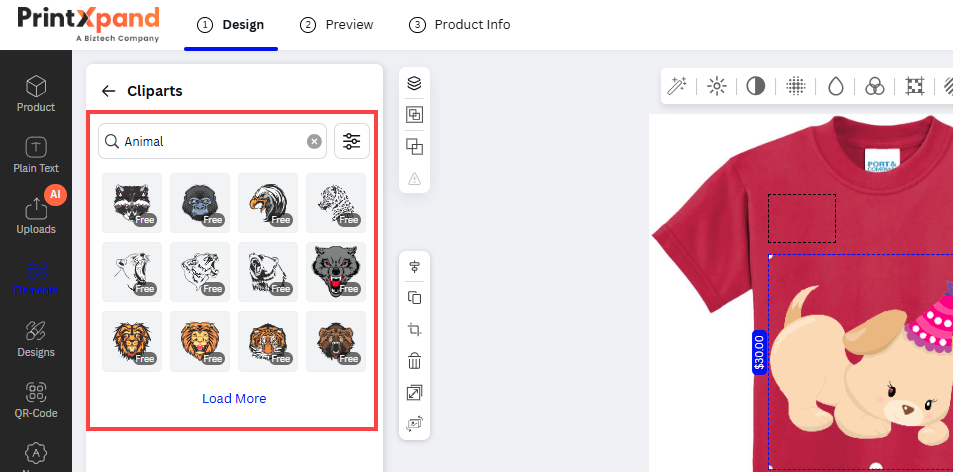
So,after selecting the clipart category, the customers need to click on the Apply button to search for the results. The customers can see more Clipart images by clicking on the “Load More” text caption. [7]
Price Details (Detailed Live Pricing)
The customers will see the pricing details labeled on the clipart. The customers will be charged as per the price that is added in Clipart’s image details. [8]
Mobile Responsive
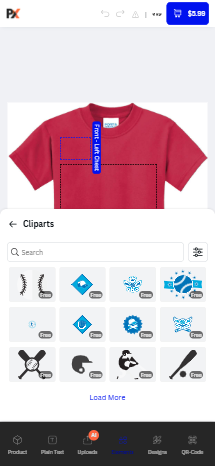
PrintXpand 4.0 Designer Tool is also responsive for mobile/tab devices. So, the customers can easily access the online store from Mobile or Tablet devices to design their desired products. [9]
Artworks
Manage layout
First of all, you need to enable the “Artwork” tab from the Manage Layouts for the specific Theme (Layout). Navigate to the Product Designer → Manage Layouts. [1]
You will see the Artwork Sub-tab under “Elements”. Enable the Artwork tab to display it in the storefront and allow customers to choose any artwork for the product design.
After configuring the layout options, click on the Save button.
Manage Artwork Categories
You can define the Artwork Categories to manage the different types of Artwork. To add and manage the Artwork Category, go to Product Designer → Manage Artwork Categories. [2]
You will get the list of already inserted categories by clicking on the “Manage Artwork Categories”. You will get the list with the details like ID, Category Name, Parent Category Name (if assigned), Store View, Status, and Action.
To add a new Artwork Category, click on the Create Artwork Category button. You will navigate to the “Artwork Categories Information” page by clicking on the “Add Artwork Category” button. [3]
You need to insert and configure the following options: [4]
– Title: Insert the relevant title to identify the category of the Artwork.
– Assign as Root Category: Enable this option if the category is the Artwork’s Root (Parent) category.
– If you disable this option, you can see the “Category” drop-down selection to select the parent category (Root Category).
– Category: Select the parent category from the list. The customers will see the child category under its parent category in the storefront. Here, the “Festivals” are selected as the parent category.
– Store Views: Select the stores on which the Artwork will be accessible.
– Select Status: Choose the default status of the Artwork category. (Enable/Disable).
– After inserting all the details, click on the Save button to add a new Artwork Category.
– Now, the newly added Artwork Category will be added to the list.
– But, if you want to add a new category as a parent (root) category, you need to enable the “Assign as Root Category?” option.
– After saving the Artwork Category Information, the category will be listed.
– Here, you can see the added category is a parent category (root category). [5]
Edit,Delete and Status
You can edit any category just by clicking on “Select” under the Action column for that specific category. [6]
You will see the Edit, Enable/Disable, and Delete options by clicking on the “Select” text caption. To edit the category, click on the ‘Edit’ option. You will navigate to the editing page of that category.
If you want to disable the category for a while, click on the ‘Disable’ option.
If you want to ‘Delete’ any category, select the category and click on the ‘Delete’ option from the ‘Actions’ dropdown list. A confirmation pop-up will appear after you click on the ‘Delete’ option. Select “OK” to perform the delete action.
Manage Artwork
Once you have added the Artwork Category, you can add the Artwork by selecting the relevant Category. You can either add the Artwork image or design a new Artwork. To add the Artwork, go to Product Designer → Manage Artwork. [7]
You will get the list of already inserted Artwork by clicking on the “Manage Artwork”. You will get the list with the details like ID, Artwork Category, Artwork Name, Price, Uploaded by, Storeview, Status, and Action.
To add a new Artwork, click on the Create Artwork button. You will navigate to the “Add Artwork” page by clicking on the “ Create Artwork” button. [8]
You need to insert and configure the following options: [9]
– Name of the Artwork: Insert the relevant name to identify the Artwork.
– Select Artwork Category: Select the Artwork Category from the drop-down list. If you want to assign the Child Category to the Artwork, you will get the Artwork Category with the dash “–” before the category name.
– Enter Price: Insert the price for the Artwork individually. If left blank it would be considered as Zero (free). When the customers add any Artwork to the designer area, the price will be calculated to the amount.
– Artwork Description : Enter the Description for artwork.
– Select Status: Choose the default status of the Background Images category. (Enable/Disable)
– Methods: Here, you will get two options to add the Artwork either “Upload” the image or “Design It (Create Using Design Tool)”. Choose a Method for Artwork.
Upload
If you have the Artwork image file in the SVG format, you can upload that SVG image using the Upload method.
Once the image is uploaded, you will see the preview of the artwork’s image. You can delete the uploaded artwork’s image by clicking on the ‘delete’ icon.
Note: The Artwork’s image must be in SVG format.
Upload Thumbnail : Upload the Thumbnail for the Artwork. [10]
After inserting all the details, click on the Save button to add a new Artwork. Now, the Artwork will be added to the list.
Create using the designer tool
If you want to design and create an Artwork by yourself, select the “Create using the designer tool” method. Here, the Parent Artwork Category is selected. [11]
Select the Create using the designer tool method to design the Artwork by yourself. After selecting the method, click on the Save and continue edit button. Now, the Artwork will be added to the list. You will be redirected to the Design Tool.
You can design the artwork using the designer explorers and the different tools. You will have two options here to set the shape of the Artwork design: Square and Rectangle.
If you choose the “Rectangle” shape, again you will have two options for the Rectangle: Landscape and Portrait. You can choose the shapes for the artwork design according to specific products.
If everything is done correctly, click on the ‘Save & Back to Store’ button to save the Artwork.
Once you save the Artwork, you will see the popup of the successful creation of the Artwork. Click on the OK button and go back to the store.
Artwork- Use For Template
Click on the “Select” action to use the artwork for the template. You will see the Use for template option in the select drop-down list. [12]
By clicking on the “Use for template”, you will get the popup named “Product Selection”. You need to select the product(s) to create a template of the artwork. [13]
After selecting the products for the template, click on the Continue button. You will see the “Template created successfully” message on the header. [14]
By navigating to the “Templates” (Product Designer -> Templates), you will see the created templates for the selected product(s) using the artwork. It will take a few minutes for the template to be updated here.
After some time, you will see the Templates using the Artwork for the selected products. [15]
Frontend View
After configuring the Artwork Categories and Artwork from the backend configuration of the designer tool, the customers can add the Artwork to their product design. They will get the “Artwork” in the Elements tab to the designer explorer panel (left side). [16]
The customers will see all the Artwork with different categories that are created or added from the “Manage Artwork”. They can add the artwork by simply drag & drop or by clicking on it from the Artwork list in grid view.
Note: The customers can add only one artwork at a time to the designing area. If artwork is already in the designing area and the customers try to add another artwork, they will get the popup message for the artwork replacement. By clicking on the OK button, the artwork will be replaced. [17]
Customers can filter the artworks based on Category and sellers. The sellers section shows the artwork created by the sellers. [18]
You can also view each element of the artwork in the Layers section with their respective icons which will help your customers to easily manage the elements. [19]
Mobile Responsive
PrintXpand 4.0 Designer Tool is also responsive for mobile/tab devices. So, the customers can easily access the online store from Mobile or Tablet devices to design their desired products. [20]
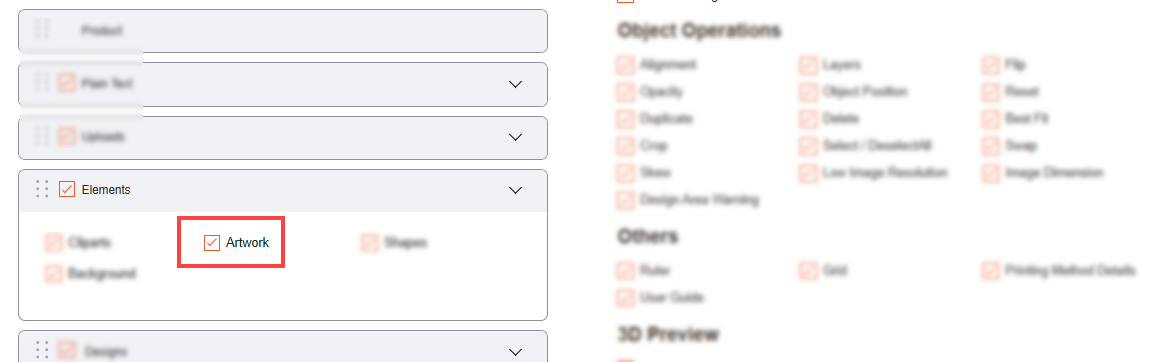
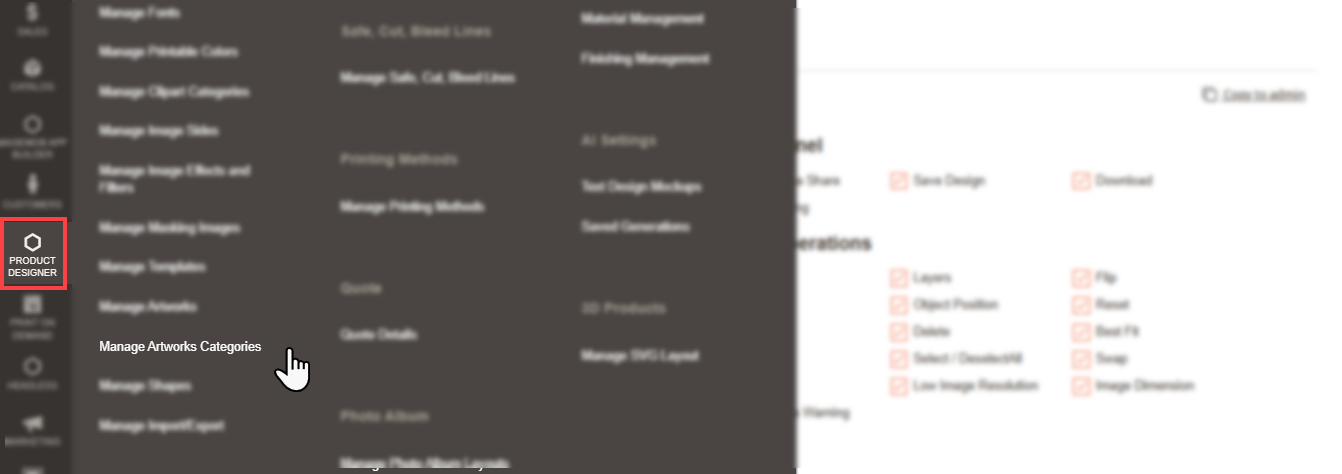
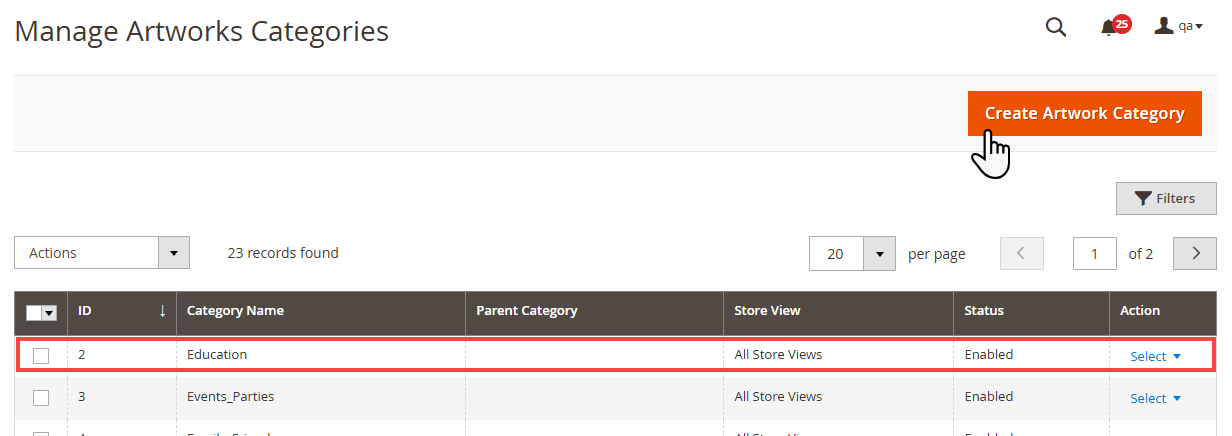
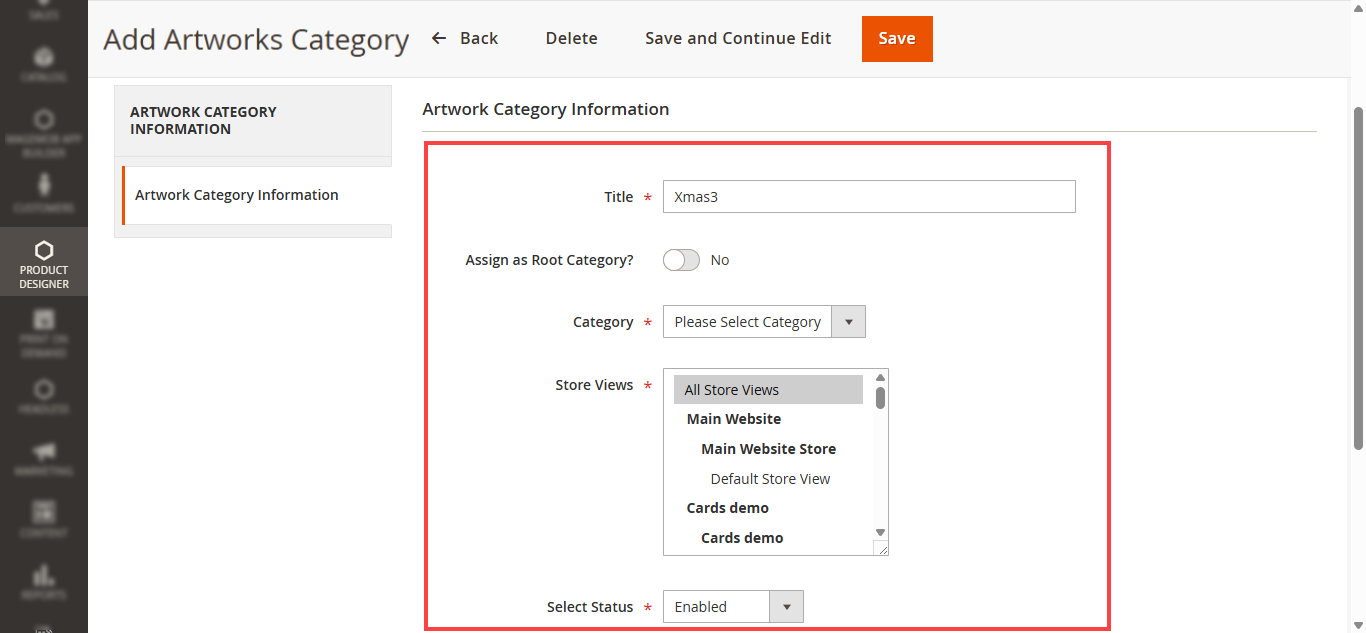
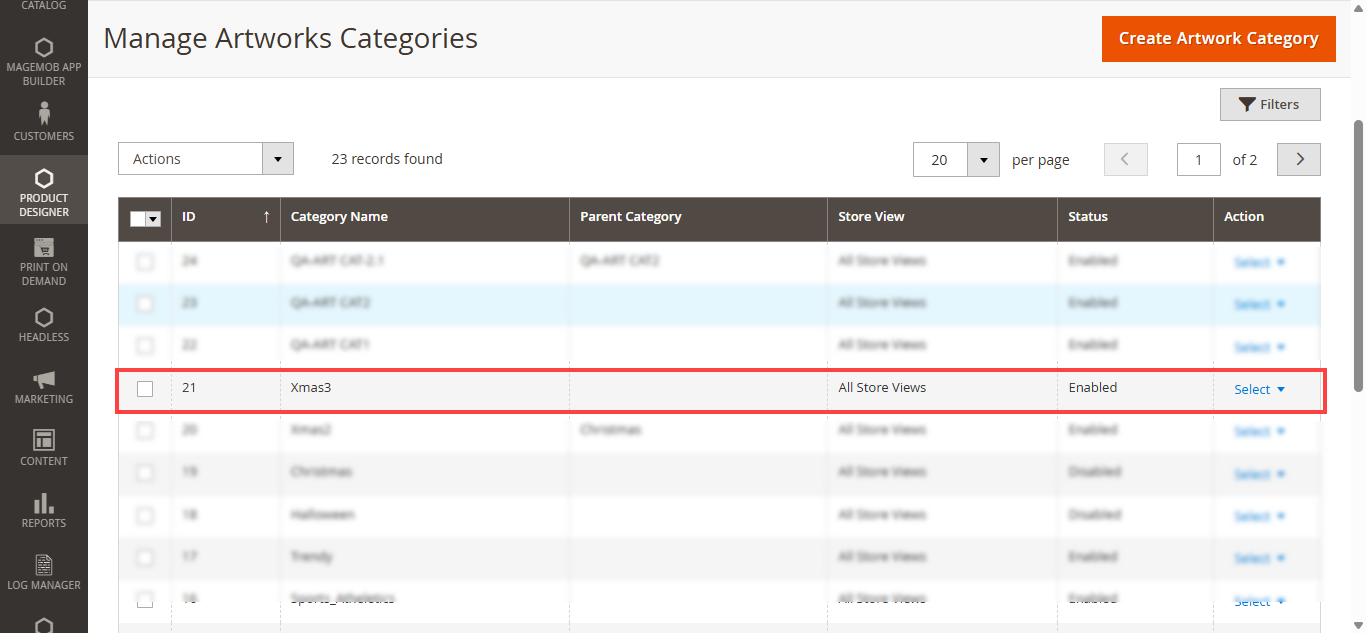
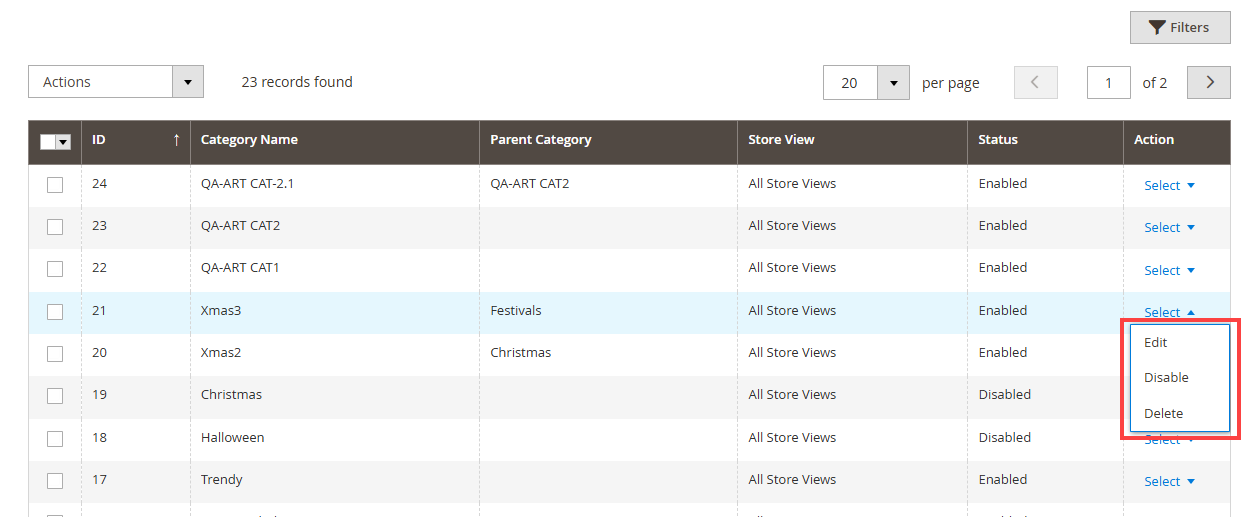
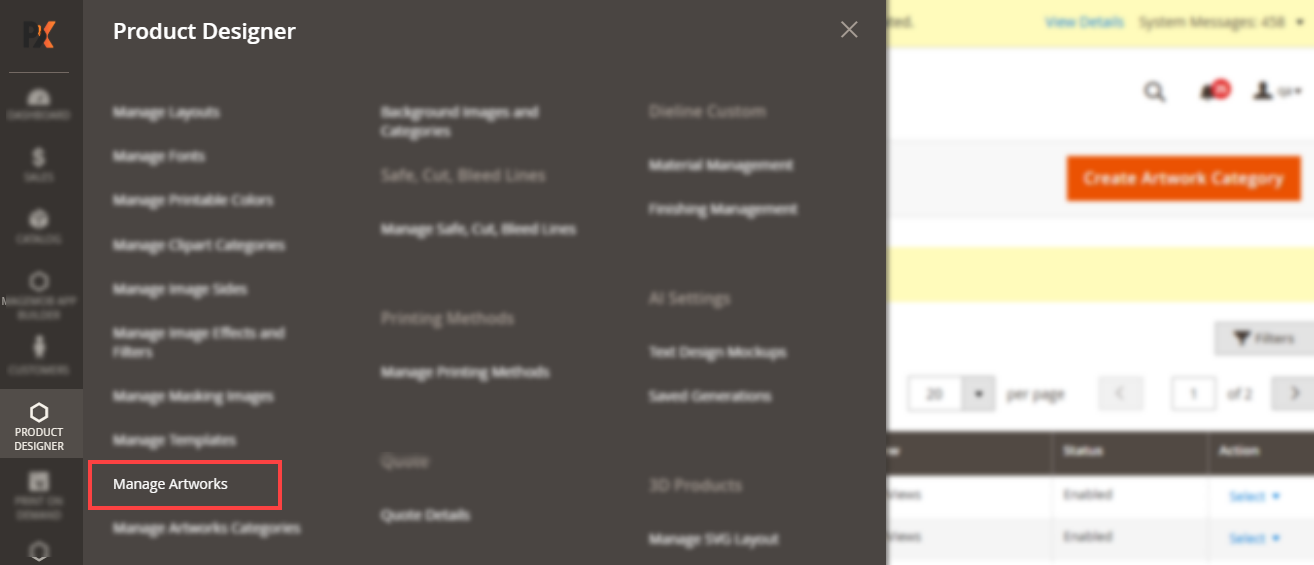
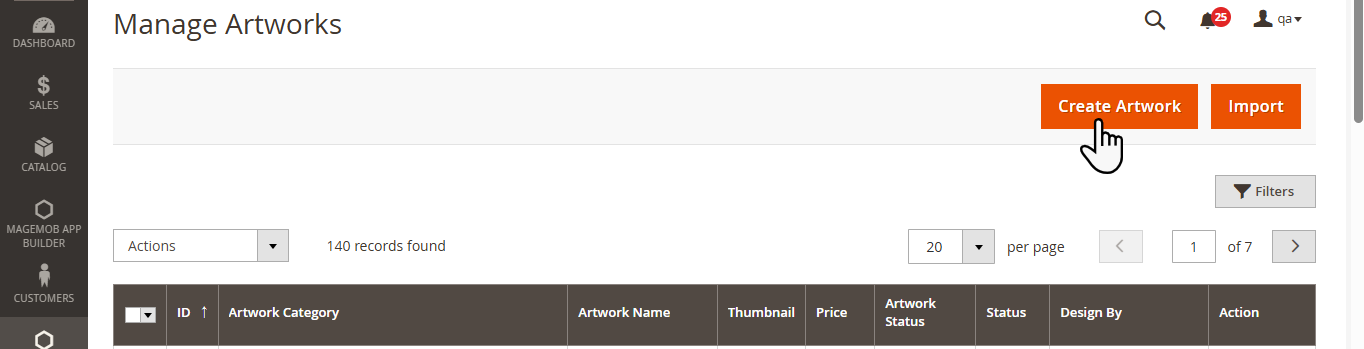
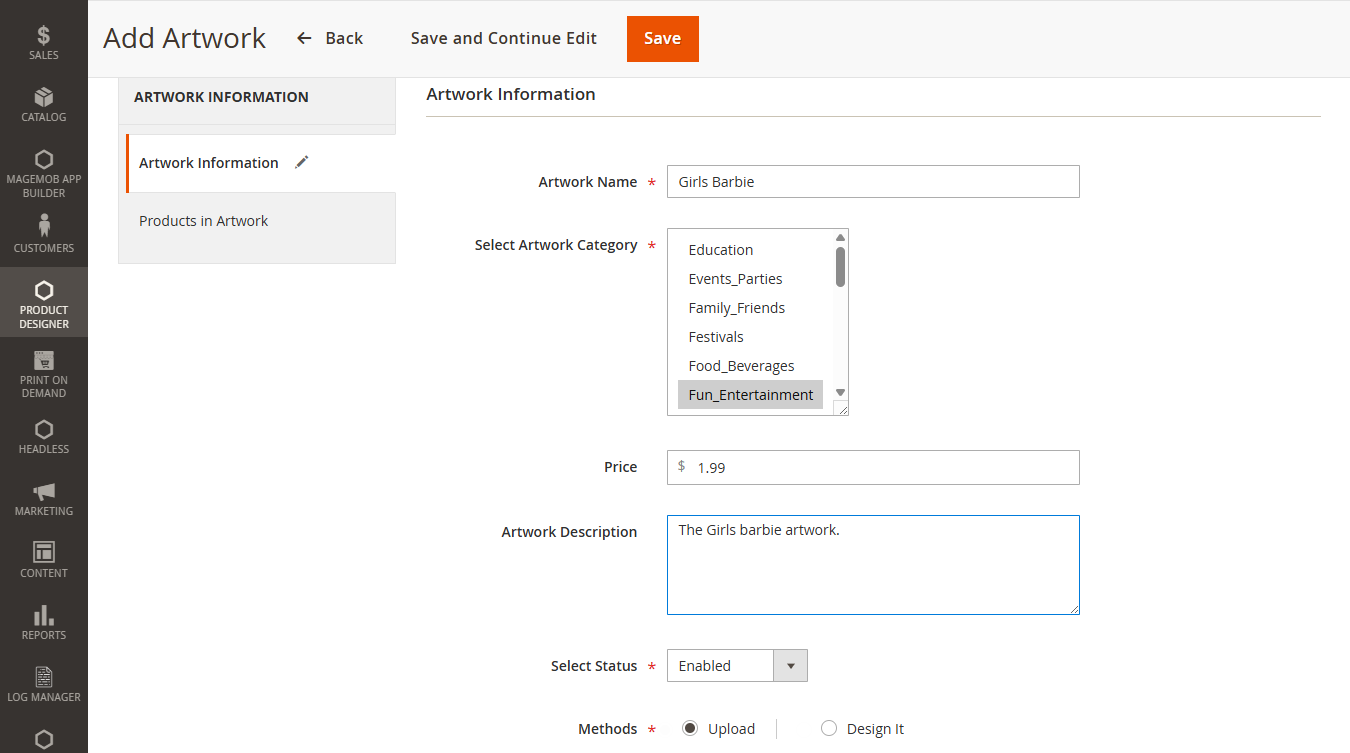
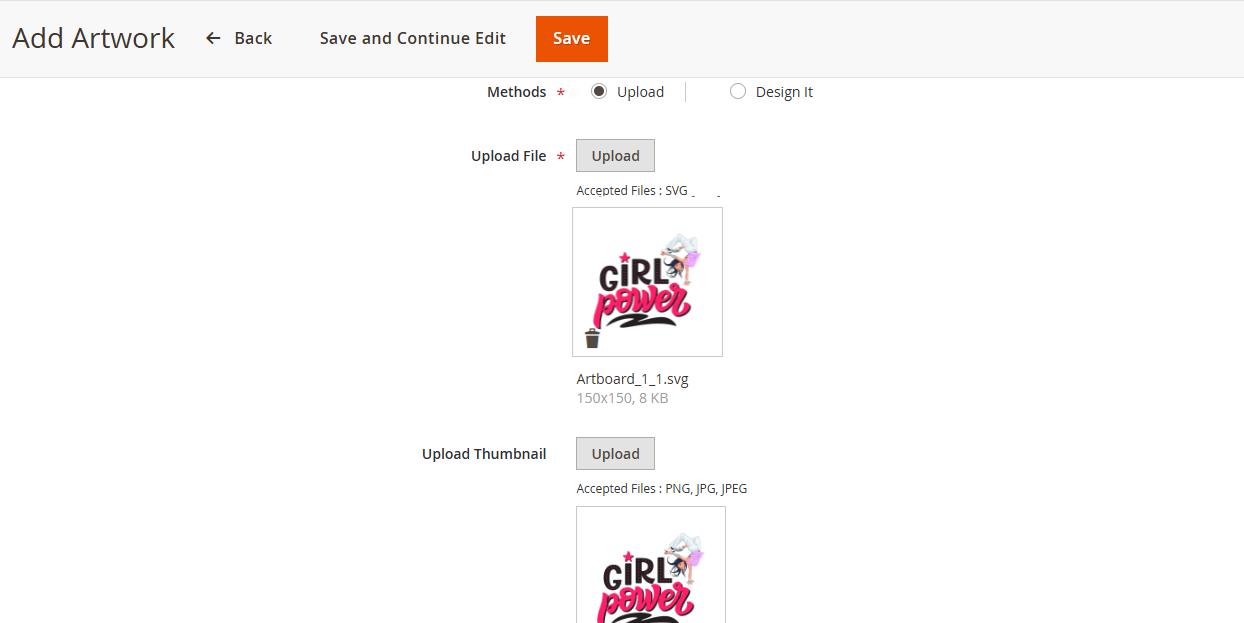
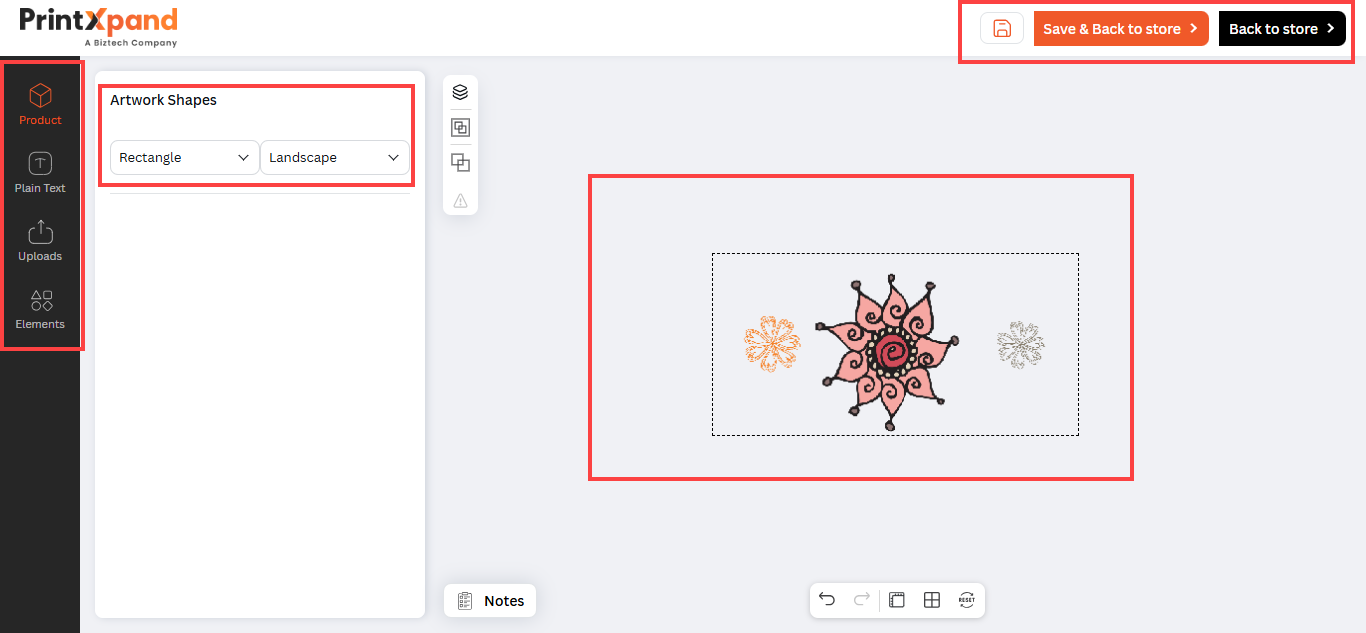
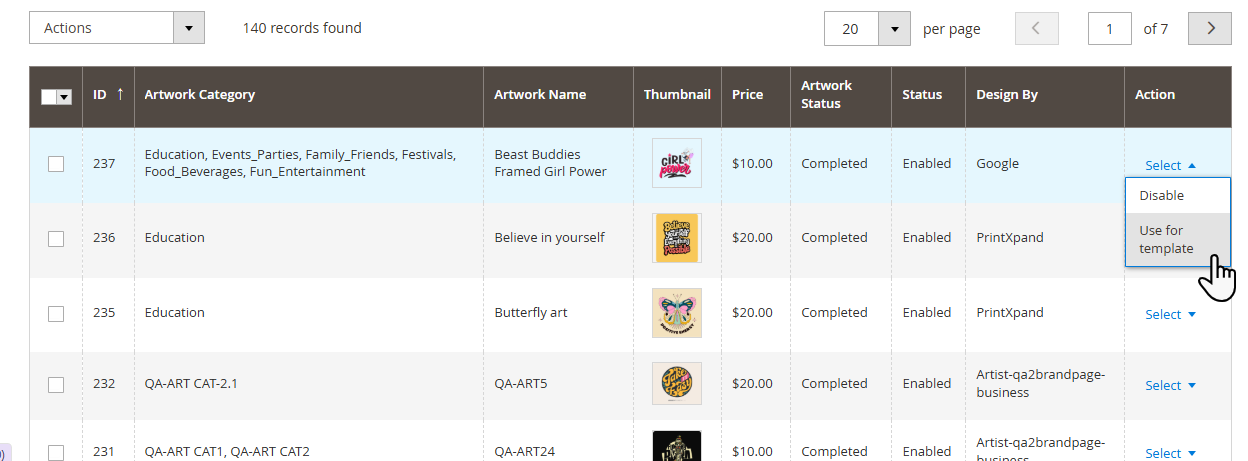
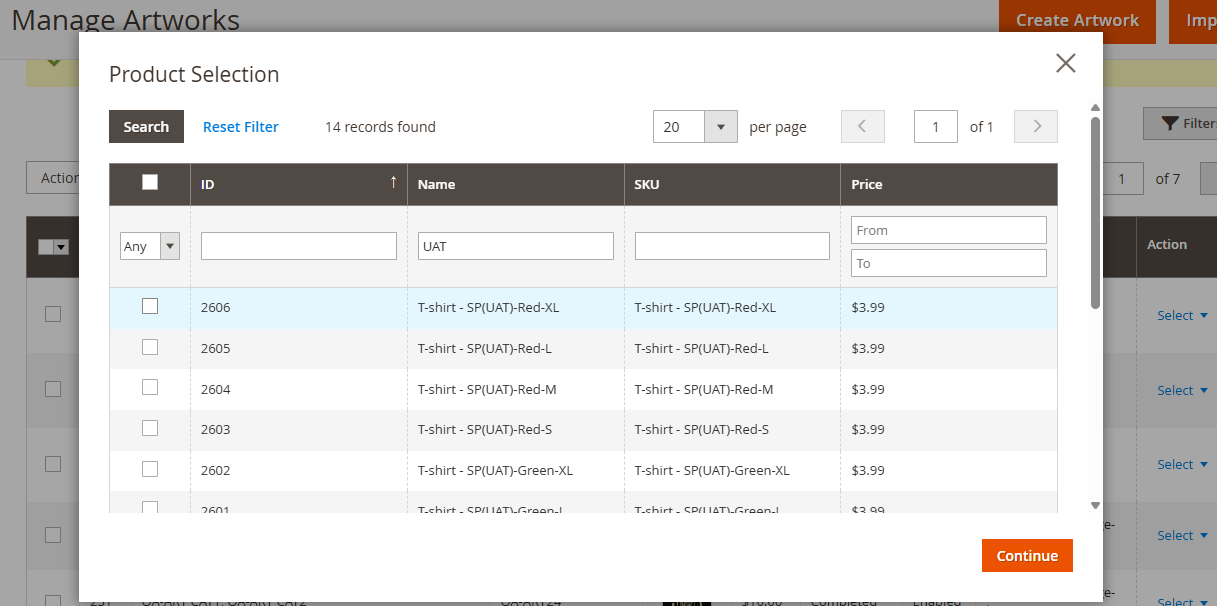
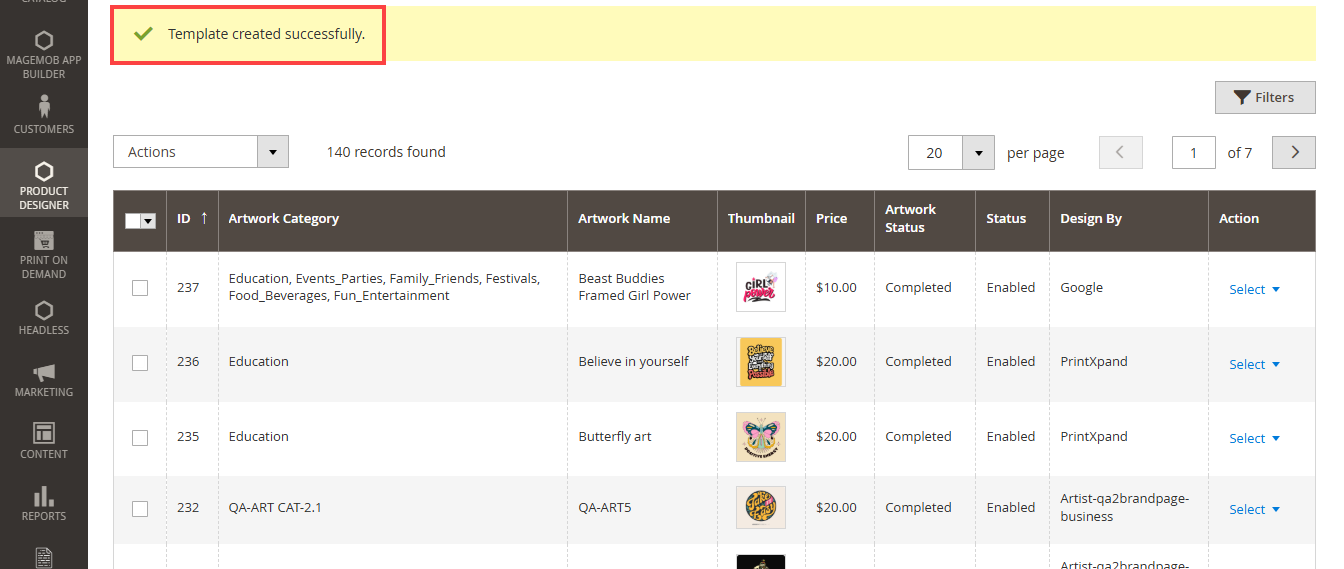
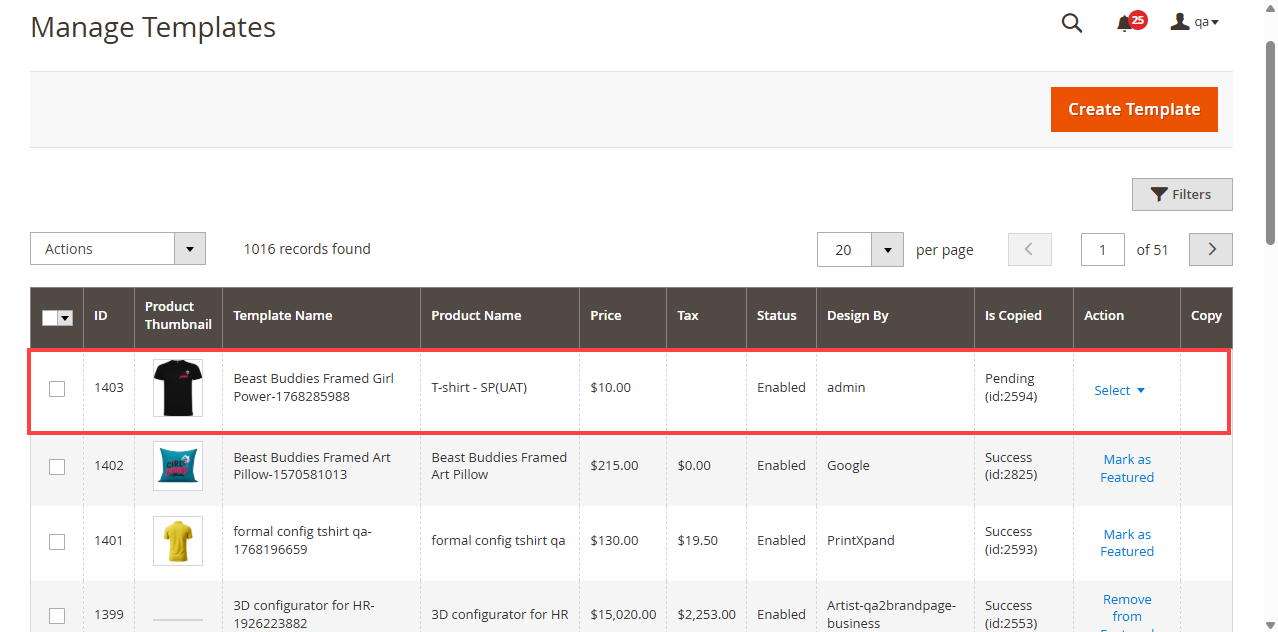
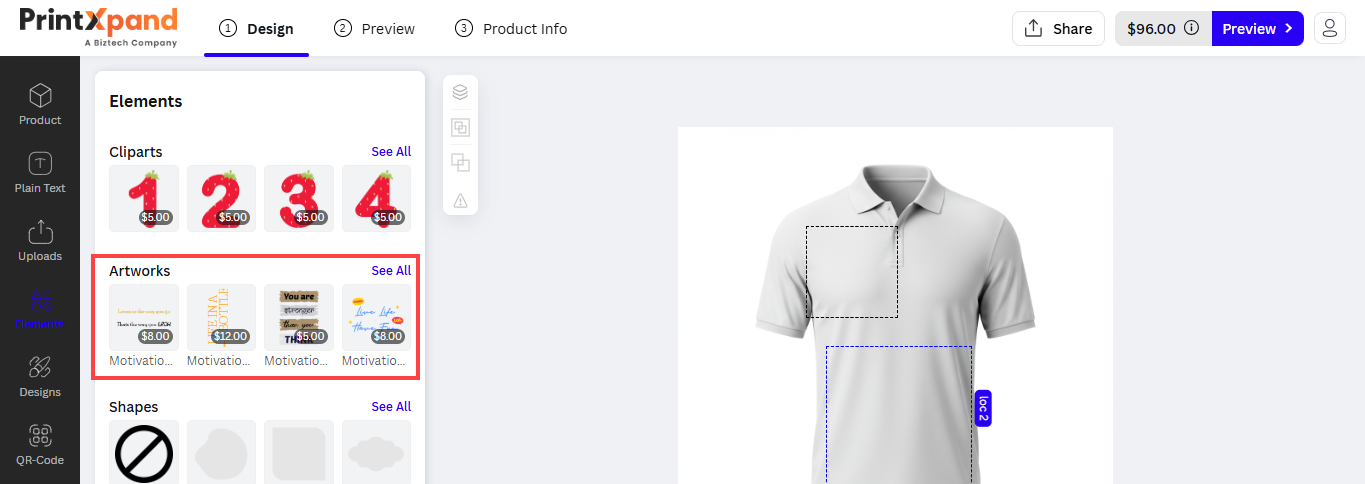
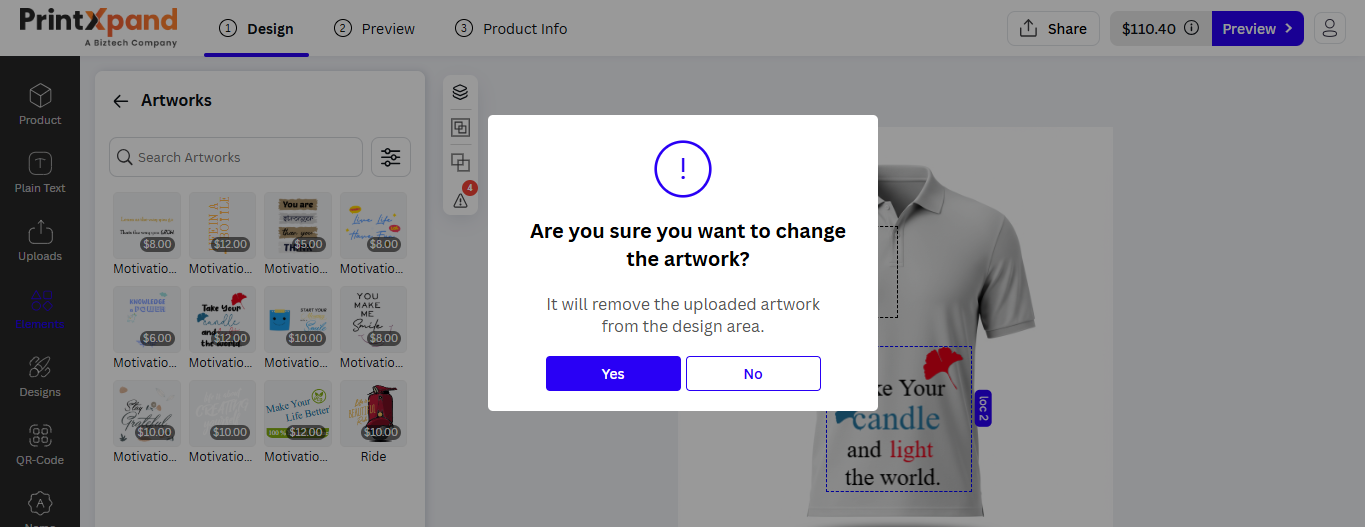
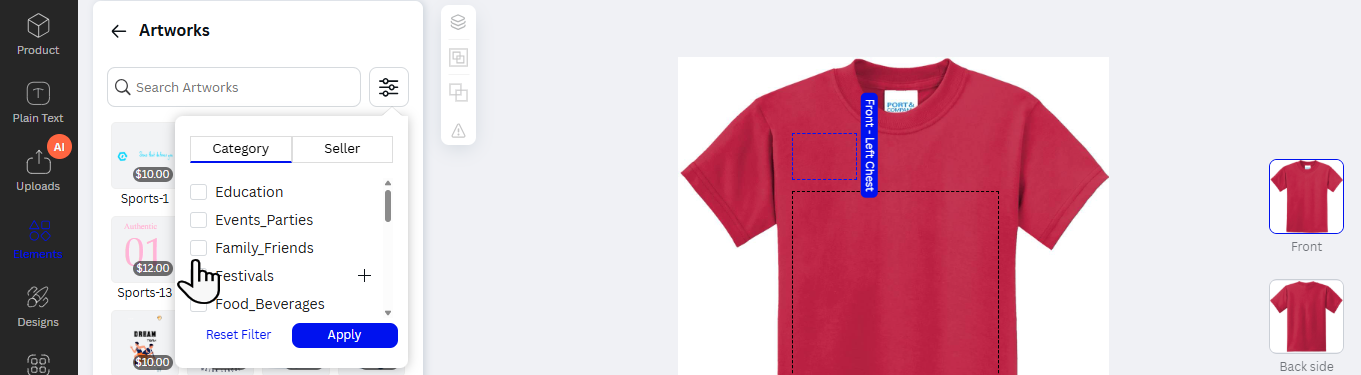
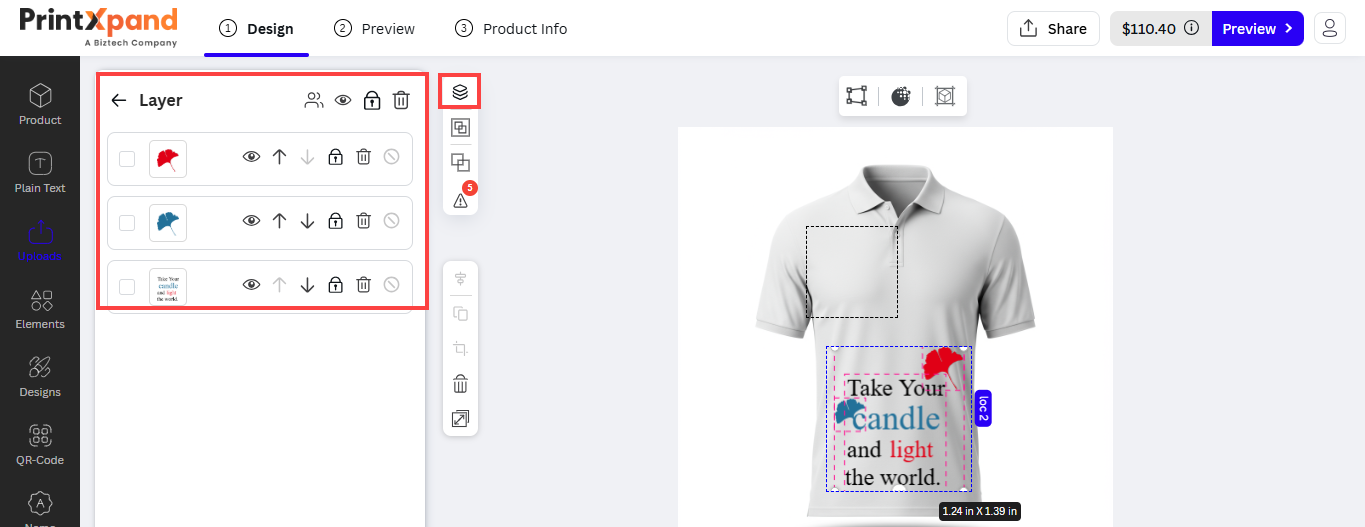
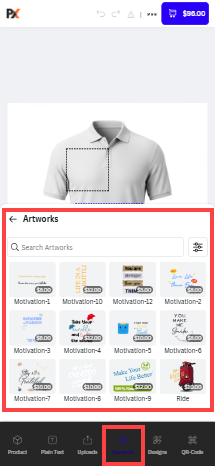
Shapes
Use masked shape images to clip portions of images or objects and create outcomes that focus on specific elements in your designs. You can provide the different shapes on the product designer tool to the customers to clip any object inside the boundaries of the shapes which is used as a masked shape image.
Manage layout
First, you must enable the Shapes from the Manage Layouts for the specific theme (layout). Navigate to the PRODUCT DESIGNER → Manage Layouts and edit the theme (layout) in which you want to enable the “Shapes” in the product designer tool for your online store. [1]
You will see the Shapes Sub tab under the “Elements Tabs”. By checking the “Shapes” menu box, you can enable the shapes in the product designer explorer menu in the front view.
Manage Shapes
You need to enable the Shapes menu from the Layout if you want to allow the customers to design their products by adding the masked shapes in the designer area.
Navigate to the PRODUCT DESIGNER → Manage Shapes. You will be redirected to the “Manage Shapes” page where you can see the existing list of the added shapes. [2]
By clicking on the Add Shape button, you will be redirected to the “Add Shapes” page to add a new shape. [3]
You can add a new shape by clicking on the “Add Shape” button or you can edit the existing shape to modify the details. [4]
Select the following details:
– Shape Name: Insert the relevant name of the shape.
– Main Image: Select the original image of the specific shape.
– Masking Image: Select the masking image of the original image of the shape.
– Status: Enable/Disable the status as per requirement.
– Is AI ?: Enable / Disable the Shape for the AI generated images.
After inserting the information and uploading the images, click on the Save button to add a new shape.
Frontend View
If you have configured the Shapes from the backend, the customers will design the product by adding shapes to the designing area. [5]
The customers can add the shape into the design simply by clicking on any shape from the grid.
Now, the customers add the images or clipart on the shape. [6]
When the customers add the clipart, it will be shown inside the boundaries of the shape.
The customers can add multiple shapes to the product designing area to design the product as per requirement. [7]
AI Shapes
Customers can add the AI Images in Shapes. If you(Admin) enabled the IS AI toggle. [8]
No Shape
You can remove the shape if it is not required for the product design. You need to select the shape from the product designing area and click on the No Shape option from the Shapes grid. [9]
By clicking on the “No Shape”, the customers will get the popup to remove the shape. [10]
By clicking on the Yes button from the popup, the shape will be removed and the added image/clipart will remain in the designing area. [11]
Similarly, the customers can also remove the shape from “Layer Management”.
By clicking on the ‘layer’ icon, the customers will see the No Shape icon. By clicking on it, the shape will be removed but the image/clipart will remain in the designing area. [12]
Delete Shapes
If the customers want to delete the shapes, they need to select the shape. After that, by clicking on the ‘Delete’ icon from the ‘Editing tool’ tab or pressing the delete key from the keyboard, the shapes will be deleted including the added image/clipart.
Mobile Responsive
PrintXpand 4.0 Designer Tool is also responsive for mobile/tab devices. So, the customers can easily access the online store from Mobile or Tablet devices to design their desired products. [13]
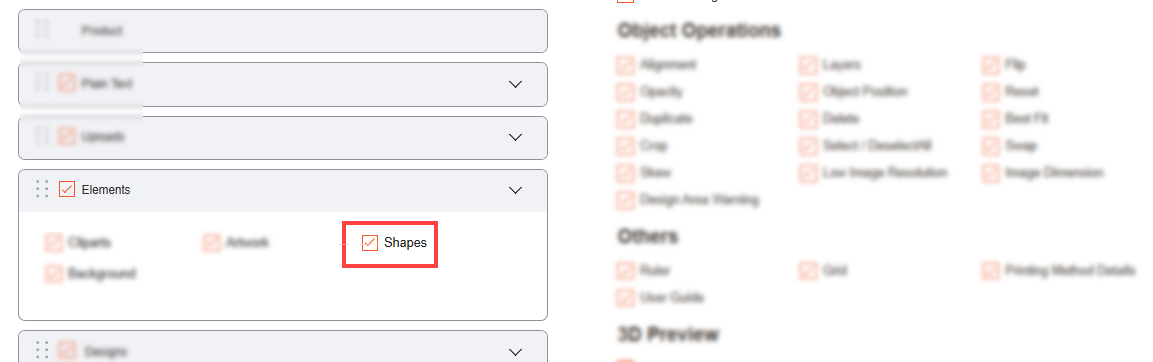
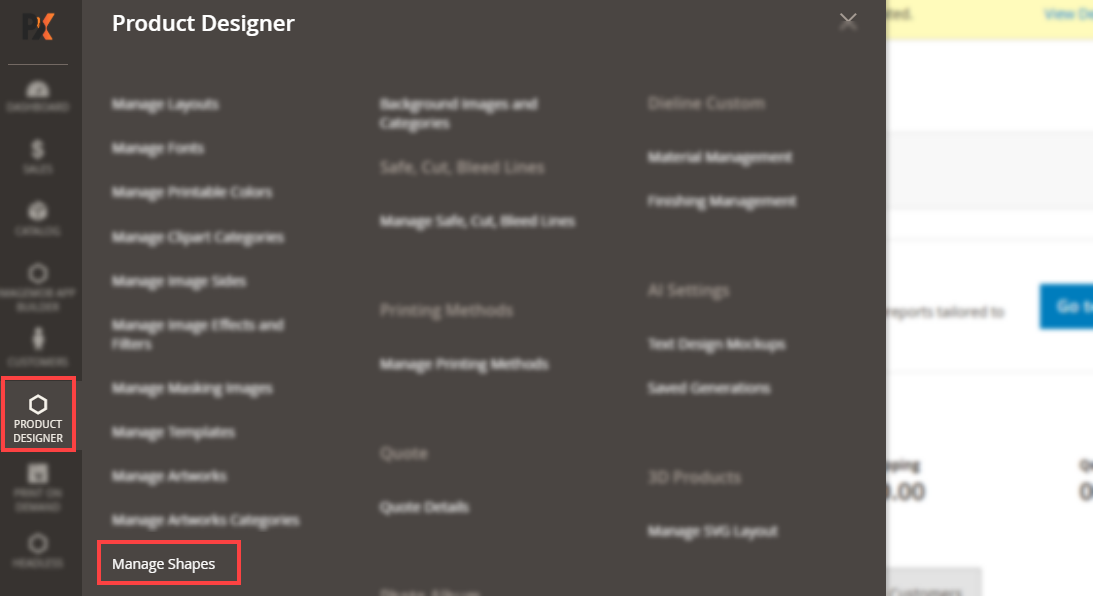
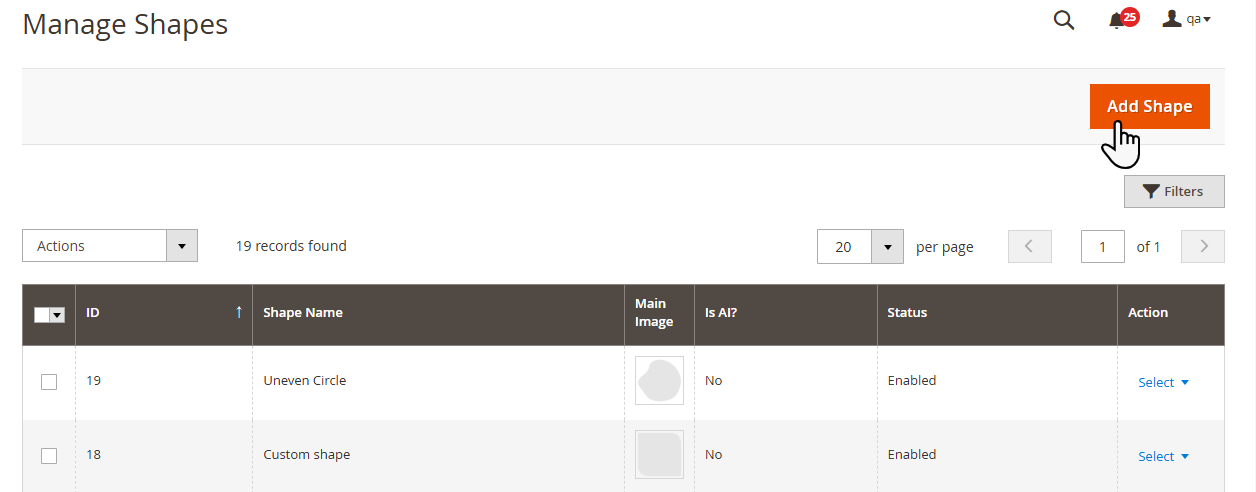
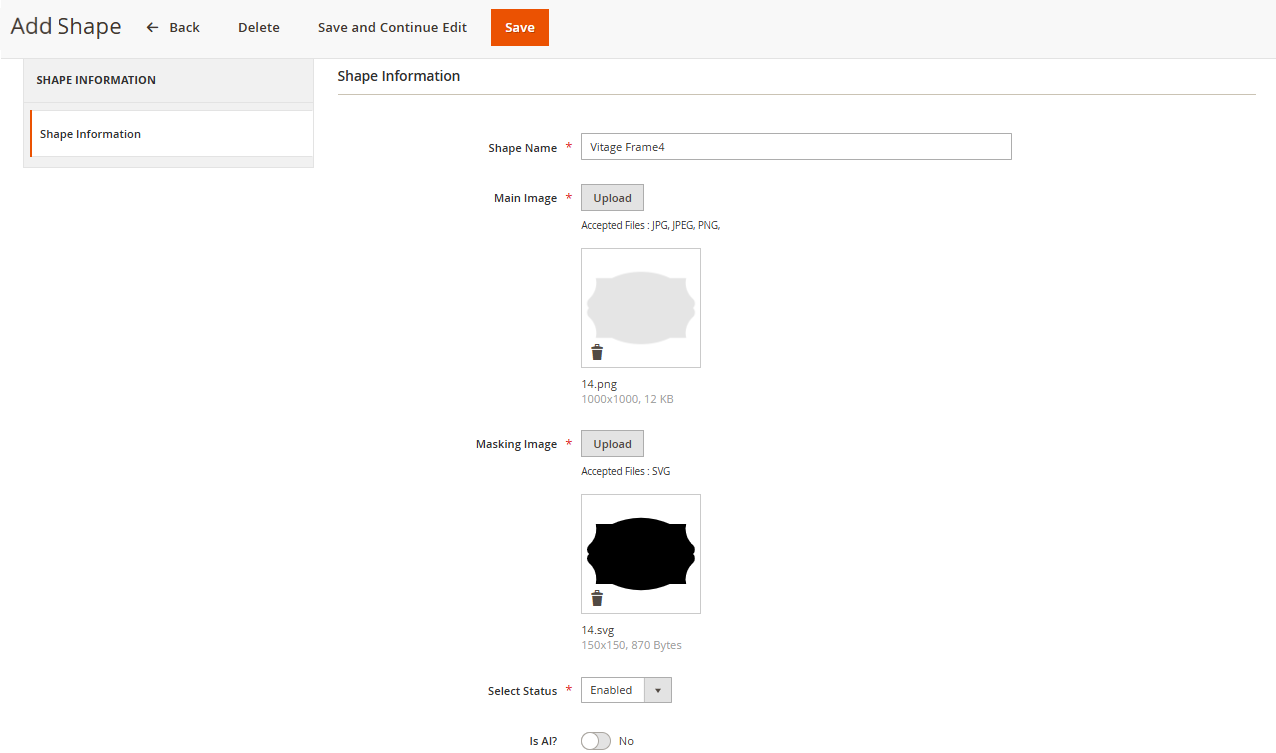
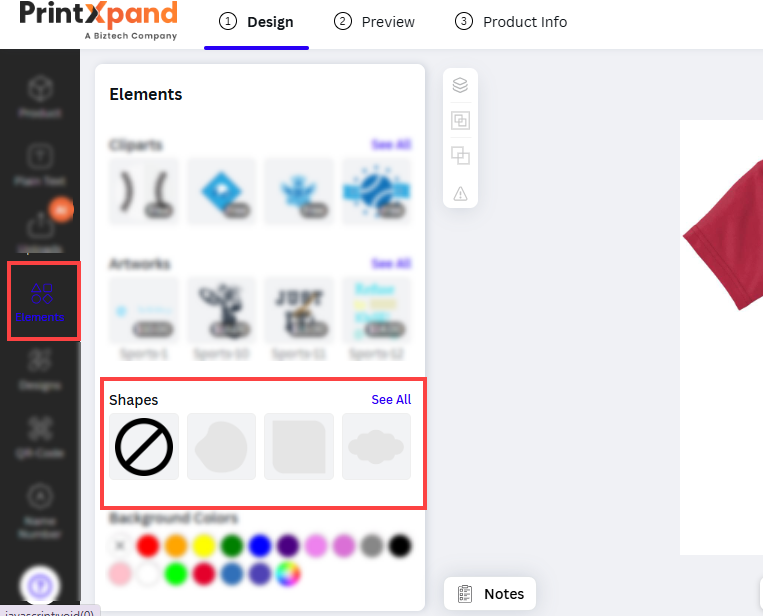
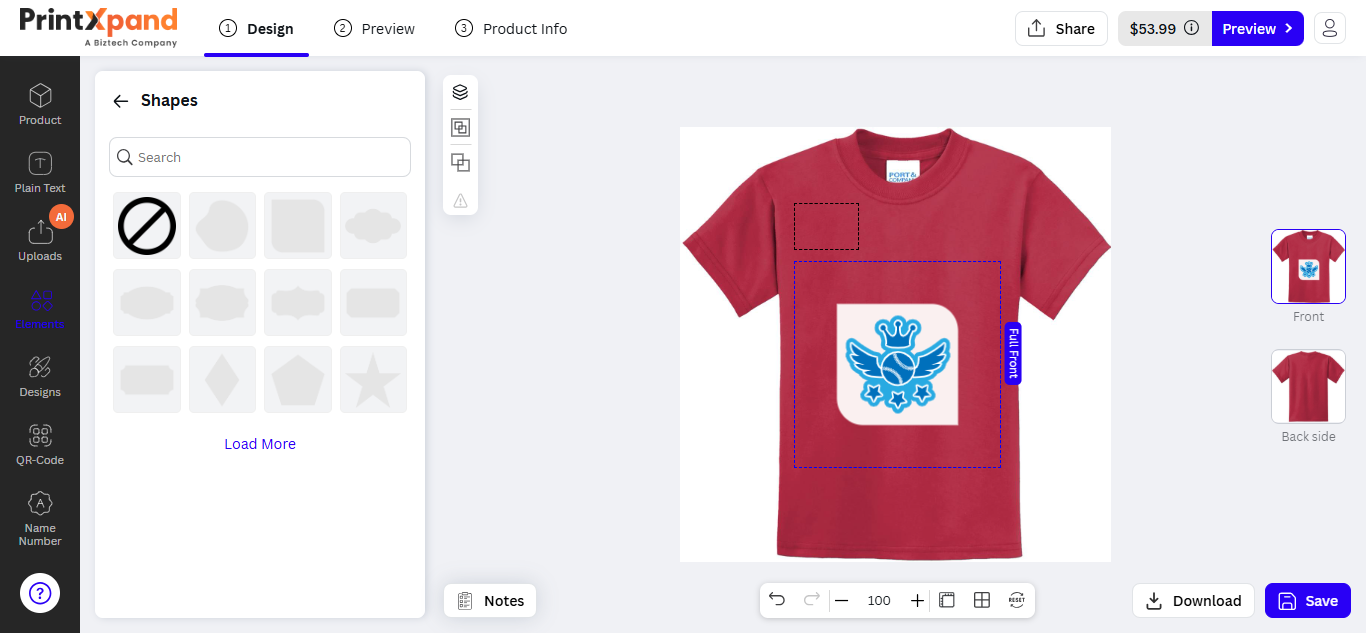
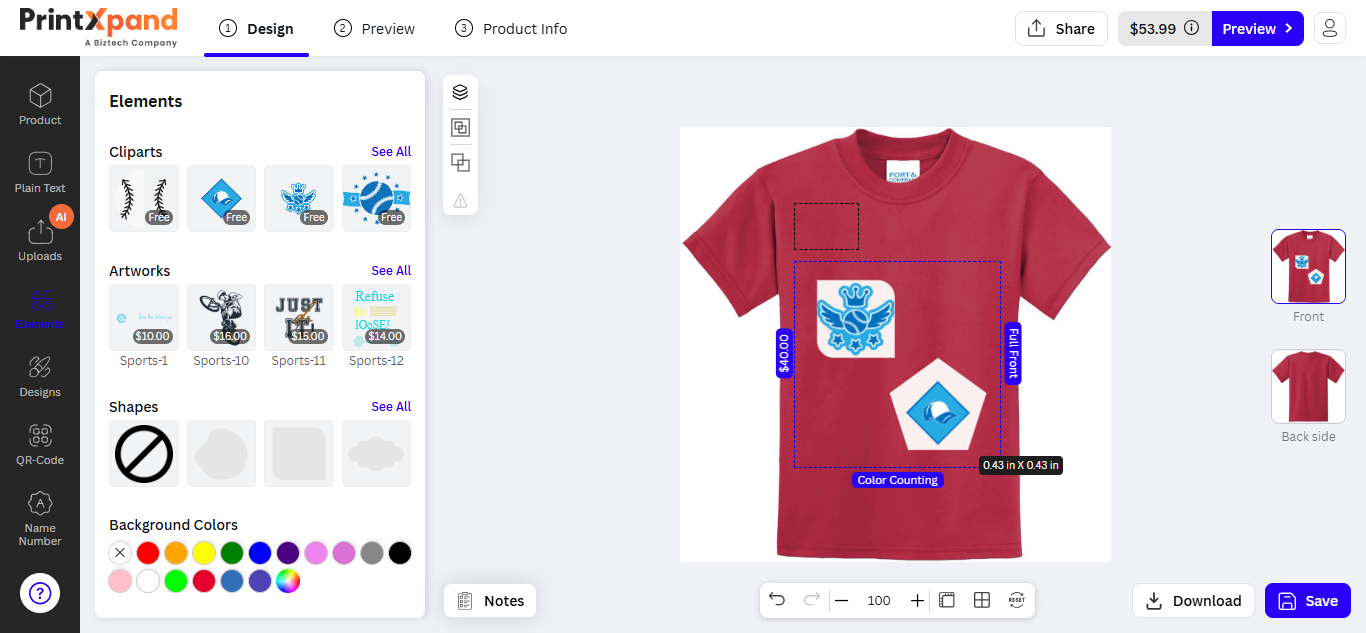
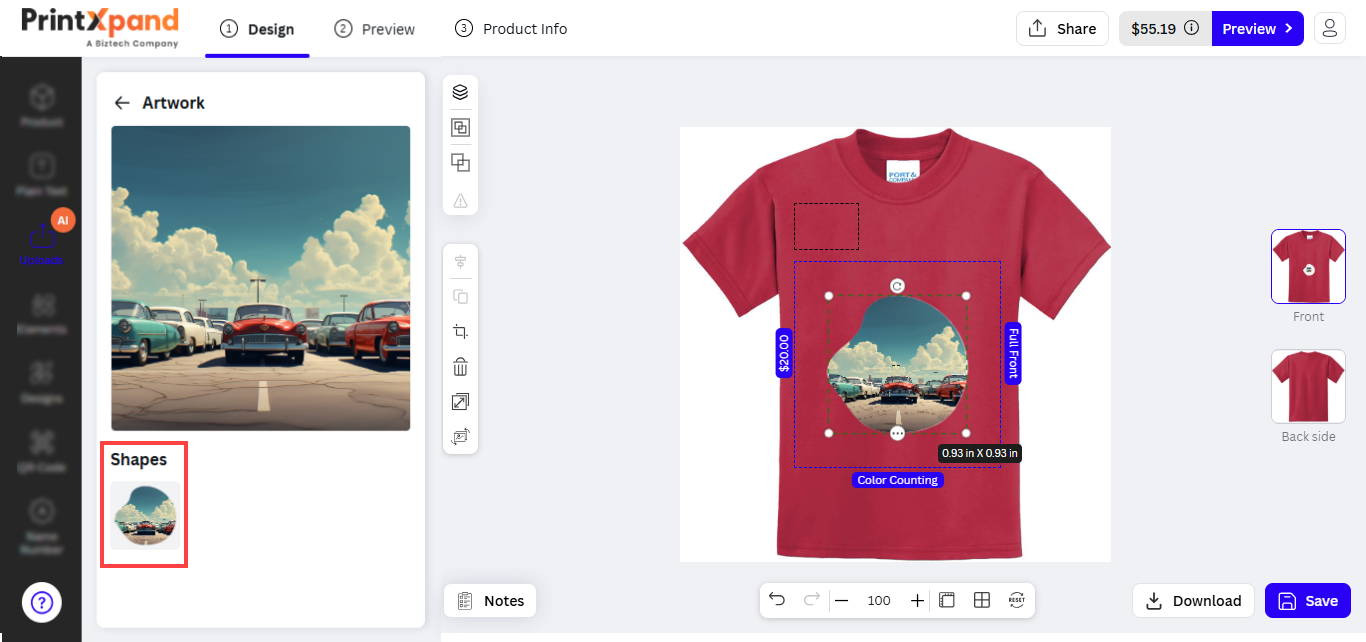
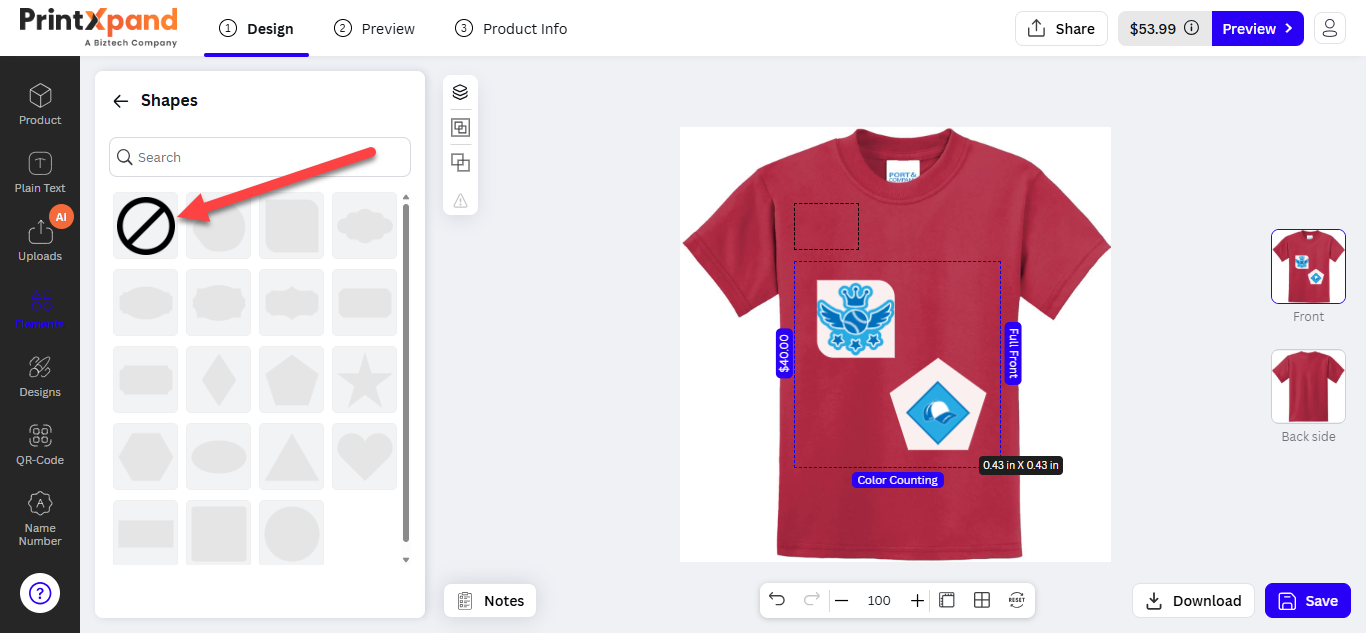
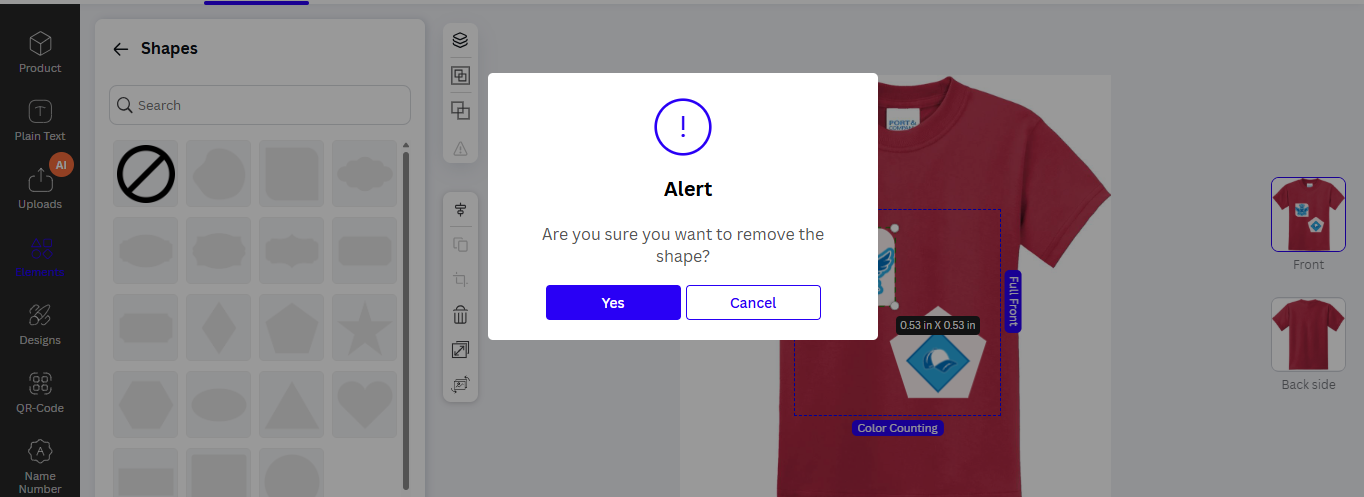
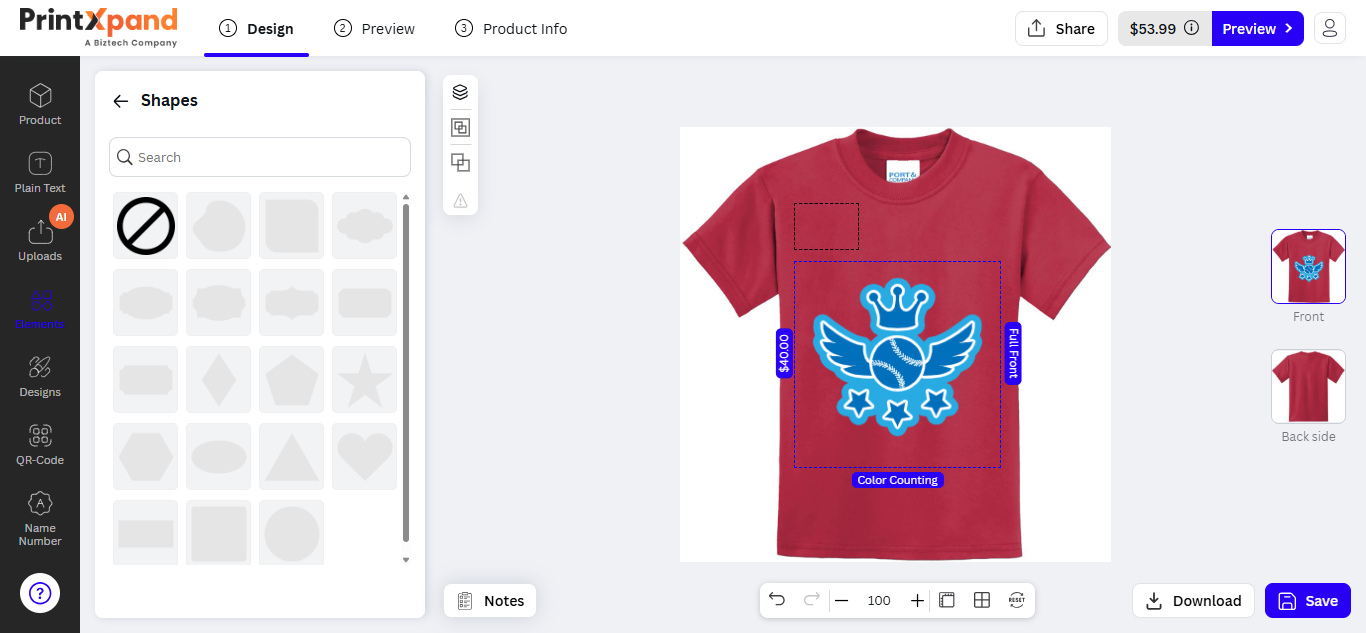
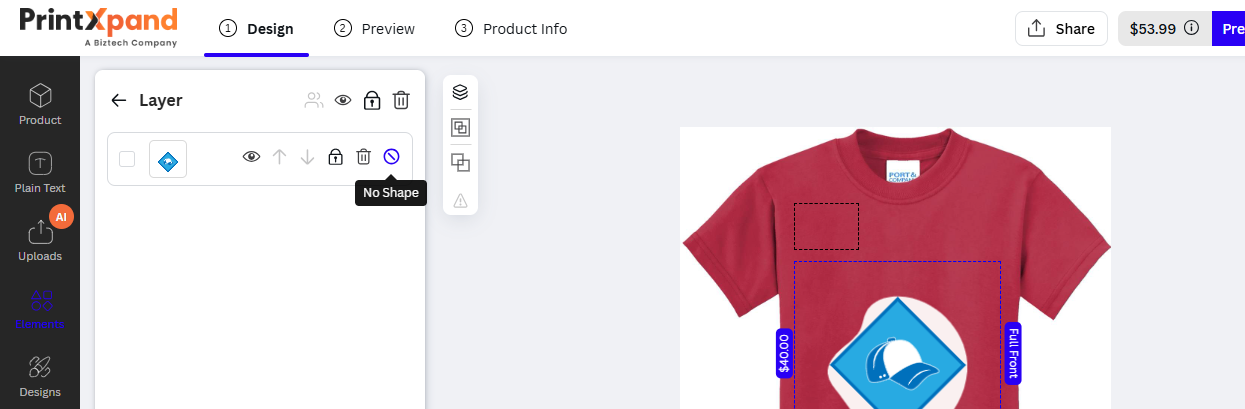
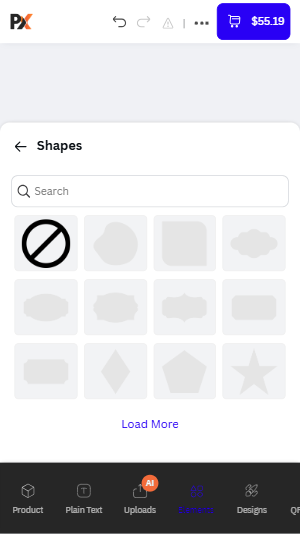
Background (Colors & Images and Categories)
Your Customer Can Add the backgrounds in the design with Background color and Background Images.
Our Printxpand 4.0 designer tool provides Background gallery and colors for customers that contains pre-loaded background images and colors which they can add to their products.
Manage layout
First of all you need to enable the “Background images and colors” from the manager layout for a specific theme(layout).
You will see the “Background” Sub Tab Under the elements tab. The customers will see the background sub-tab in the storefront only if it is enabled from the Manage Layout. [1].
Manage Background Images and Categories
You need to add the Background Images and category from Background Images and Category. If you want to allow the customers to design their products by adding the Background Images.
Navigate to the PRODUCT DESIGN -> Manage Shape. You will be redirected to the “Background Images and Category” page where you can see all the existing list of the added background Categories. [2]
By clicking on the “Add Background Category” button you will be redirected to the “Add Background images and Category” page to add a new category. Where you need to insert the details and assign the Root Category (Parent) with the images. Now, insert and configure the following details: [3]
– Title: Insert the relevant name of the Background.
– Assign as Root Category: Enable this option if the Background category is the Root (Parent) category of the images. If you disable this option, you can see the “Category” drop-down selection to select the Root category (Parent Category) for the new Background.
– Category: Select the parent category from the list. The customers will see the child category under its parent category. Here, the “Felt Text BG” is selected as the parent category.
– Status: Choose the default status of the background images category. (Enable/Disable).
– Clipart Images: You need to browse and upload the background images. The formats must be JPG, JPEG, PNG, SVG.
You will see the uploaded background images in the grid view. Here, you need to insert the following details: [4]
– Label: Insert the background image’s text label, so the customers can search the image by inserting the text label.
– Position: Insert the position to manage the sequence of background images.
– Select Status: You can set the default status of the background image (Enabled/Disabled).
– Remove: If you want to delete any image, check the checkbox of the “Remove” and save the configuration.
After inserting all the details for the background, click on the Save button to add a new Background Category. Now, the newly added Background will be added to the list.
Root Category
Here, you can see the added background images category is not a Root Category because its parent category is selected.
But, if you want to add a new background images category as a parent (root) category, you need to enable the “Assign as Root Category?” option. [4]
So now, the background images Category is added as a parent category. You can upload the background images with the specific formats only like JPG, JPED, PNG, and SVG.
After saving the background images, the category will be listed and you can see the added background images category is a Root Category. [5]
Edit, Delete and Status
You can edit any category just by clicking on “Edit” under the Action column. [6]
If you want to ‘Delete’ any clipart category, select the category and click on the ‘Delete’ option from the ‘Actions’ dropdown list. A confirmation pop-up will appear after you click on the ‘Delete’ option. Select “OK” to perform the delete action. [7]
Similarly, you can change the clipart category status to Enable / Disable from the ‘Actions’ dropdown list. [8]
Frontend View
After configuring the Background Images from the designer tool backend configuration, the customers can add the background images and colors to design their product with some unique design! [9]
The customers can see the Background Color and Images sub-tab on the “elements” tab (left side).
The customer will see the default background images in the sub-panel when they click on the Elements.
Now, the customers can add their favorite background color and images by clicking on the color or image.
No Background
You can remove the background image if it is not required for the product design. You need to select the design area and click on the No Background image option from the Background image grid. [10]
By clicking on the “No background image”, the customers will get the popup to remove the background image. [11]
By clicking on the Yes button from the popup, the background image will be removed.
Mobile Responsive
PrintXpand 4.0 Designer Tool is also responsive for mobile/tab devices. So, the customers can easily access the online store from Mobile or Tablet devices to design their desired products. [12]
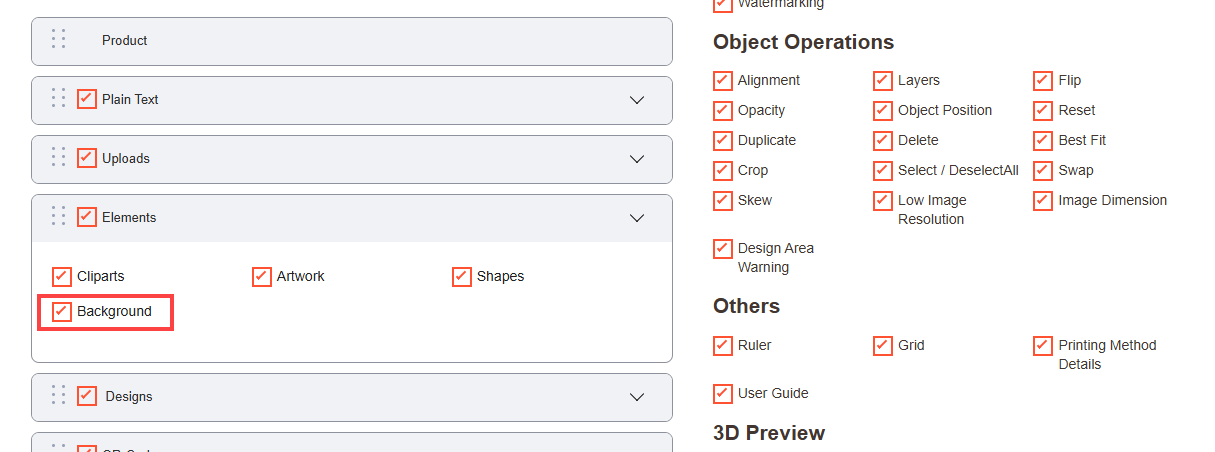
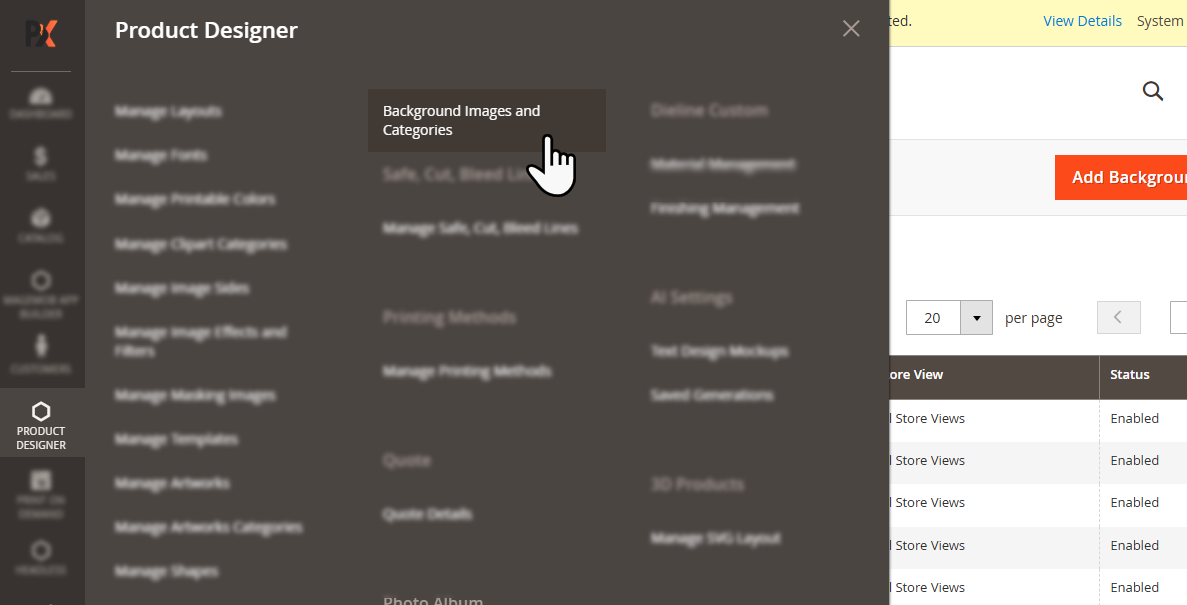
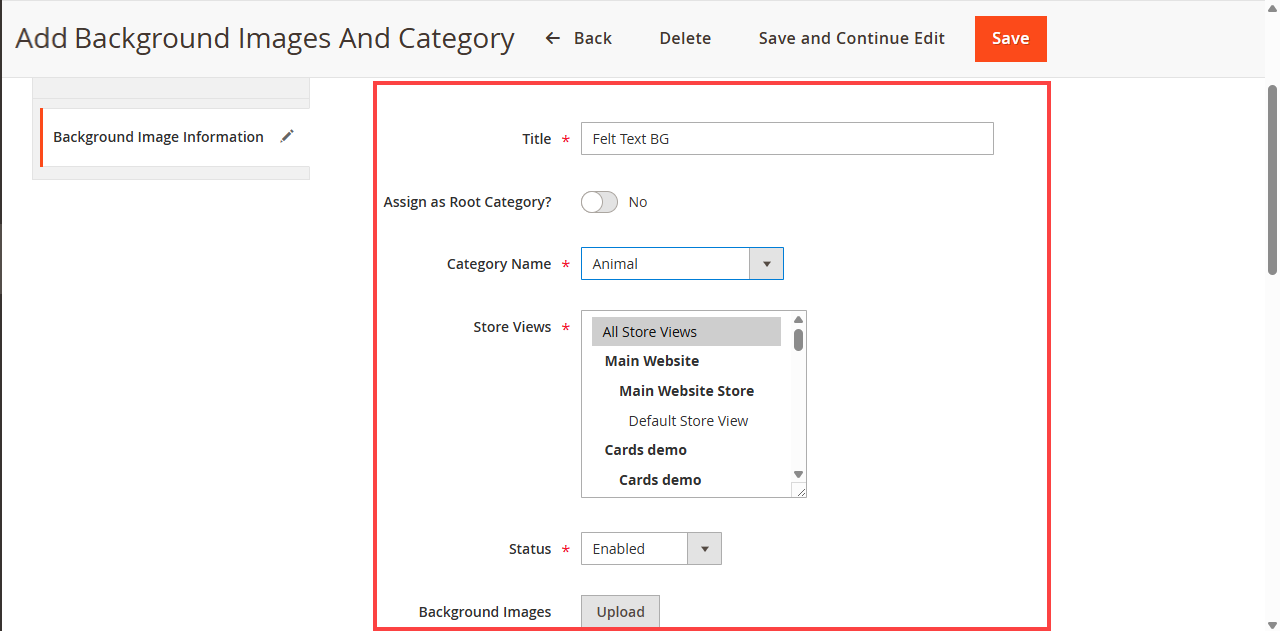
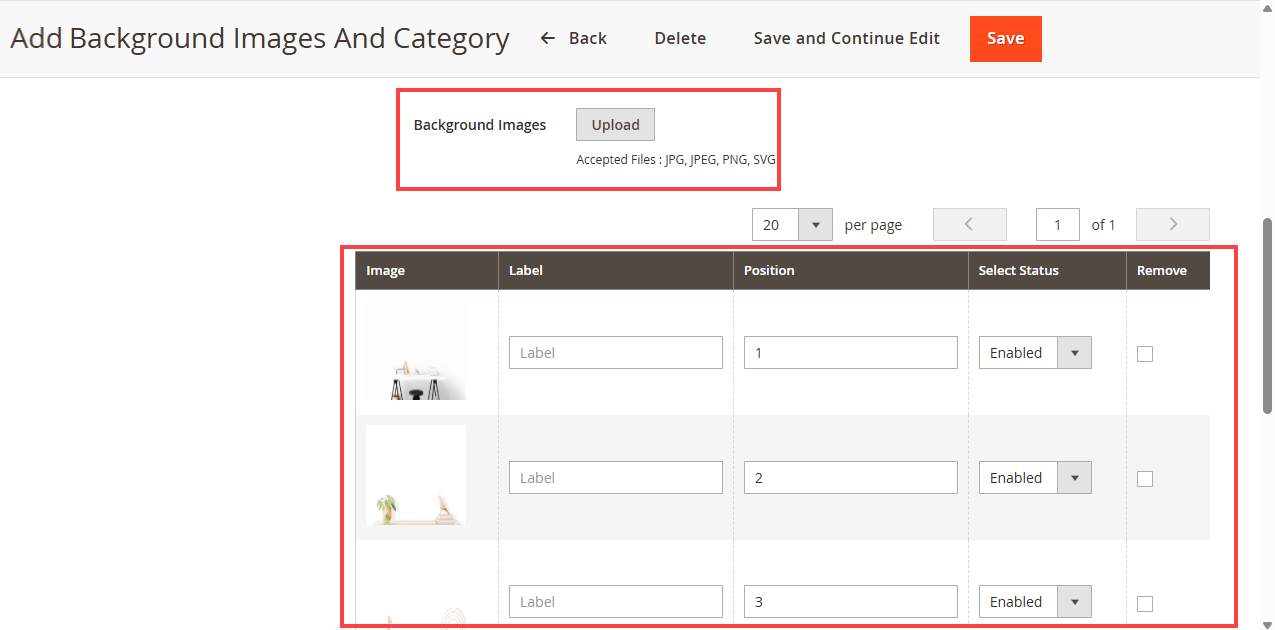
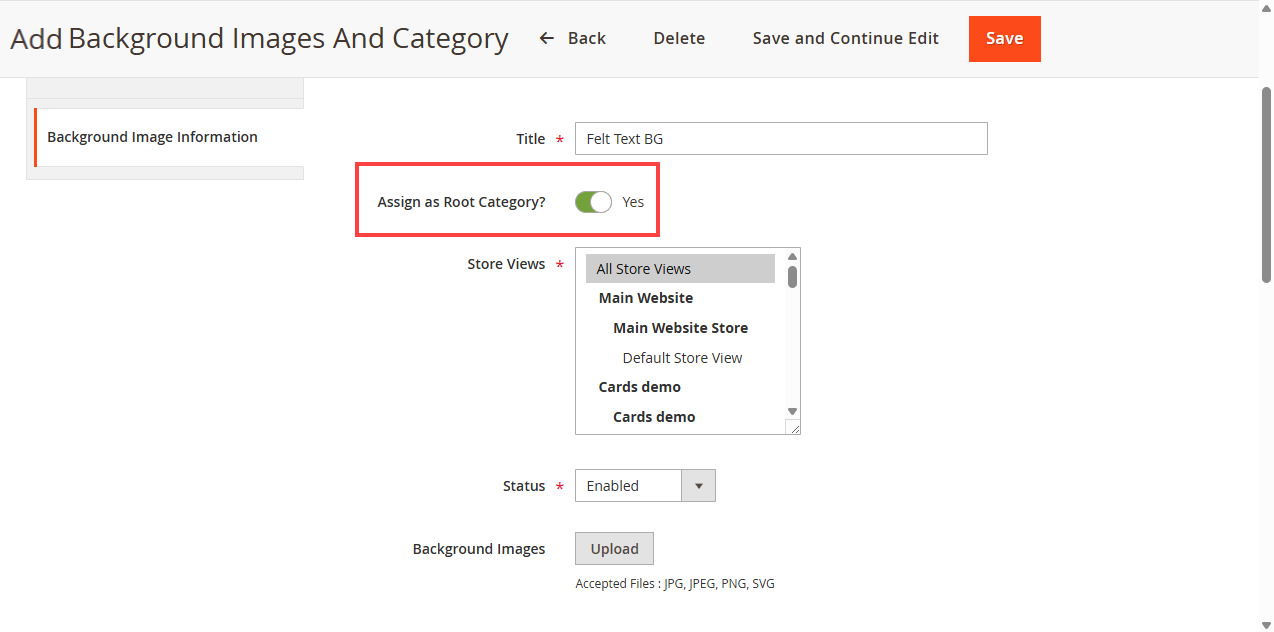
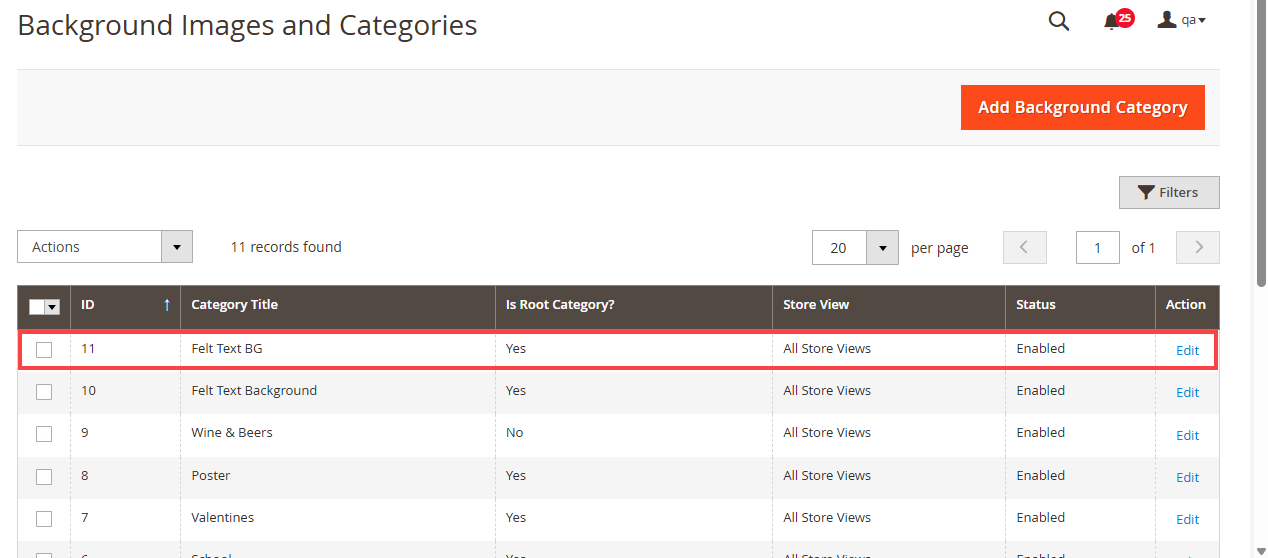
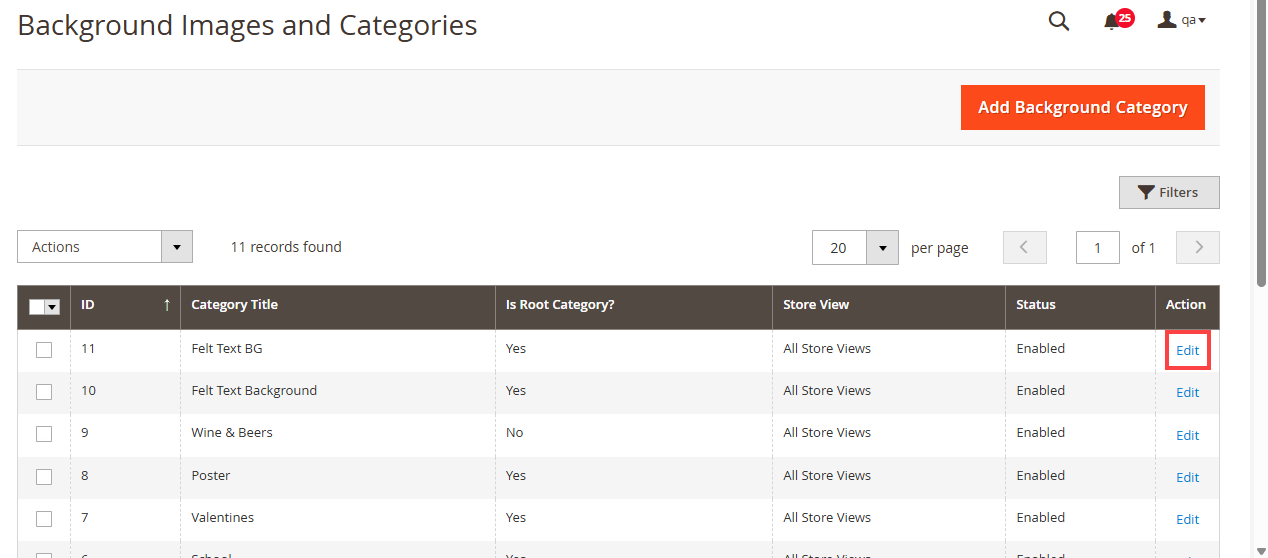
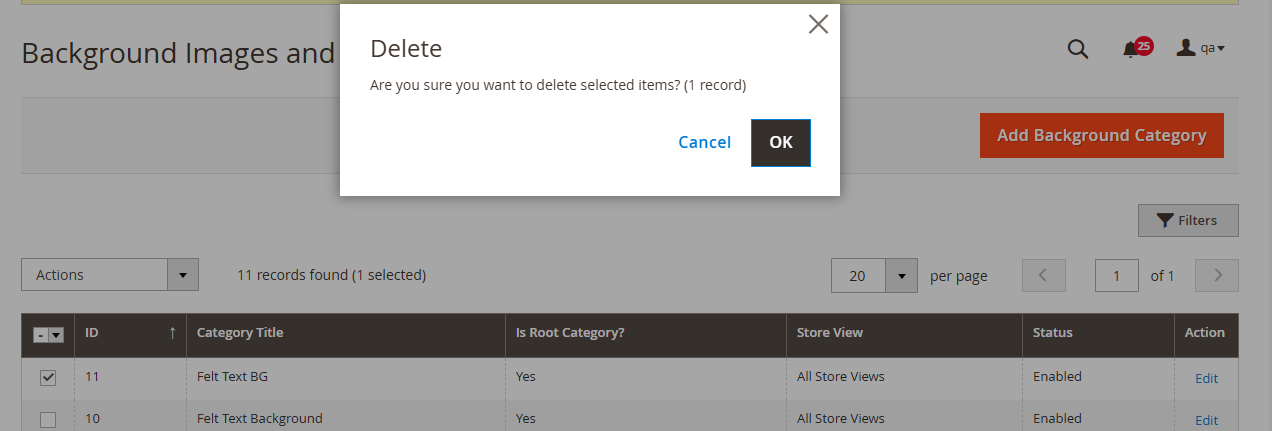
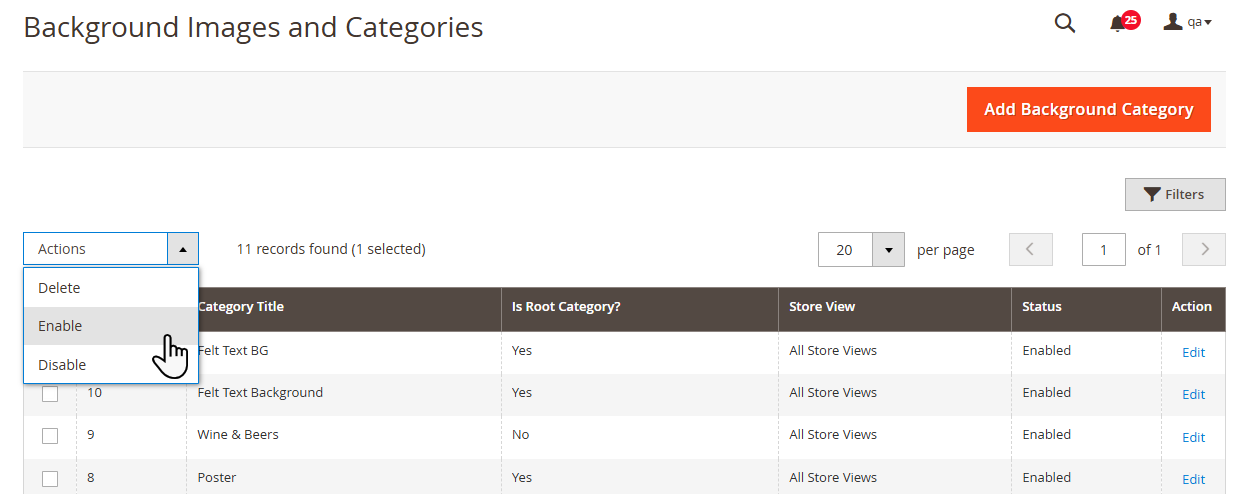
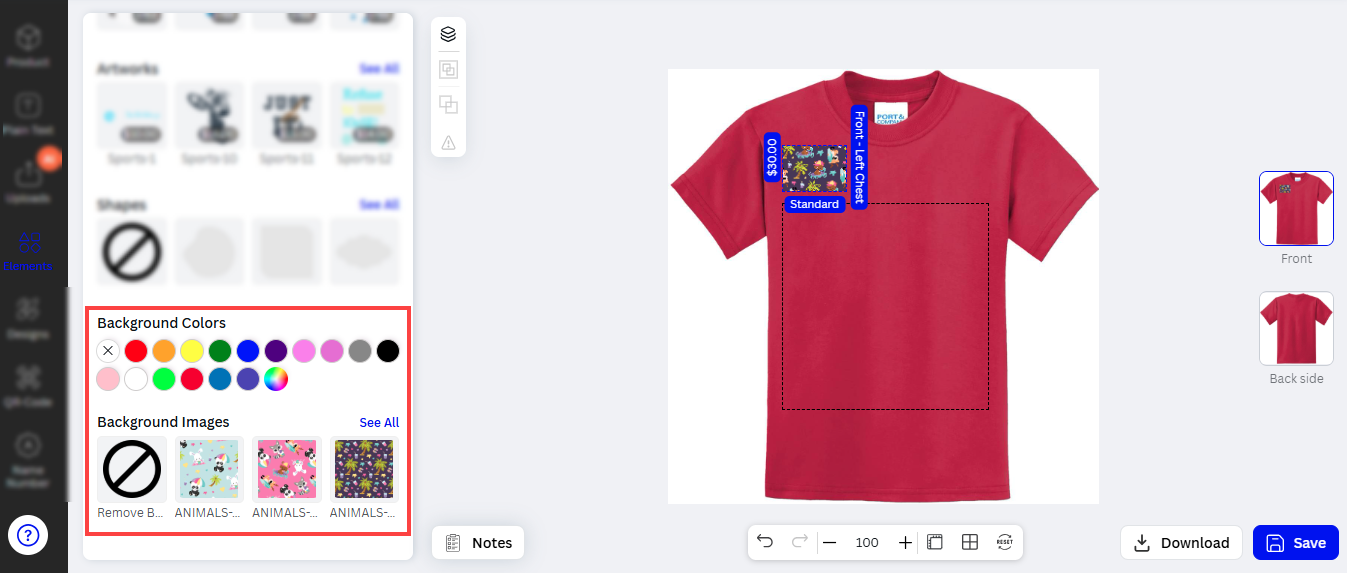
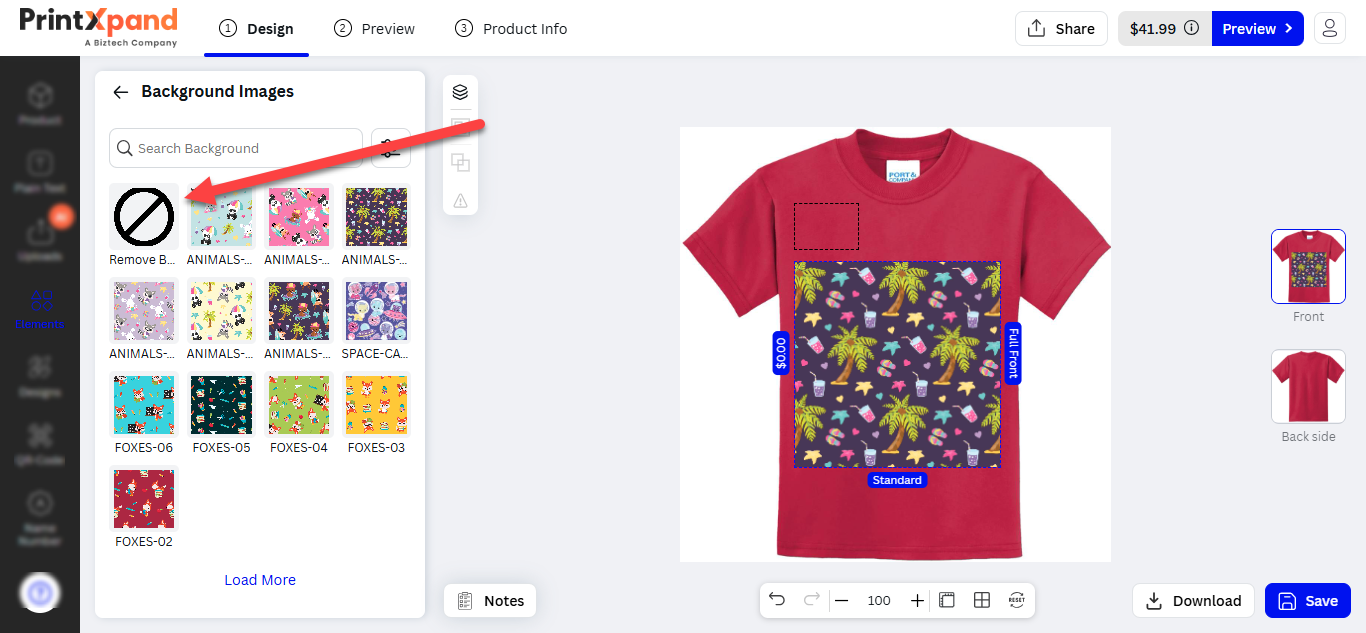
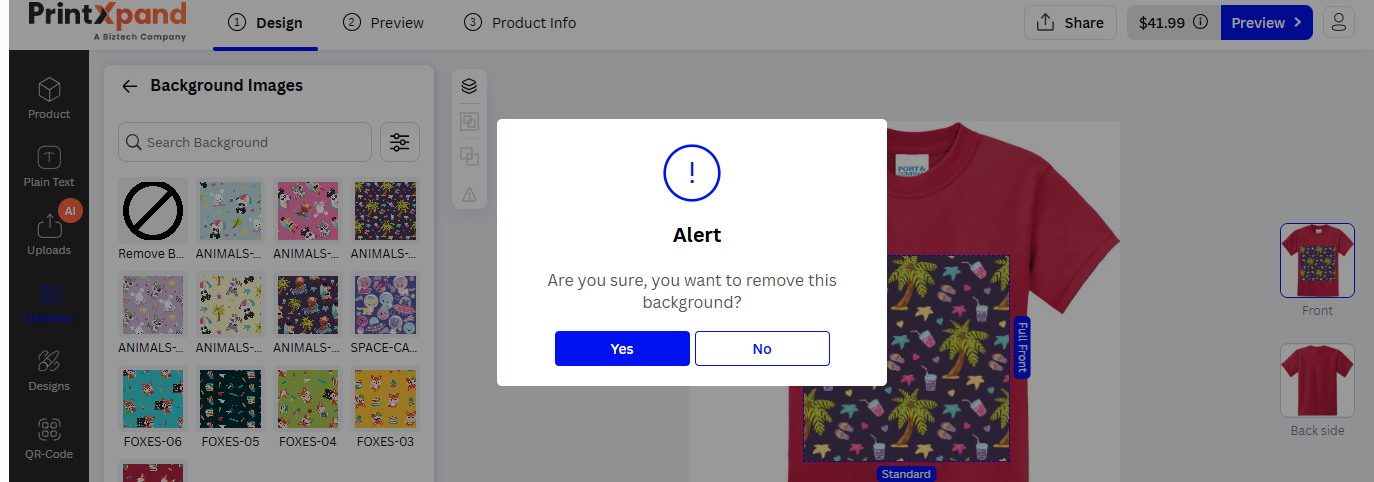
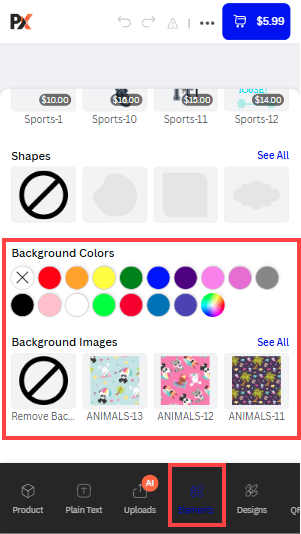
Backend Configuration
Navigate to the Product Designer -> Manage Layouts to enable and manage the User Tour to display the instructions to the customers. [1]
By clicking on the Apply button, you will be navigated to the User Interactive Tour page. Here, you will find the different tabs for the guiding tour in your storefront.
By clicking on the accordion (down arrow) of any tab, you can enable and insert the details as below: [2]
–Enable Tab for Tour: Click on the switch to enable the interactive tour for the selected tab.
-Tour Title: Insert the text labels to display as the title of the section.
– Tour Introduction: Insert an instructive message so the customers can understand the features and flow.
Similarly, you can enable the tab for the tour by inserting the Instructive details.
You can easily manage the order of the steps just by drag and drop. The customers will get the tour sequences as per the order of the steps set. [3]
After managing the User Interactive Steps, click on the Save button to apply the changes to your online store.
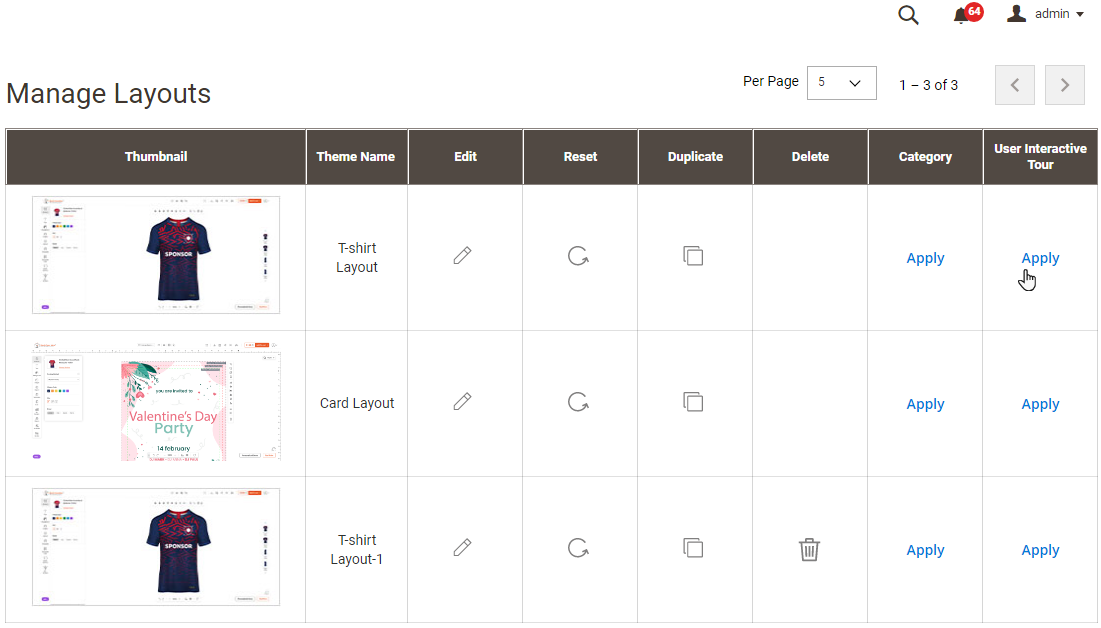
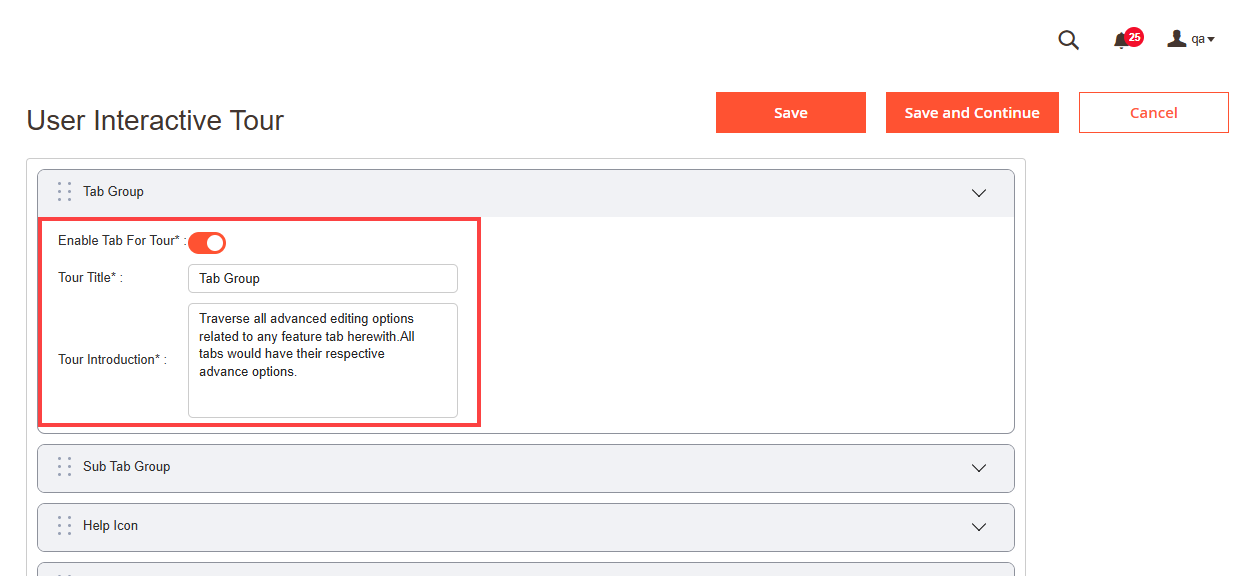
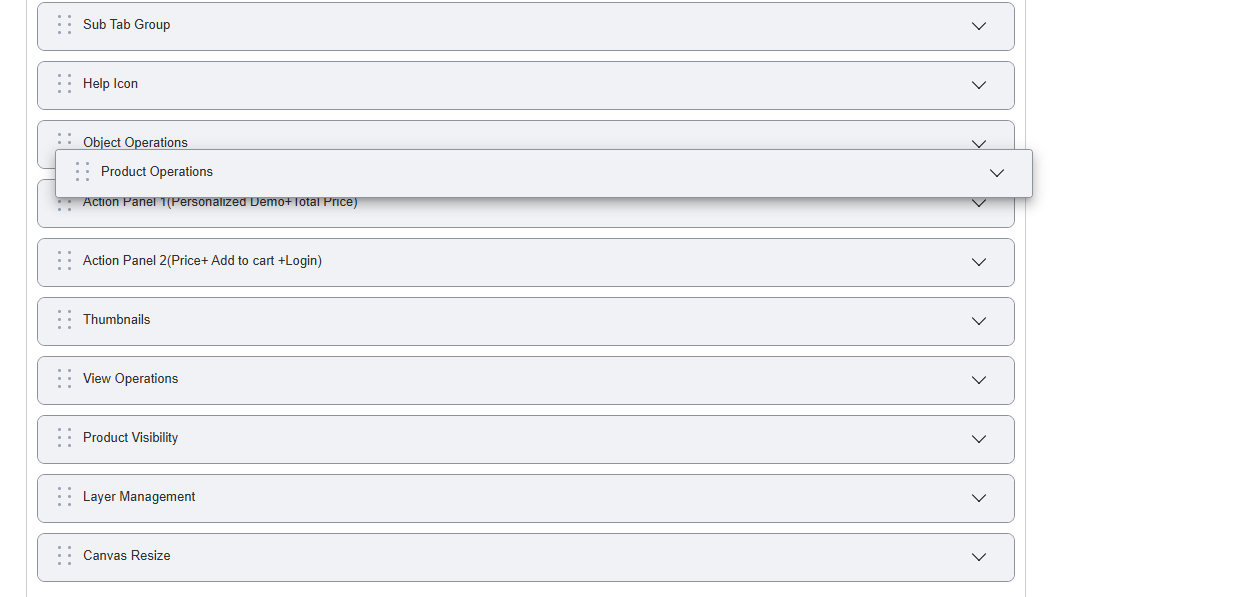
Frontend View
If you have enabled and managed the “User Interactive Tool” from the designer tool configuration (Manage Layout), the customers will get the user’s guide when they navigate to the designer tool for the first time. [4]
By clicking on the Next button, they will see the next guide as the order is set from the “User Interactive Tour”. The customers will find the “Tool-tip” (User Guide) option at the end of the designer explorer panel. [5].
By clicking on the “Tool-tip”, the User Guide will be started as managed from the “User Interactive Tour” (Manage). [6]
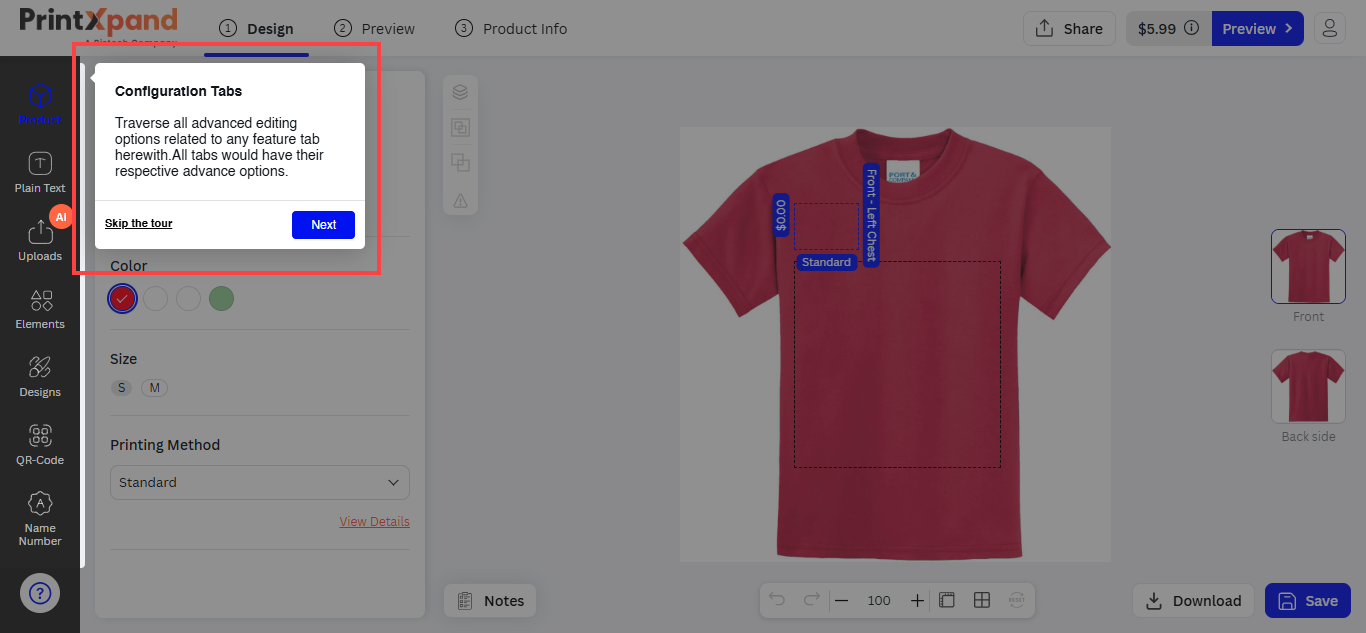
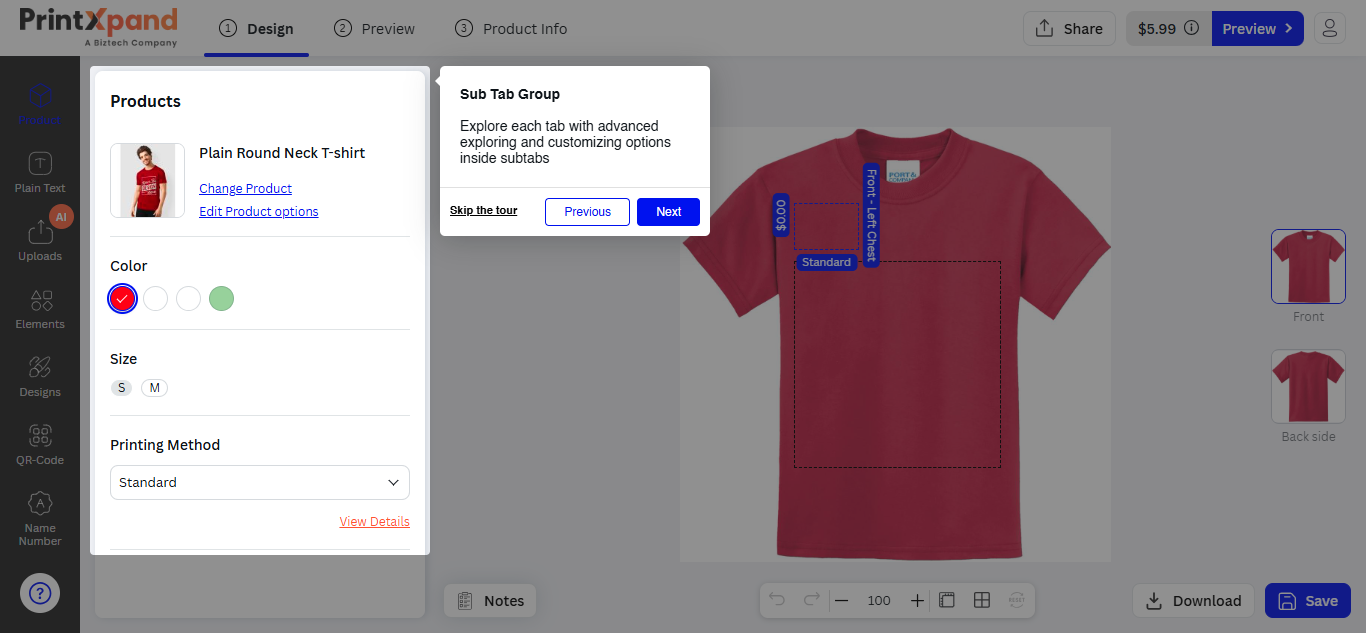
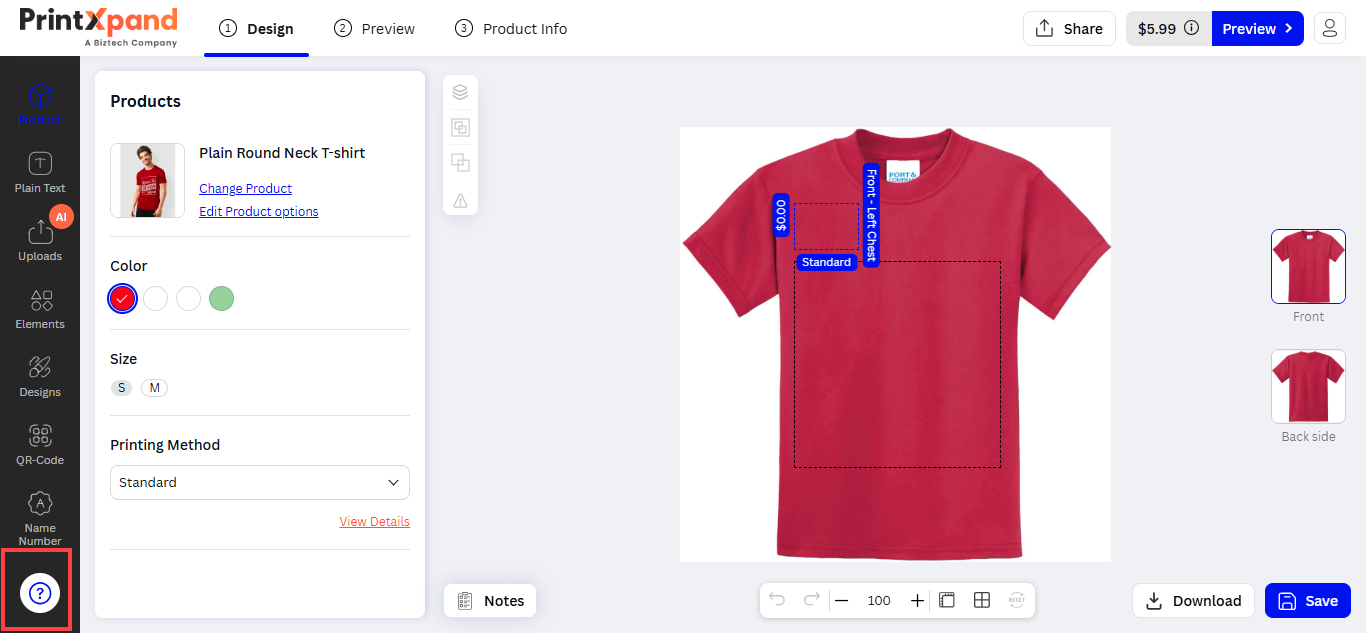
Backend Configurations
The admins can enable the QR code feature for both users and the admins themselves. All you have to do is just enable this feature in the backend of your product designer tool.
Manage Layout
Navigate to the PRODUCT DESIGNER → Manage Layouts to enable the QR code feature. By clicking on the Manage Layouts, you will get the list of created layouts for the different products. [1]
enable the “QR Code” feature for both the Front end and Admin (If you want). Once you enable the feature, click on the “Save” button to enable it on the respective side.
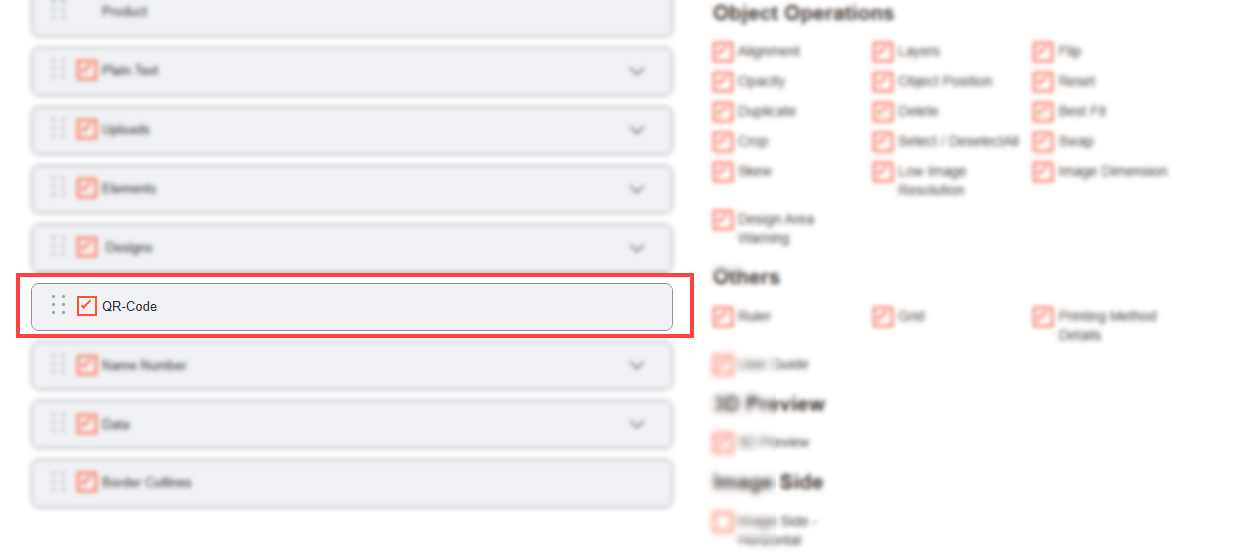
Frontend
The customers can see the QR Code tab from the “Designer Explorer” panel on the left side. Now the customers can add the information of their choice. They can add text and business details like website, contact details, business overview, etc as per their wish. [2]
After entering the details, your customer has to click on the Generate QR Code button shown in the below image to apply the QR code to the product.
Note: You can apply one QR code per design area.
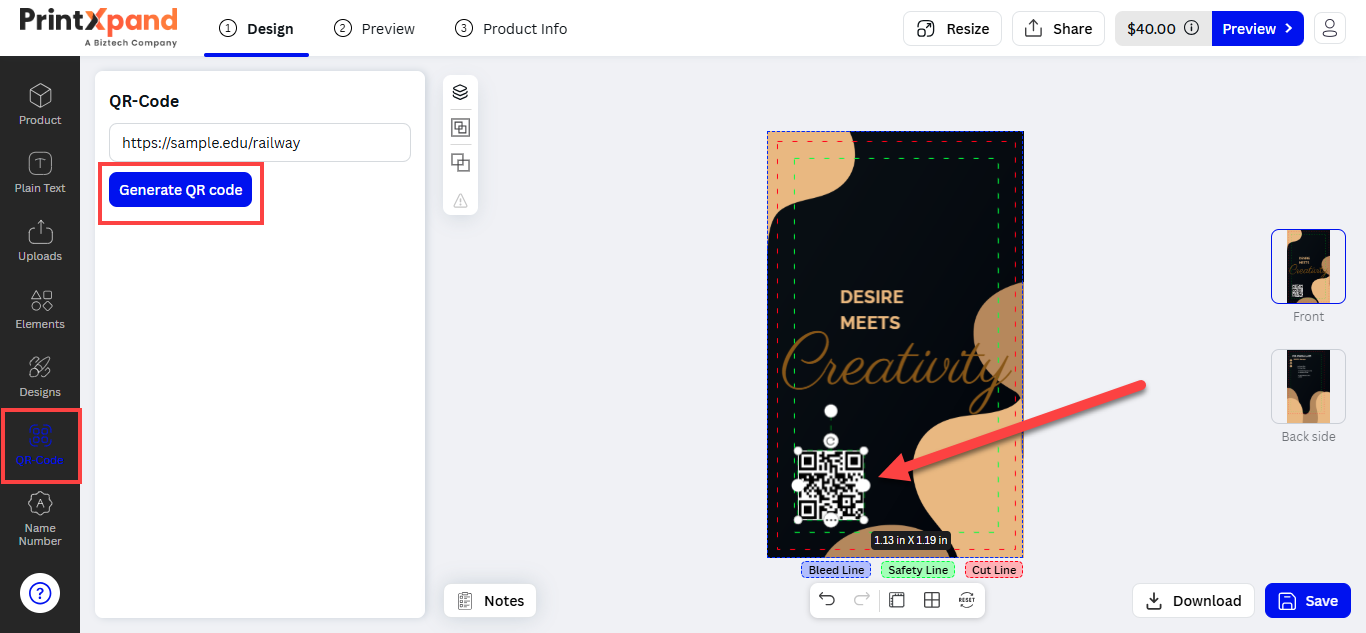
Backend Configuration
Enable Ruler & Gridline
You can enable the Ruler & Gridline feature by navigating to PRODUCT DESIGNER → Manage Layout, you will get the list of created layouts. [1]
Now open the Layout in the Edit mode and Enable the Ruler & Grid from the Others section.
Global Configurations
Navigate to STORES → Configuration, you can configure the various features of the Product Designer Tool. Now, scroll down to the Ruler Gridline section and do the following configurations. [2]
– Unit of the Ruler: Select the Unit of Ruler for the product designer tool.
– Ruler Size Gap: Enter the Size Gap for the Ruler on the product designer tool.
– Size of the Grid: Enter the box size as per the selected area.
– Unit of the Grid: Select the Unit of the Grid for the Product Designer tool.
After all the configurations, Save the Settings.
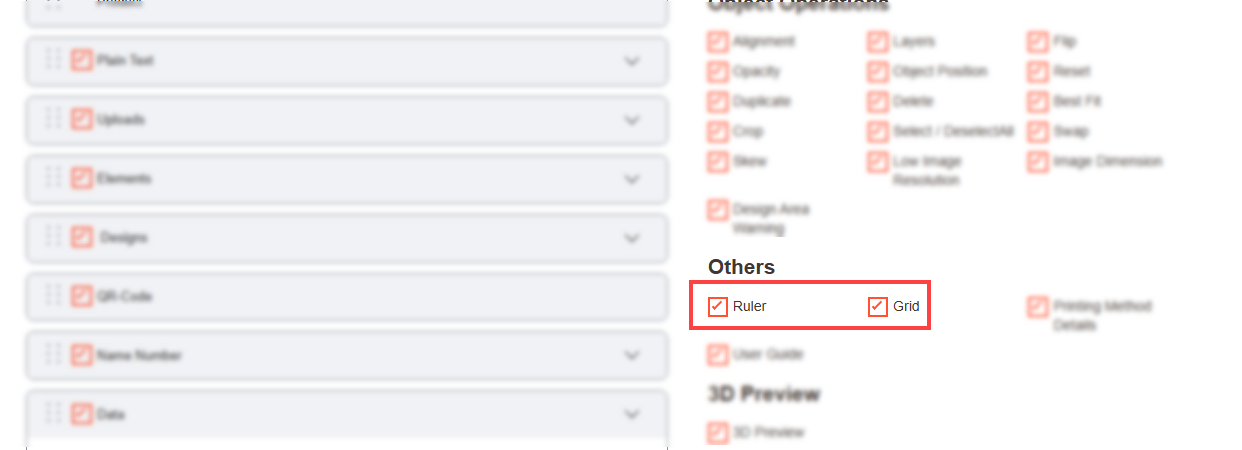
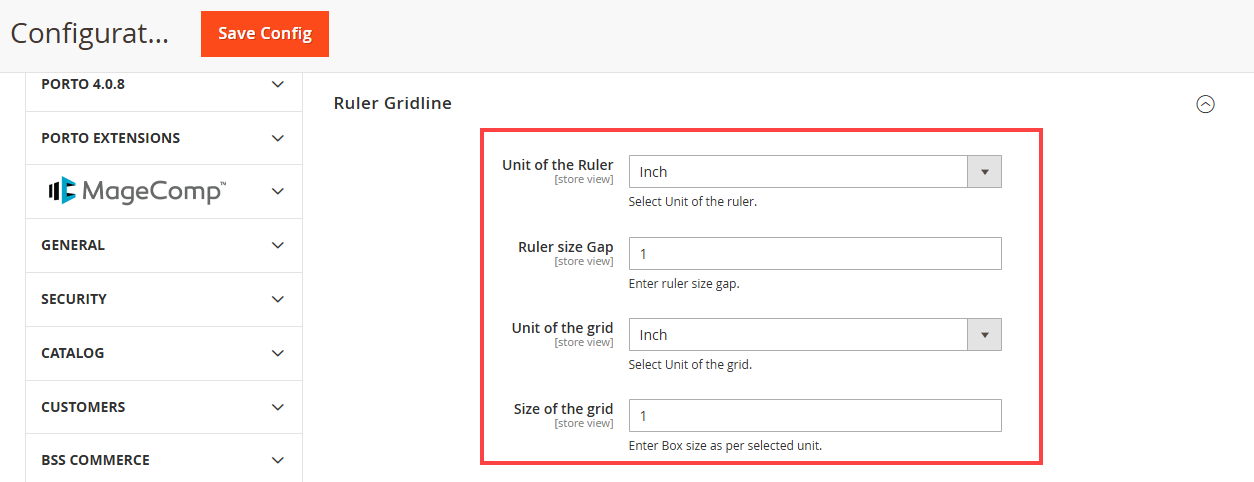
Frontend View
In the frontend of the designer tool, the Ruler and Gridline icons will only be displayed for the Products for which the Ruler and Gridline are enabled at the Product Level in the Product Designer section. [3]
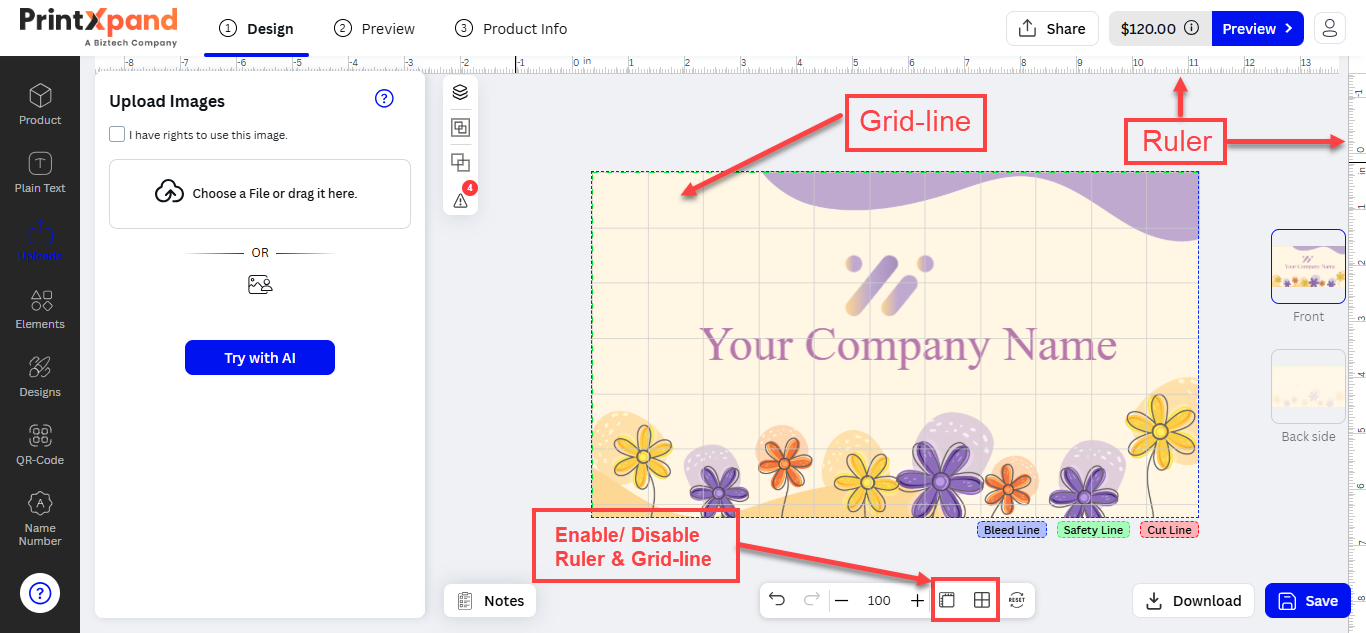
Backend Configuration
You can manage the ready-made fonts to allow the customers to select the Font style to design any text elements. You can select the default values at the store level.
Pre-requisite
You have to enable the Plain Text tab in the Product Designer ➤ Manage Layouts. You will land on the listing page of the layouts. Now open the layout in Edit mode and enable the Plain Text functionality.[1]
Manage Font
First, you must add and manage the different font styles to allow the customers to design the product using the text object. For that, go to the Product Designer → Manage Font. [2]
You will navigate to the listing page of the Fonts. You will see the Font details like Id, Font Label, Font Image (if available), Status, and Actions. [3]
You will get the pre-loaded Fonts to allow customers to design the text elements using these fonts. You can edit the Fonts and manage accordingly.
If you want to ‘Delete’ any Font, select the Font and click on the ‘Delete’ option from the ‘Actions’ dropdown list. A confirmation pop-up will appear after you click on the ‘Delete’ option. Select “OK” to perform the delete action.
Similarly, you can change the font status to Enable / Disable from the ‘Actions’ dropdown list. [4]
Text Configuration (Store level)
After inserting and managing the Font, you need to configure the default settings of the Text that will be displayed in the storefront. Go to Store → Configuration and then find the “Text Configuration” option from the “Product Designer Settings” page.
The default text configurations are shown as below:
-Default Font Type: Select a default Font for the Text from this dropdown list. The text will appear in the default Font Type during Product designing in the front end.
-Default Font Size: Select a default Font Size for the Text from this dropdown list. The text will appear in the default Font Size during Product designing in the front end.
-Enable Text-Object Limit: If you select Yes, you can set a limit of the Text Object for your customers so they cannot cross the limit on the single design area.
–Text object Limit: To add a limit for the Text Object, enter the value of the text limit in this field.
–Error Message: Enter the message which will be displayed if the customer exceeds the limits of the Text Object.
Font Color: Select the default “Font Color” to be selected for the Text objects that will be added to the designing area of the product. You will get the list of the colors as you have added the color from the “Manage Printable Colors”.
After configuring the Text default settings, click on the Save button to save the changes. [5]
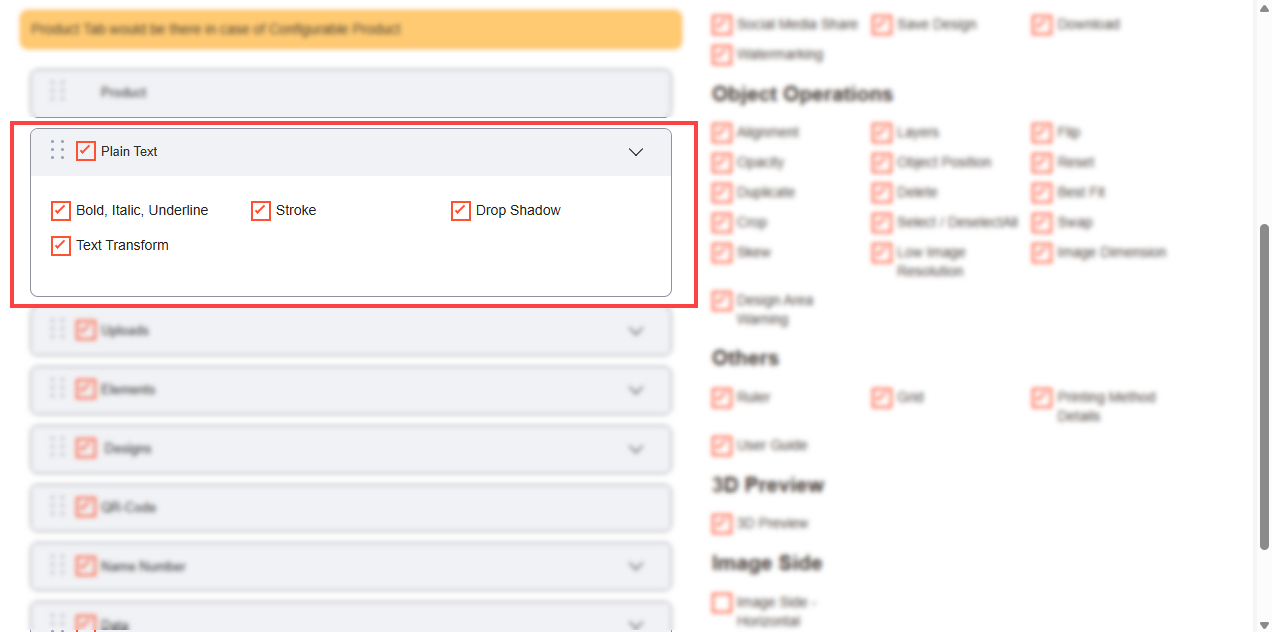
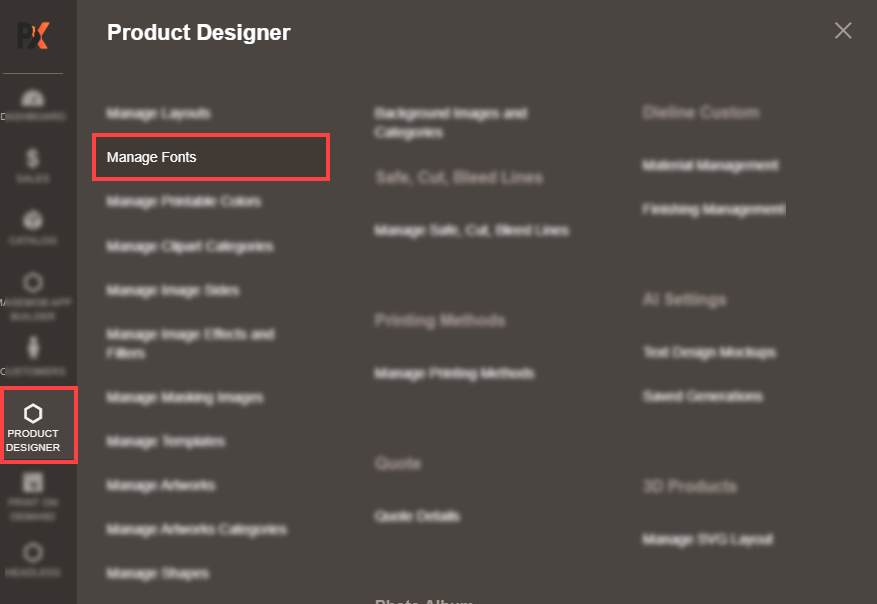
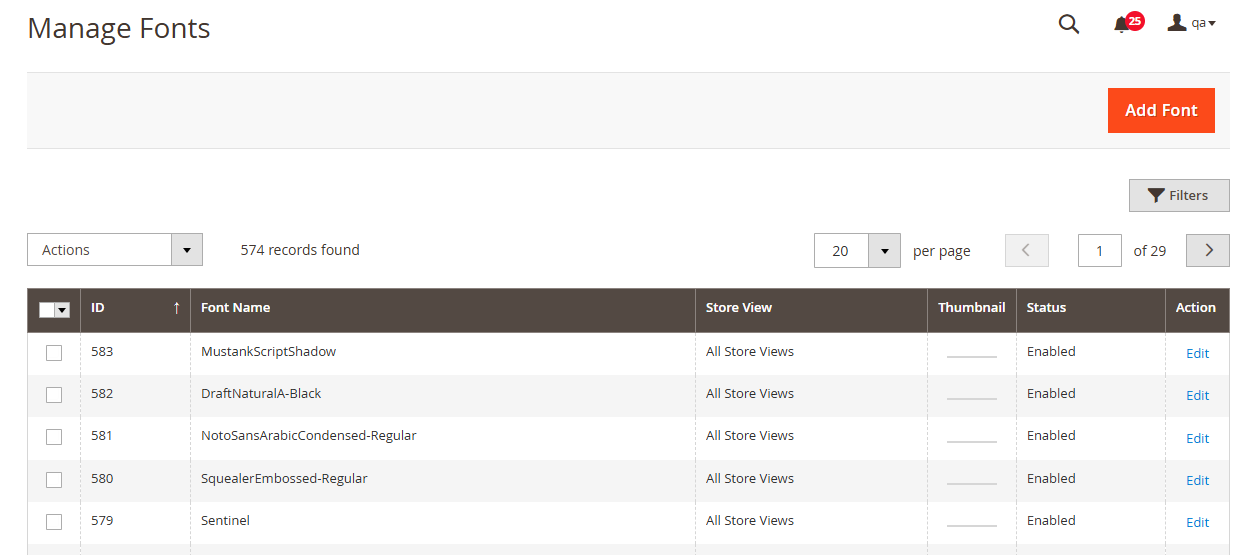
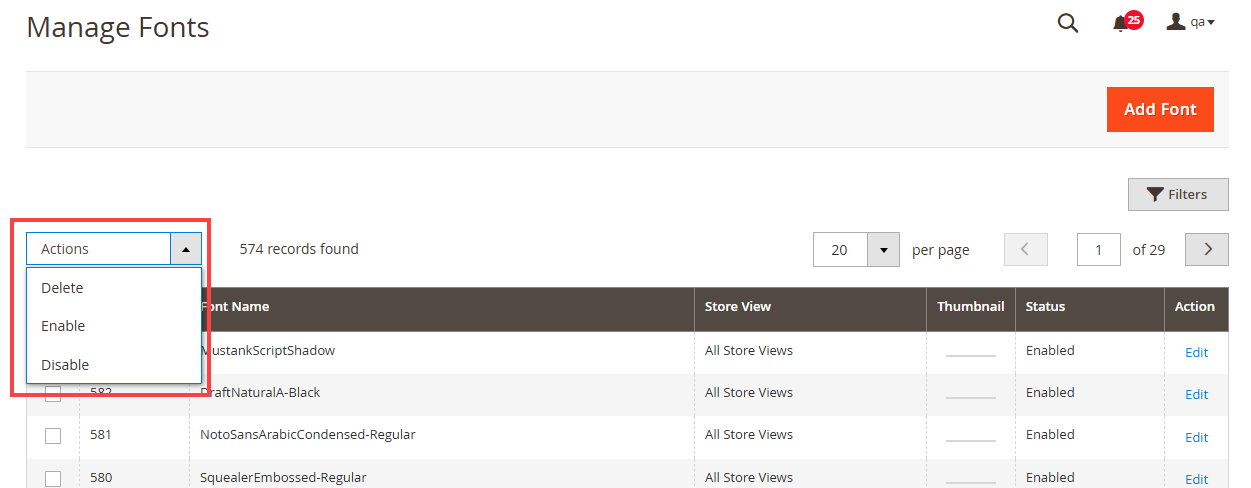
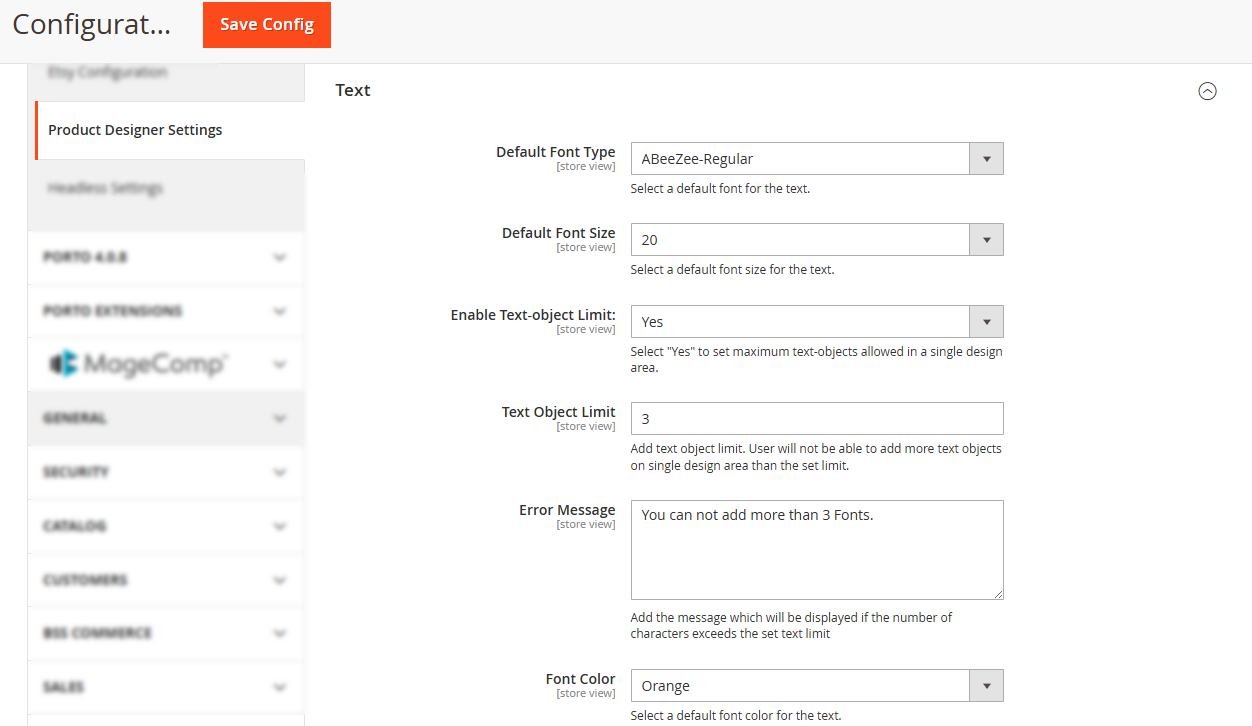
Frontend View
After managing the Font and configuring the default settings from the backend configuration, the customers will get the Text options to add to design the products. The customers can add the text objects by clicking on the Plain Text tab from the “Designing Explorer” panel.
The customers can insert the text which they want to add to the product design. When the customers insert a text, they will see the text object as per the default settings from the “Text Configurations” at the store level. [6]
Select another Font Style
The customers can select the desired font style from the pre-loaded “Font Style” selection. The customers will get the “Font Style” as they have added. [7]
The customers can also search for the specific font style by inserting the text label.
Text Limits
The customers can insert the Text until the text limit has exceeded. The customers will get an Alert message on exceeding the configured Text limit.[8]
After inserting the text, the customers can see the designer tool in the sub-menu. The customers can customize the Font Size, Style, Color, and text alignment.
Text Properties
The customers can use the text properties to edit and apply the effects for the text objects.
– Customers can edit the text in Bold, Italic, and Underline.
– Customers can adjust the Text alignments to Left, Center, Right, and Justify.
– Stroke: To add the outline text effect of a particular color on the text.
– Drop Shadow: To adjust the text-shadow effects horizontally (X-offset) & vertically (Y-offset) on the text.
– Skew: To give horizontal or vertical italicized effects to the Text in the product design.
– Opacity: To adjust the opacity (transparency) of the text.
Note: If the opacity is 0, your customers can still select the object.
– Object Position: To change X-Y coordinates for positioning (Horizontal-Vertical) in the product design.
Note: PrintXpand4.0 Designer Tool provides 300+ preloaded Font effects. If you want to add and manage your custom fonts, you need to purchase our Font Manage-Addon. [9]
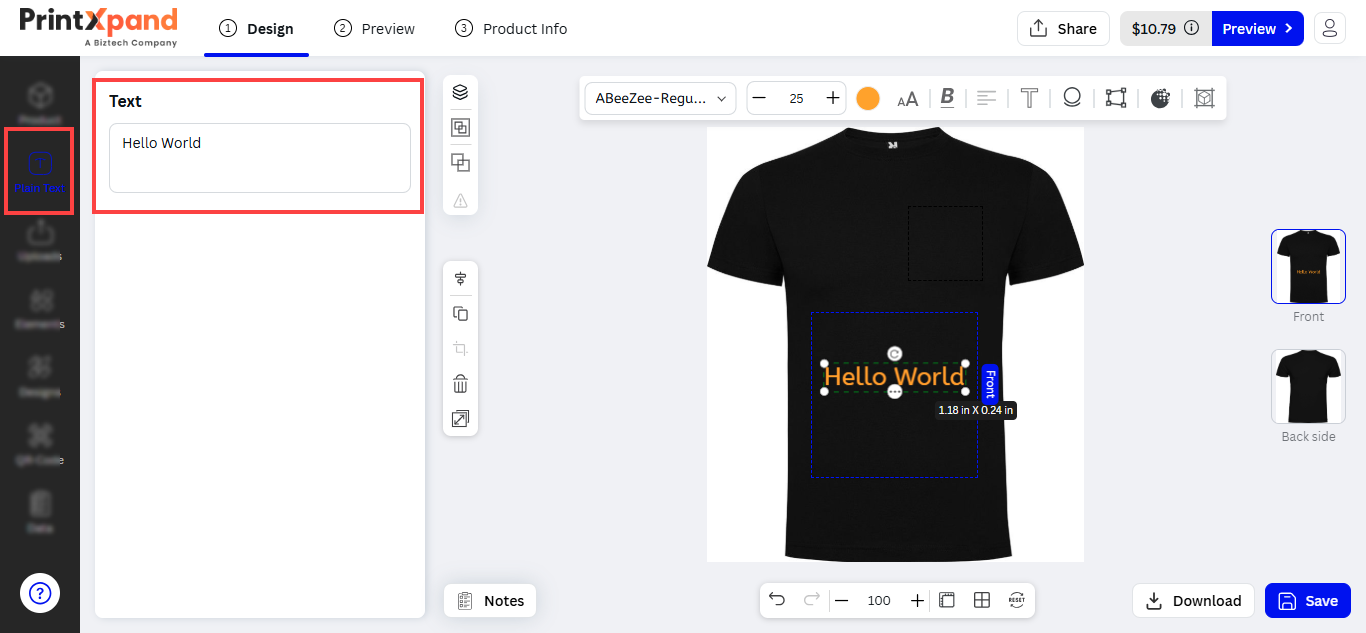
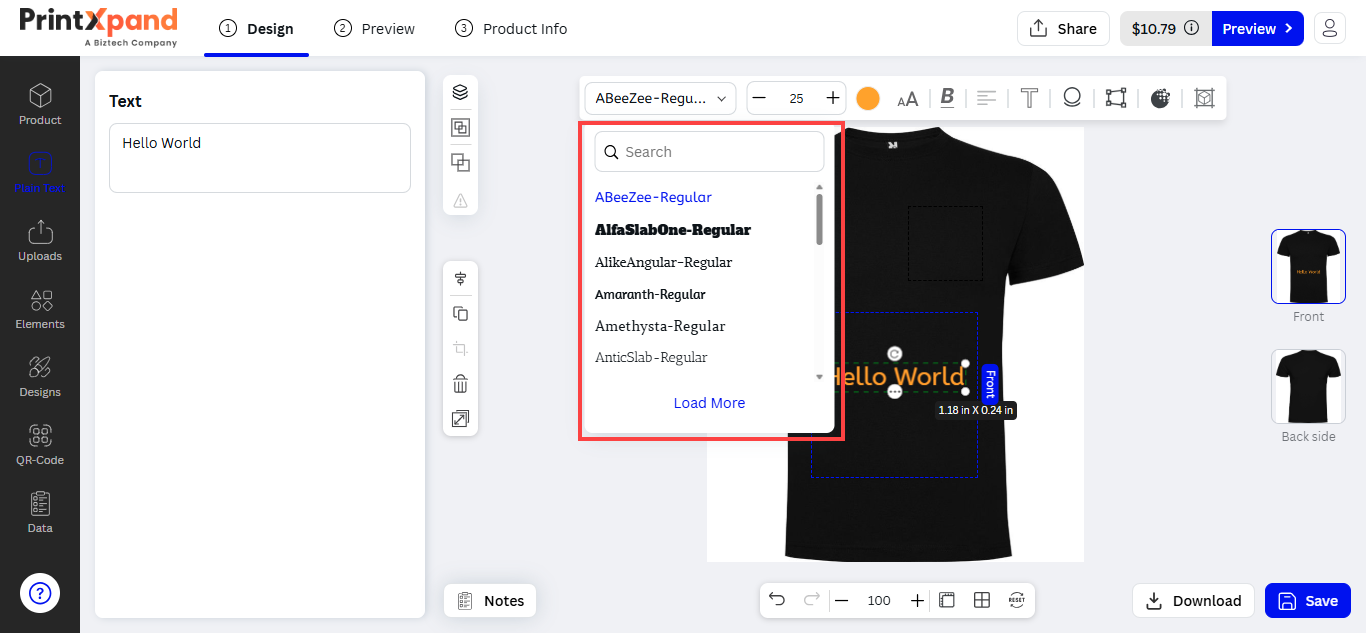
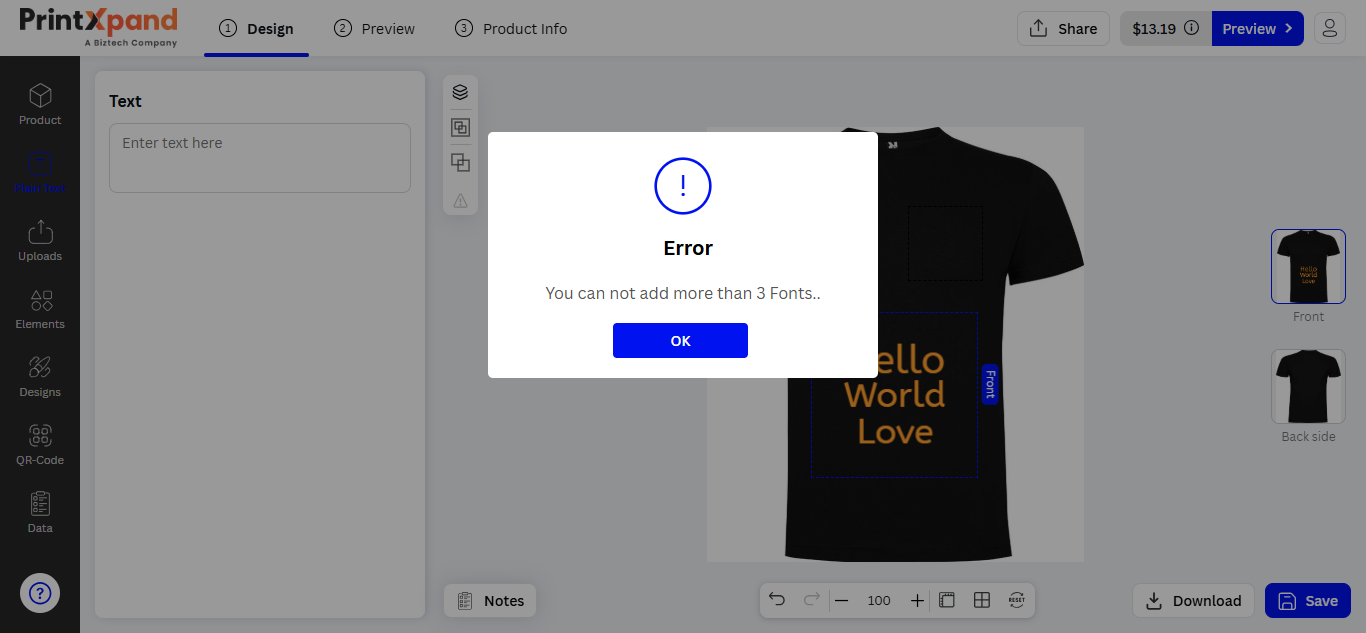
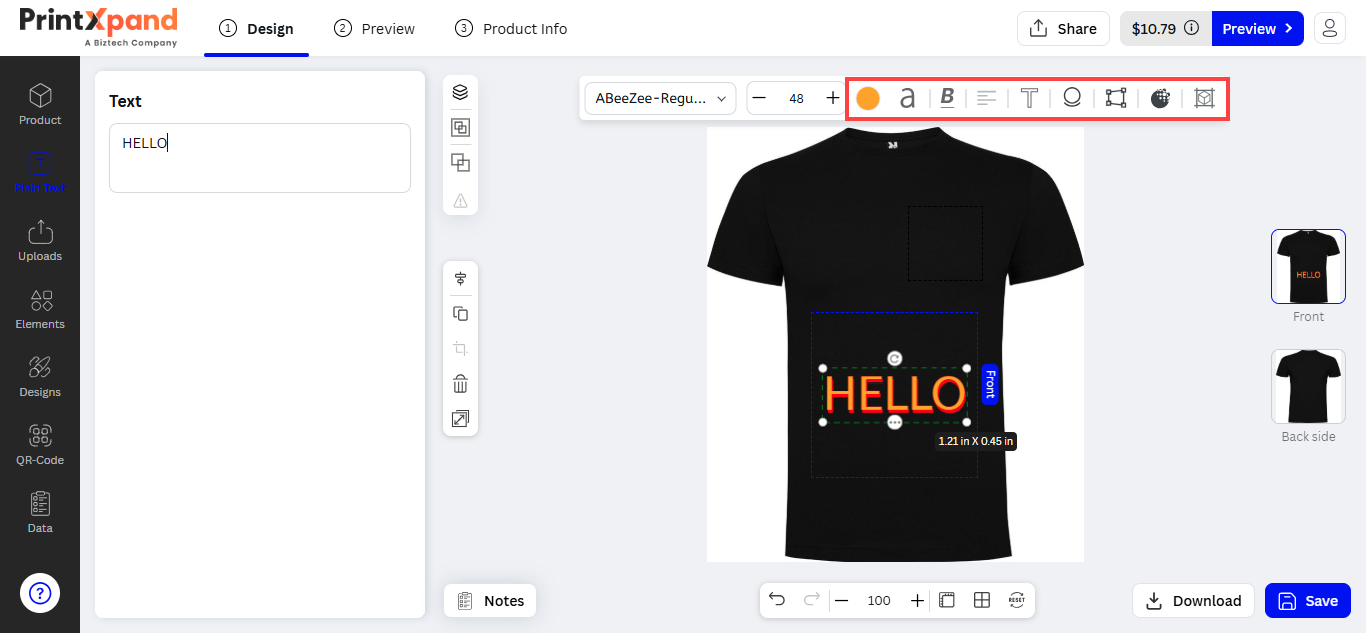
Import/ Export Product Design Area
Products are provided with a specific area so that your customers can design the product with their creativity. This area is known as the Product Design Area .
Now it is a pain to add design areas for multiple products at a single time, so to reduce the burden of admin we have introduced an Import/Export feature. With this feature you can directly import the design areas of all the products.
Navigate to Product Designer -> Manage Import/Export. [1]
You will land on the Manage Import/Export page. Firstly, you have to export the product list with the design area fields for that select the Entity Type as Product Design Area from the drop-down and click on Export button. [2]
By doing so, a sample file will be downloaded to your system. In the file, you can see all the products with the design area details (if added) you can add the design area details of other products. [3]
Note: You can add multiple design areas for a single side.
After entering the details now import product design area file for that you have to select the Entity Type as Product Design Area from the drop-down.
Then in the Import section, you have to insert the file that you want to import. After uploading the file enter the Images File Directory path to upload the images.
Once clicking on the validate button, the file will be validated and again you need to click on the import button, then the design area will be imported. [4]
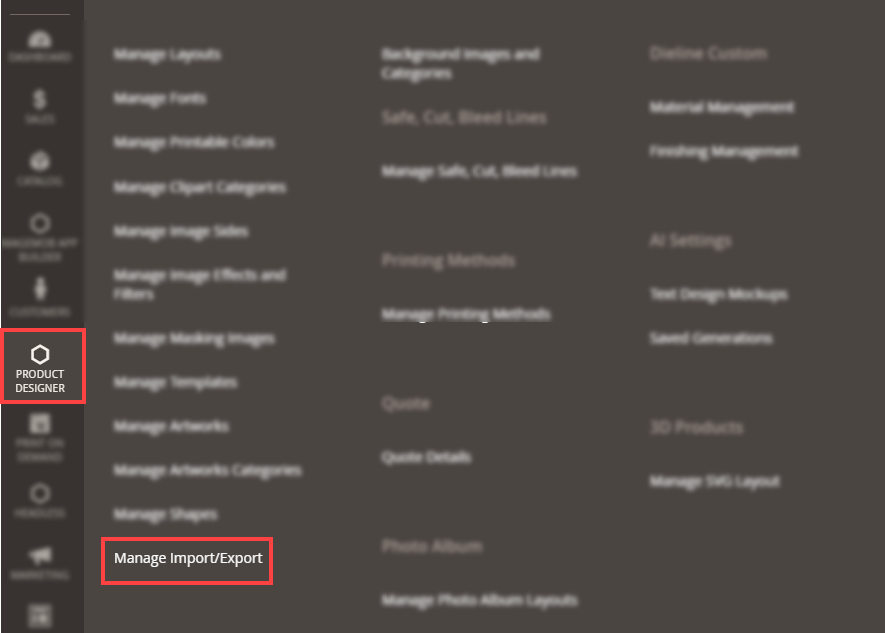
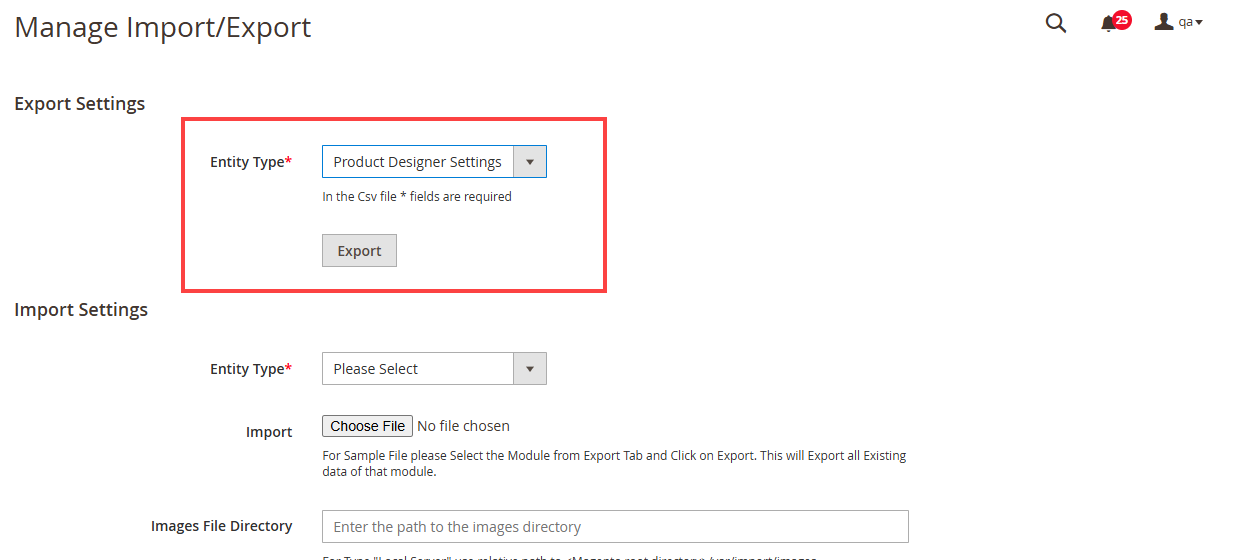
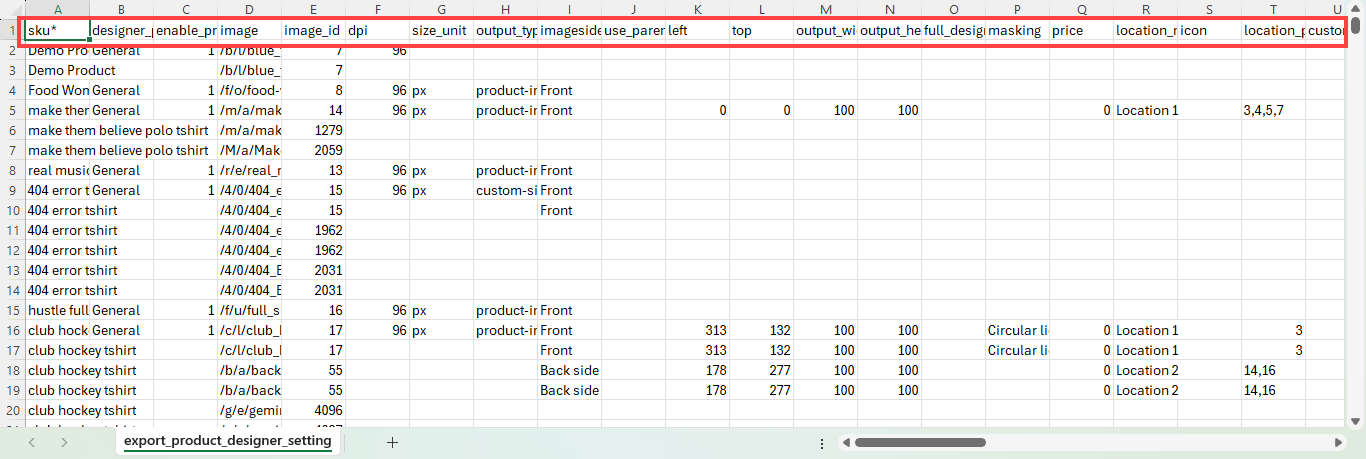
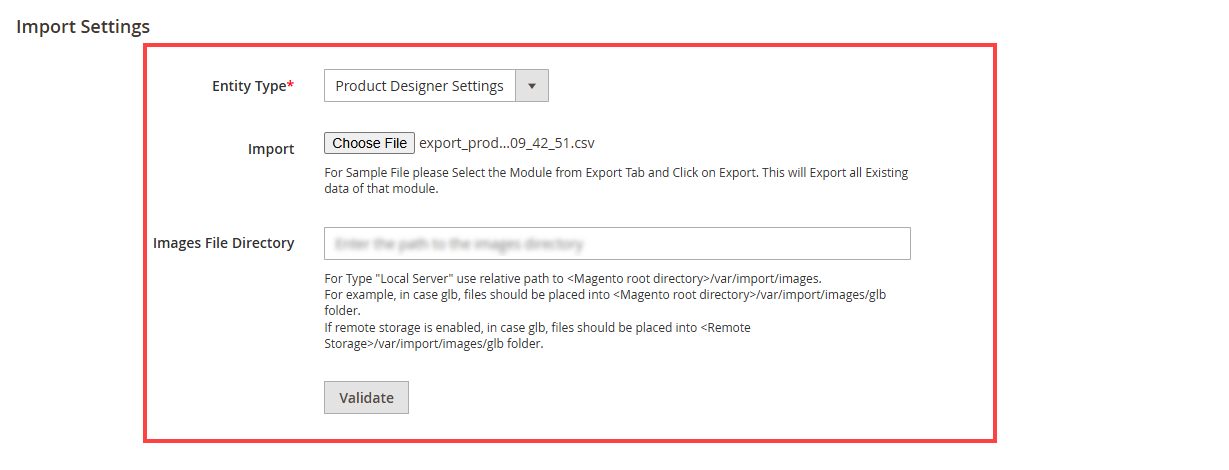
Product Level Configuration
You can also enable this feature for each individual product. Navigate to the Catalog ➤ Products, you will get the list of the Products. [1]
You will land on Products where a list of all the added products is displayed. When you go to the Edit option in the Action Column you will land on the edit page of that particular product.
Now, scroll down to Related Products, Up-Sell and Cross-Sells.
For Related Products
To add related products click on Add Related Products you will be seeing a list of products among which you could choose to display as related products. [2]
Select the products by clicking on their checkboxes and click on Add Selected Products. [3]
These selected products will then be displayed under Related Products and then click on Save in order to change the configurations. [4]
Frontend View
In the frontend navigate to the Product Page and click on the product to direct towards its description page.
When you scroll down, Related Products will be displayed.
For Up-Selling Product
To add an up-selling product click on Add Up-Sell Products you will be seeing a list of products among which you could choose to display as up-sell products. [5]
Select the products by clicking on their checkboxes and click on Add Selected Products. [6]
The selected products will then be displayed under Up-sell Products and then click on Save in order to change the configurations. [7]
Frontend View
In the frontend, navigate to the product and click on it. You will be directed to the Product detail page.
When you scroll down, these Up-Selling Products will be displayed. [8]
For Cross Sell Products
To add a cross selling products click on Add Cross Sell Products button, by doing so, a list of products will be displayed in a pop-up. Select those products that you want to add as cross sell products.
The selected products will then be listed in the list of Cross Sell Products. [9]
Select the products by clicking on their checkboxes and click on Add Selected Products. [10]
The selected products will then be displayed under Cross-selling Products. [11]
Now click on Save in order to change the configurations.
Frontend View
In the frontend once you add the product to the cart, click on Continue in the Cart Page in order to move to the further step.
In the Order Summary page you will be seeing these Cross Selling Products once you scroll down the page. [12]