Manage Layouts
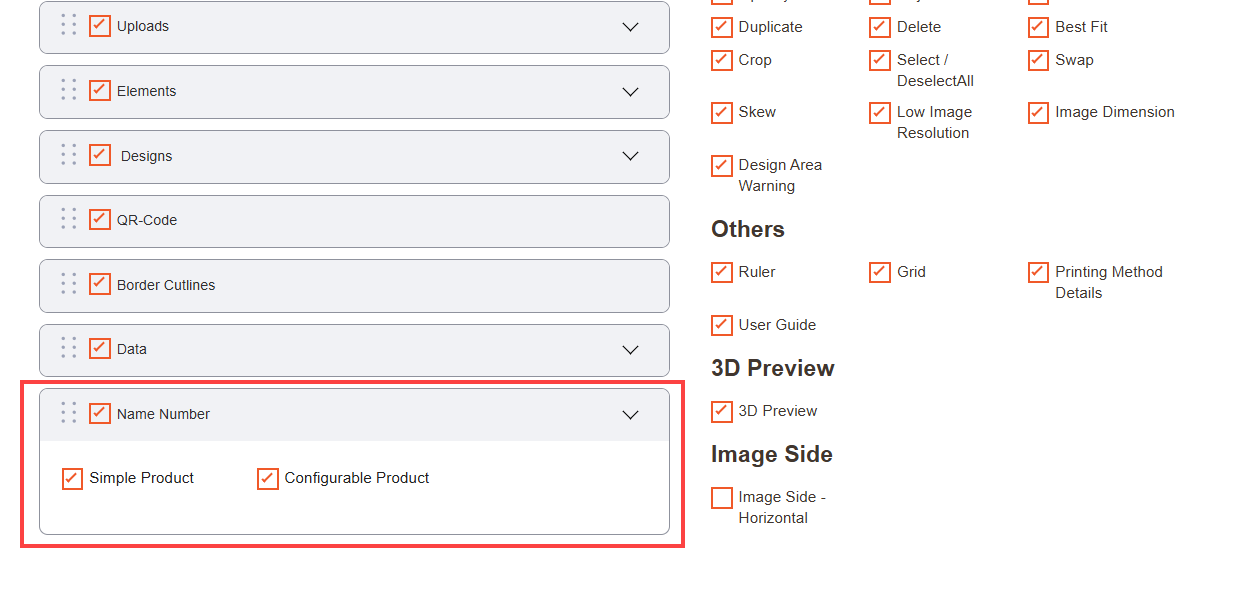
First of all, you need to enable the “Name Number” option from the Manage Layouts for the specific Theme (Layout). Navigate to the Product Designer → Manage Layouts.
You will see the “Simple Product” and “Configurable Product” options under the Name Number tab. Here, you can decide to enable the Name Number designer either for both types of products or only for one of them (Simple Product/Configurable Product).
After configuring the layout options, click on the Save button.
Frontend View
The customers will see the Name Number tab from the “Designer Explorer” panel on the left side. The customers can see the “Name Number and Logo” designer option in a sub-panel by clicking on it.
Now, the customers can add the Name, Number, and Logo of their choice on the product. They can Add Multiple Numbers and Names at a time to the product to design as they want.
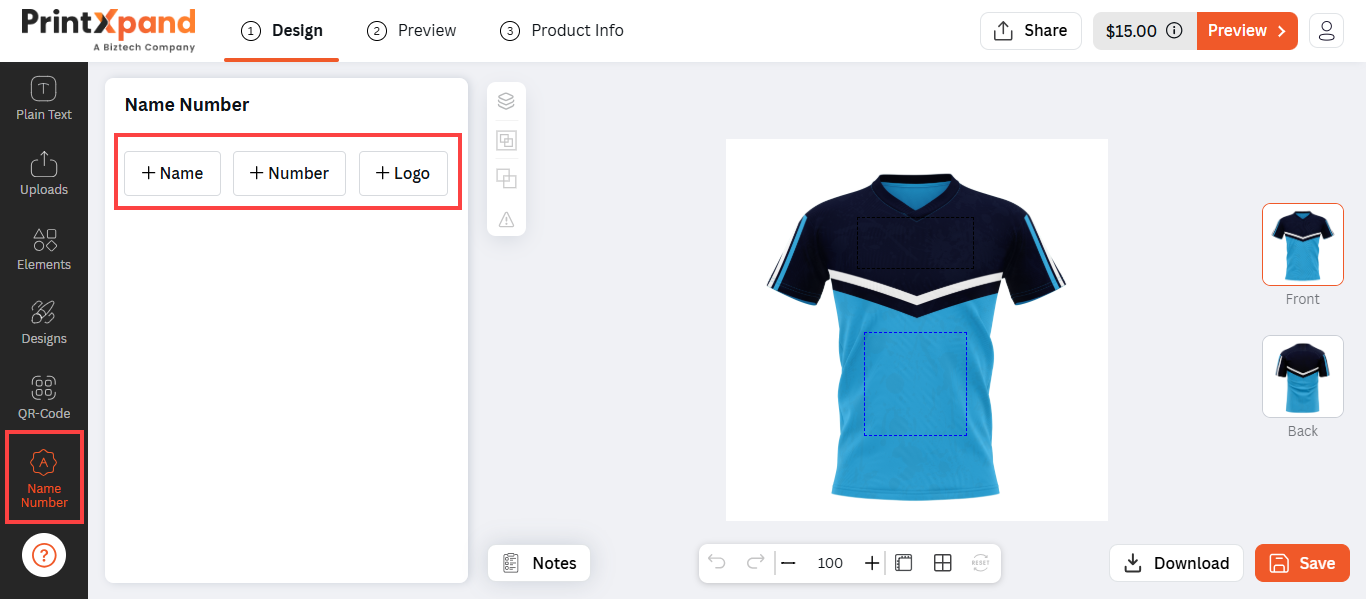
Name Number tab
By clicking on the Add Name & Add Number button your customers can add their name and number to the product.
By clicking on the Add Logo your customers can also add the Logo to the product. The logo added from the backend will be applied by default.[1]
This can be configured for multiple sides and on multiple design areas as well. Click on the Select Location dropdown to configure locations for the select option.[2]
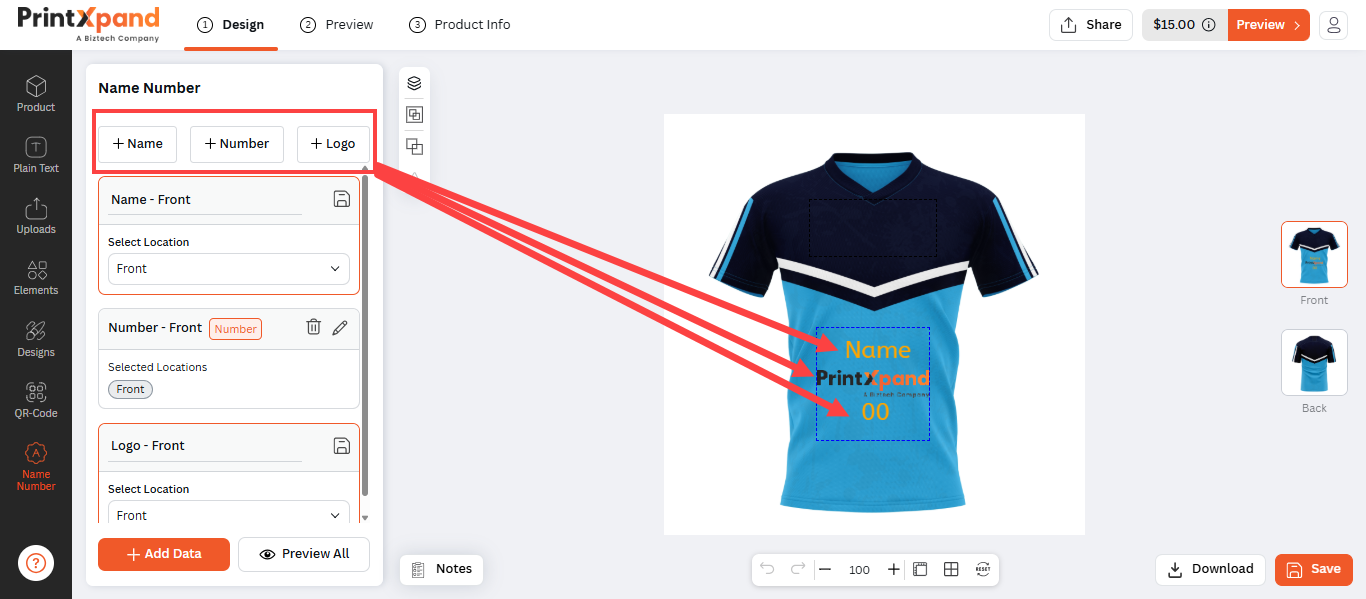
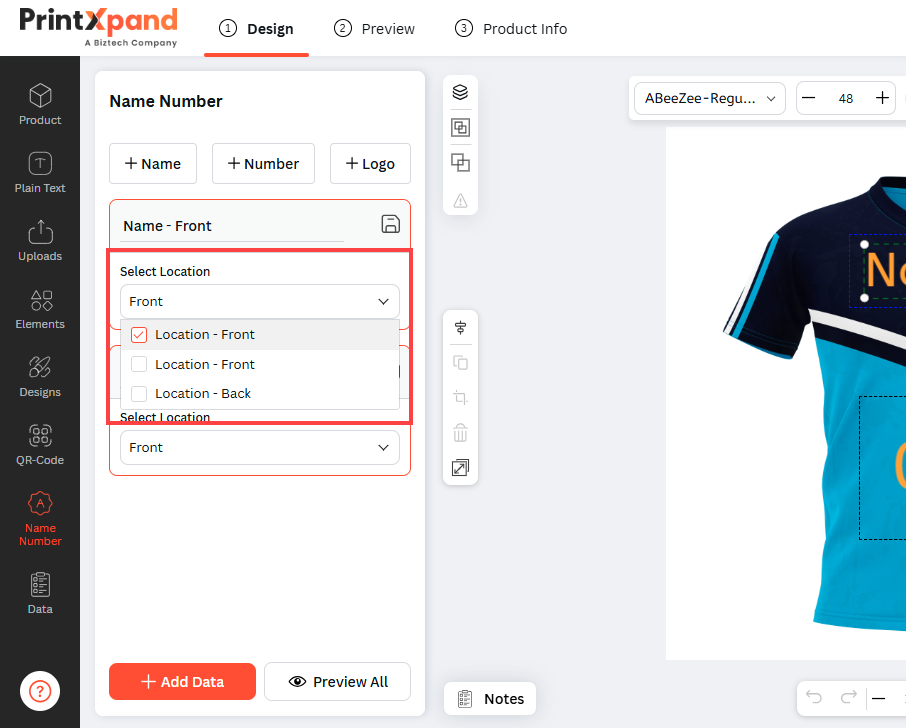
Add Name-Number data
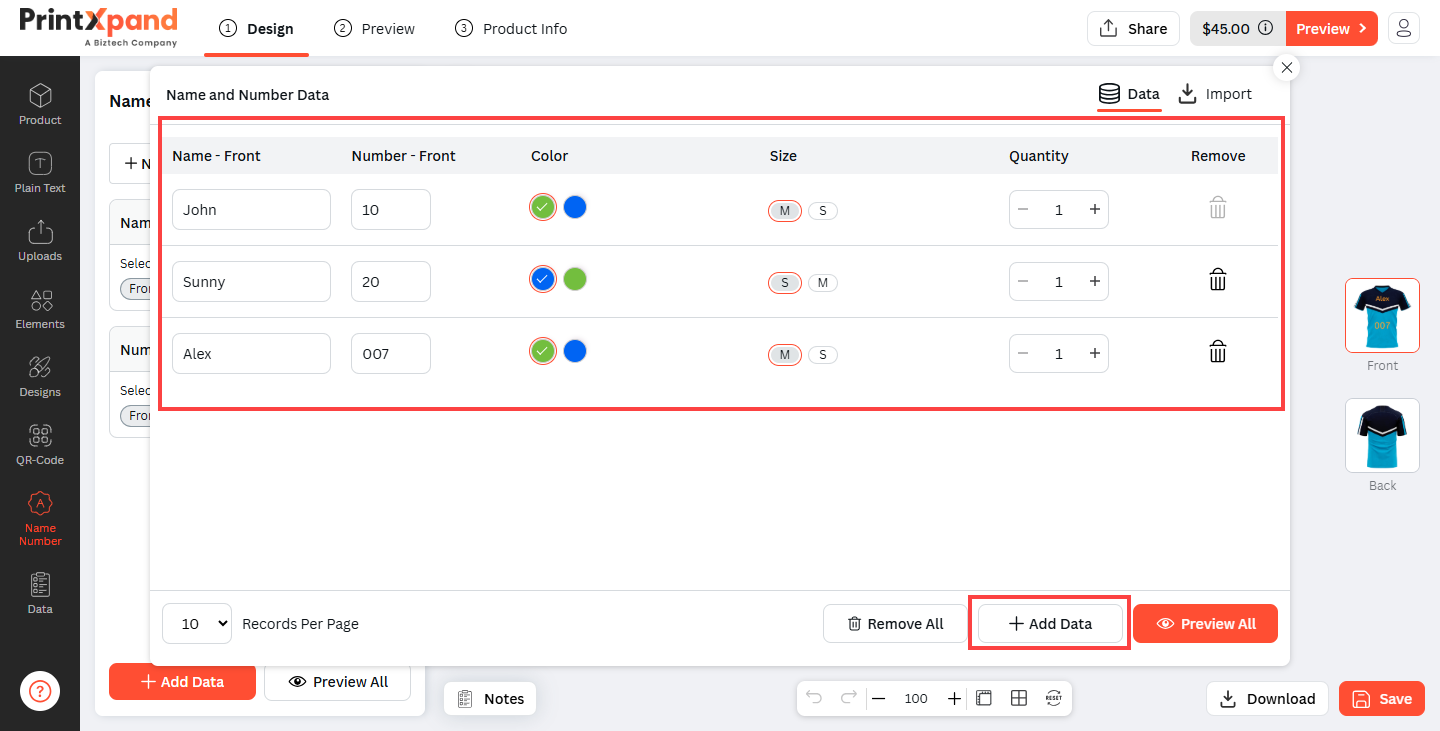
By clicking the Add Data button, the Name & Number Data popup will open. [3]
Your customers can set the name number details along with all the variants available for each record. By clicking on the Add Data button, more records for Name & Number can be added.[4]
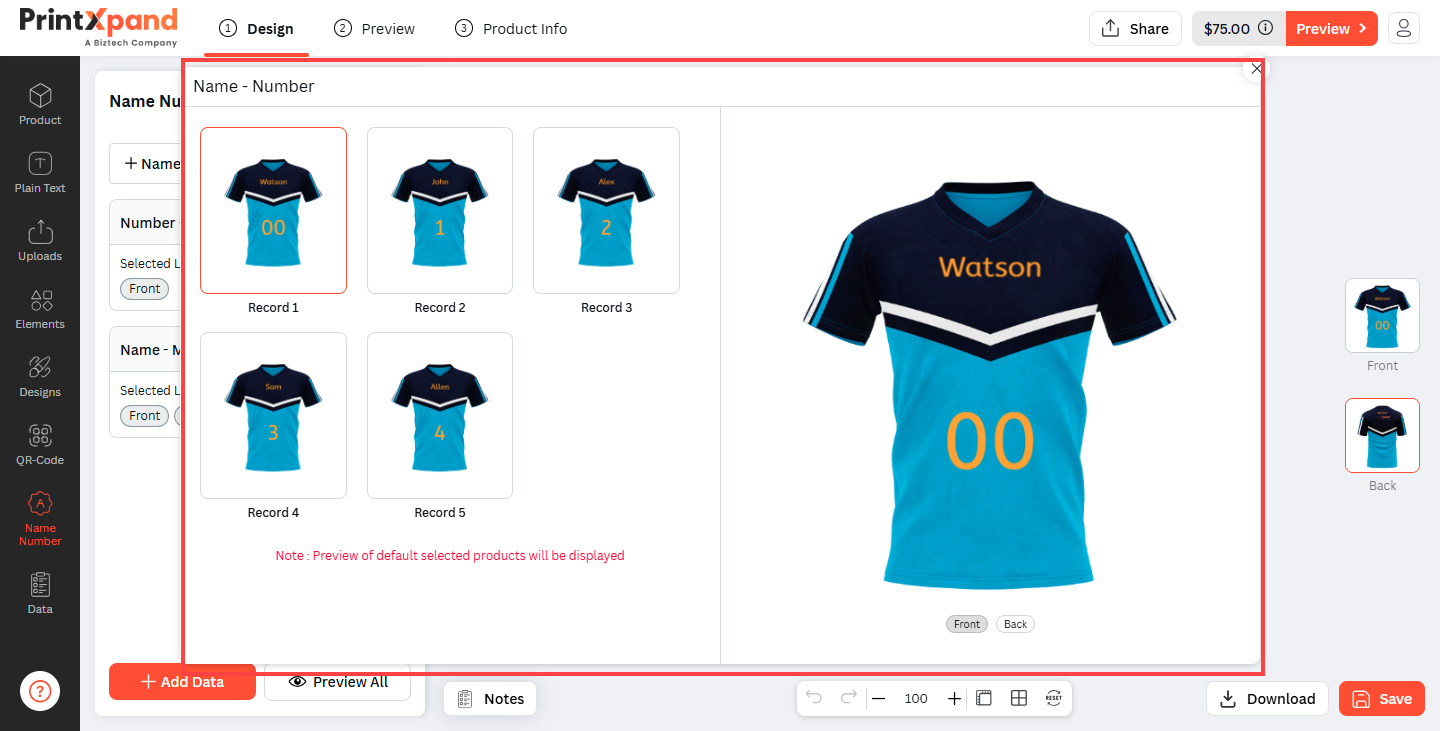
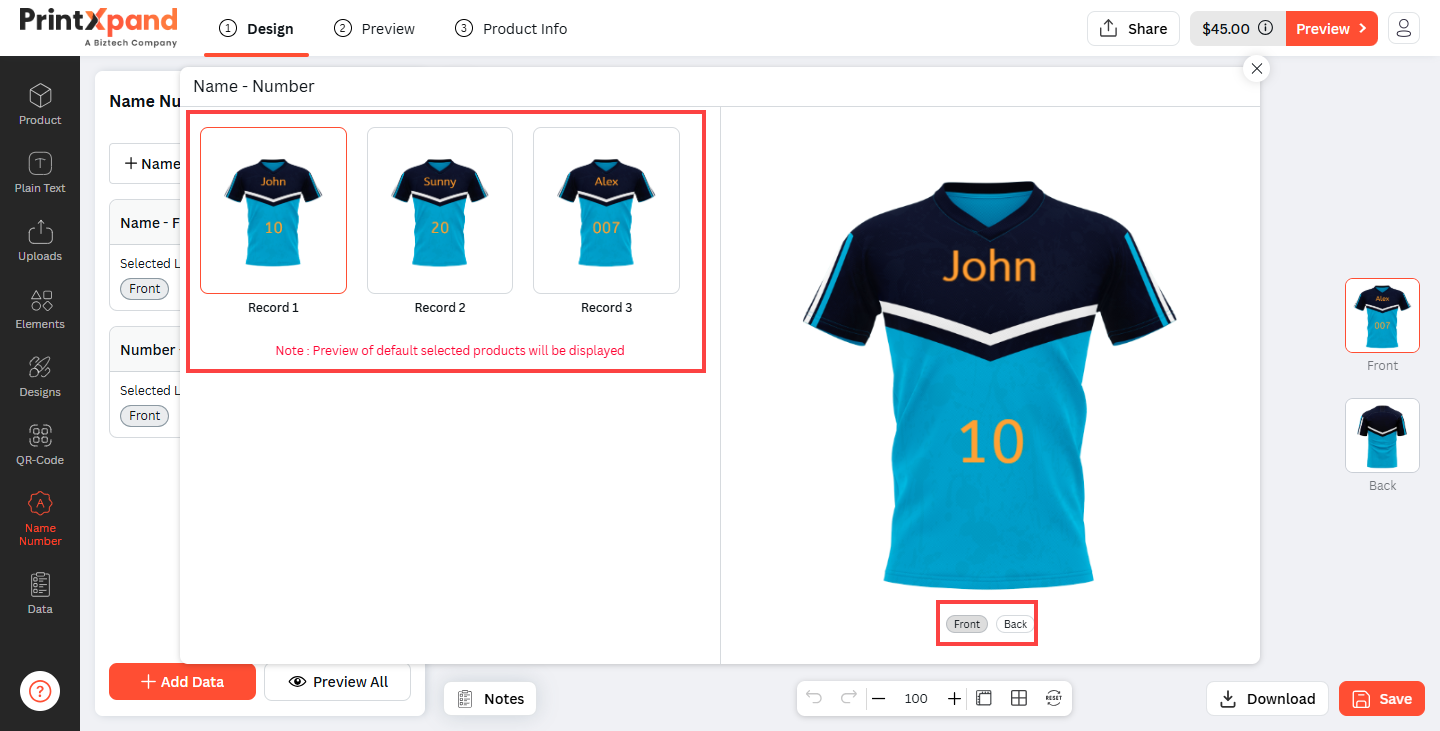
By clicking on the Preview All button customers can have a preview of all the records.
All products according to the entered Name, Number and Logo are displayed. From here, the product can be viewed from “Front” and “Back”. [5]
There is also a Preview All button present beside the Add Data button, from there as well you can view the product.
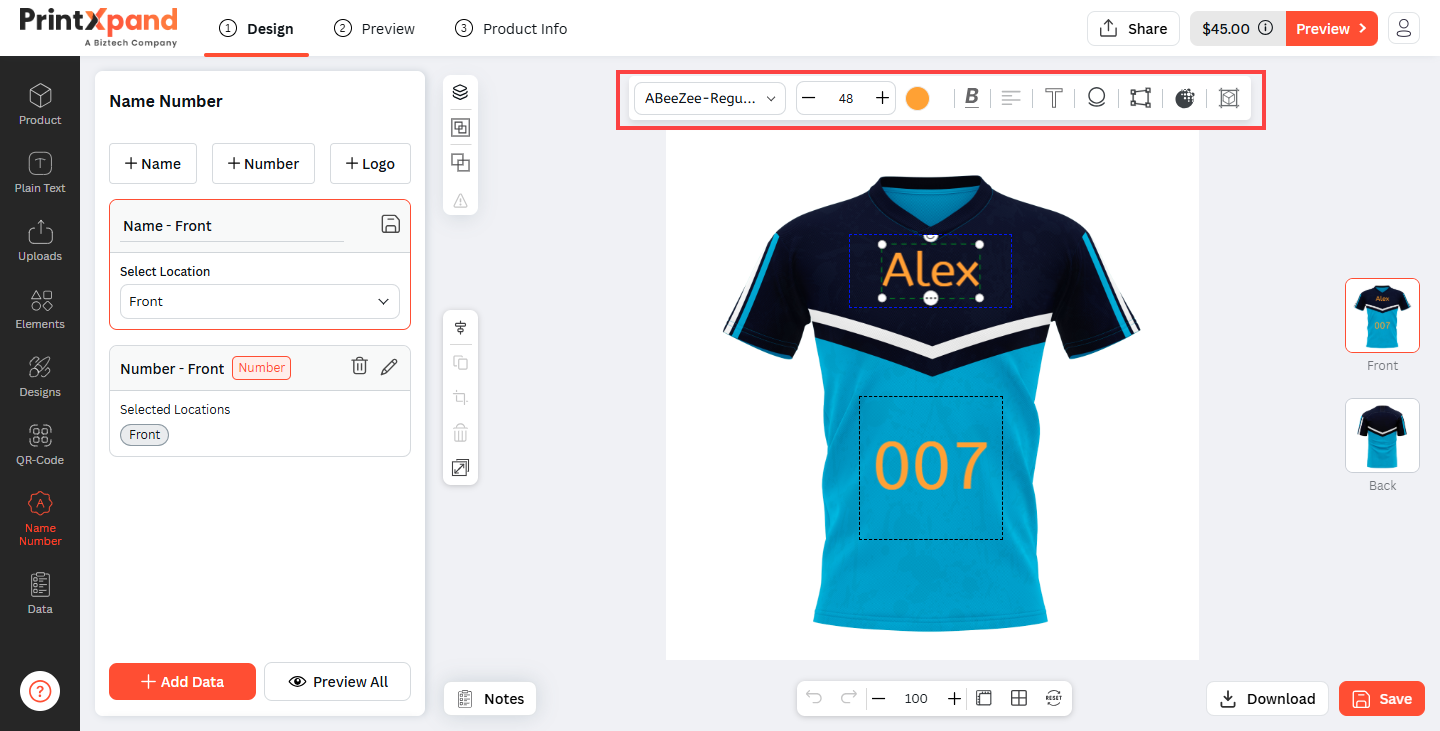
In the Name & Number tabs, you can have the sub-tabs through which you can change the properties of the text and images.
For Text, there are Font, Opacity, Stroke, Drop Shadow, and Object Position. For Image/Logo, there are Image Filters, Image Effects, Opacity, and Object Position. [6]
Note: Undo-Redo will be disabled by default for the Name & Number feature.
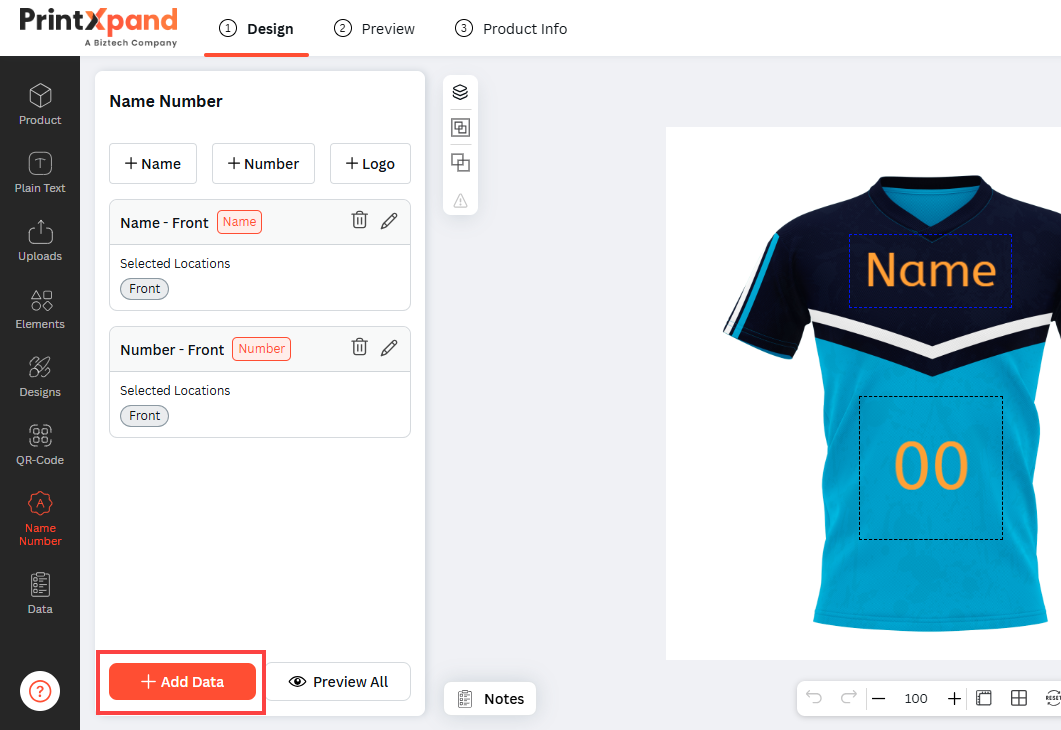
Import Name-Number Data
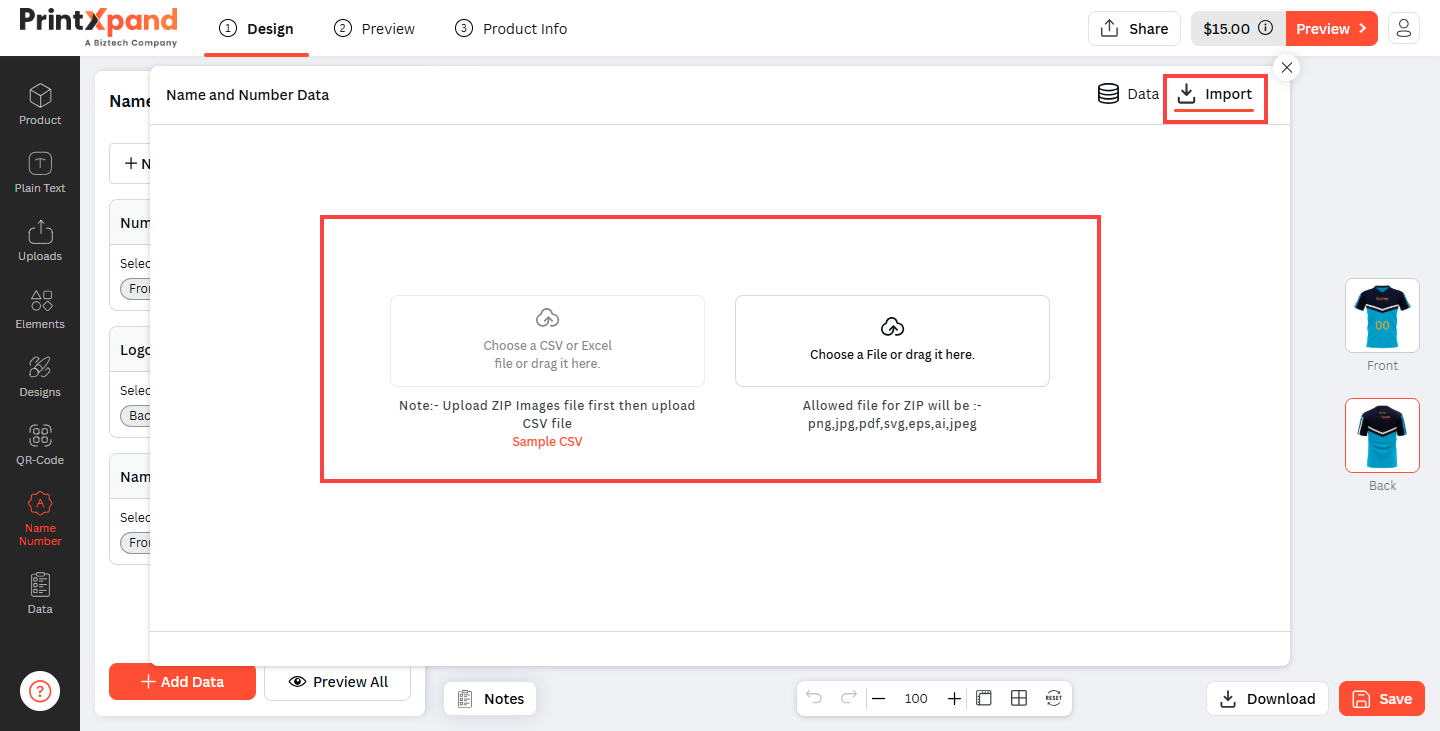
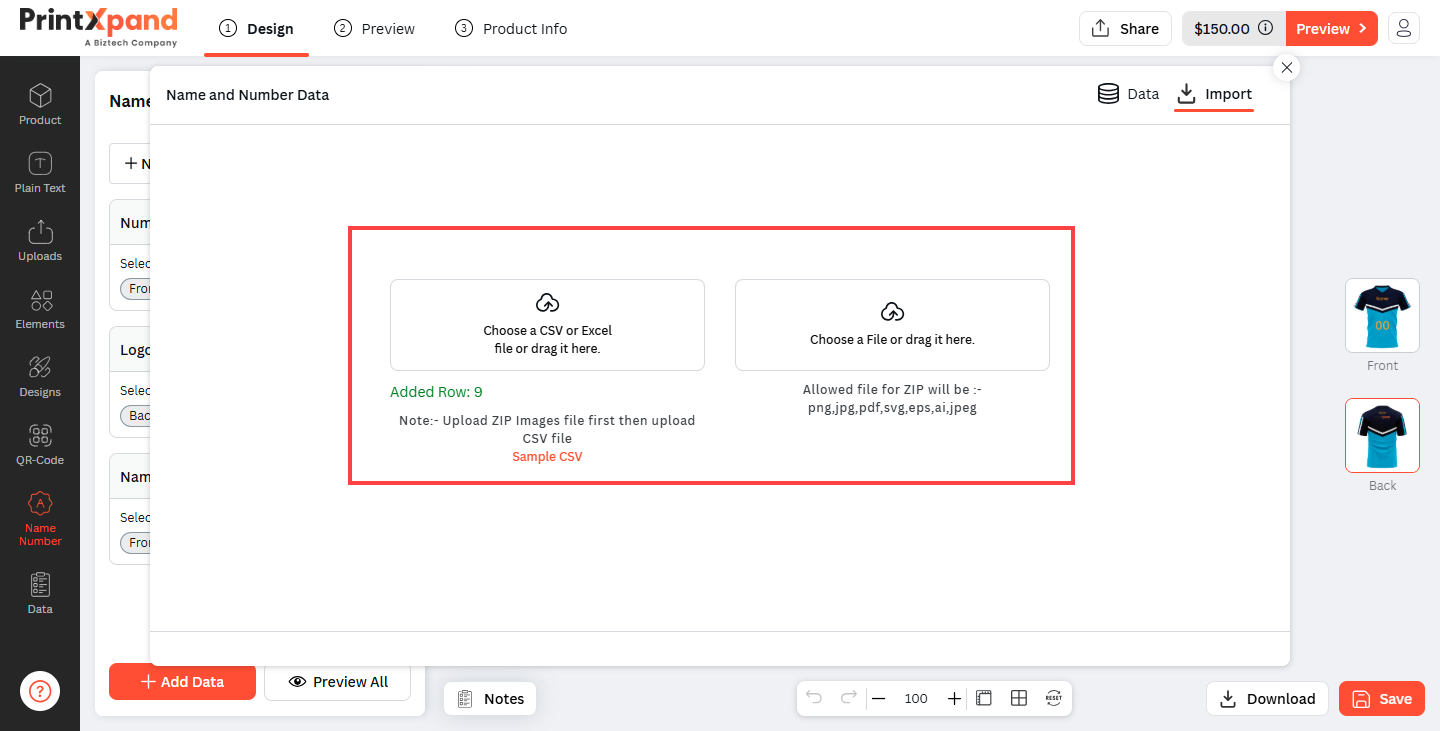
A CSV file or Excel file containing all the required details can be uploaded through the Import Section instead of manually entering all the data. To add Images/Logo, ZIP files including certain files that are mentioned can be added.[1]
First the logo images’ zip file should be uploaded. It has to be noted that the filename of the logo should be the same as mentioned in the CSV or Excel file
Then after, a CSV file or an Excel file which includes all the data such as Name, Number, Logo, Color and Size should be uploaded.[2]
When Preview All is clicked, all the products will be displayed with their respective Name, Logo and Number.[3]