Product Level Configuration
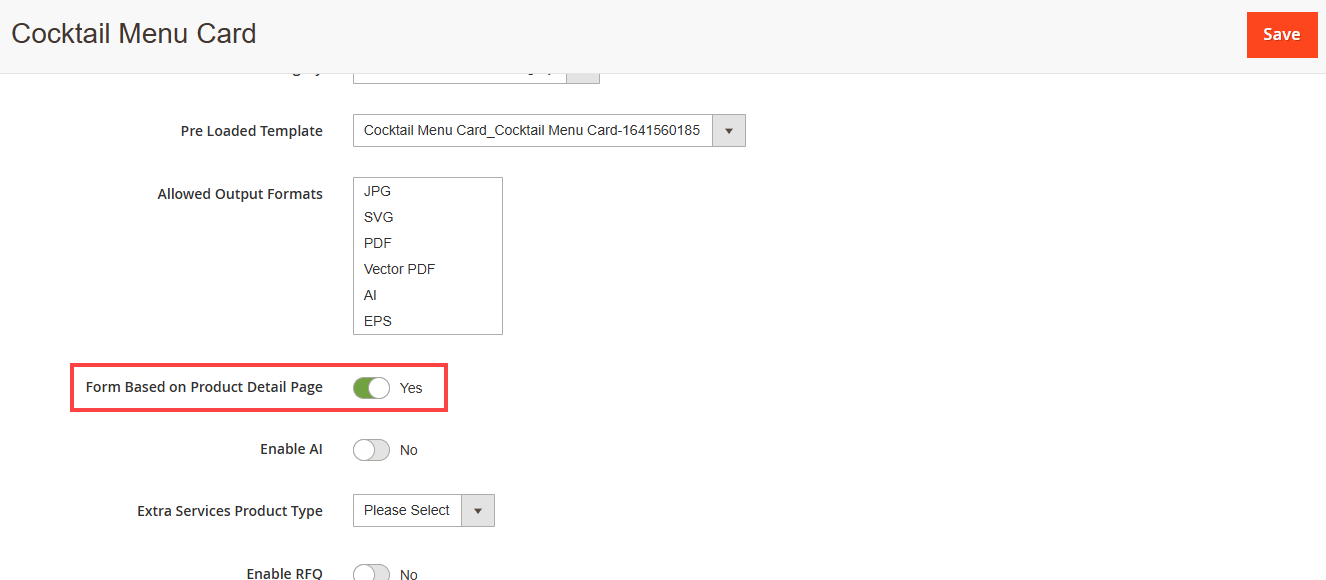
You can also enable this feature for each individual product. Navigate to the Catalog > Products, you will get the list of the Products. Now, open the product in the Edit mode and go to the Product Designer section.
Now enable the Form Based on Product Detail Page feature.[1]
Store Configuration
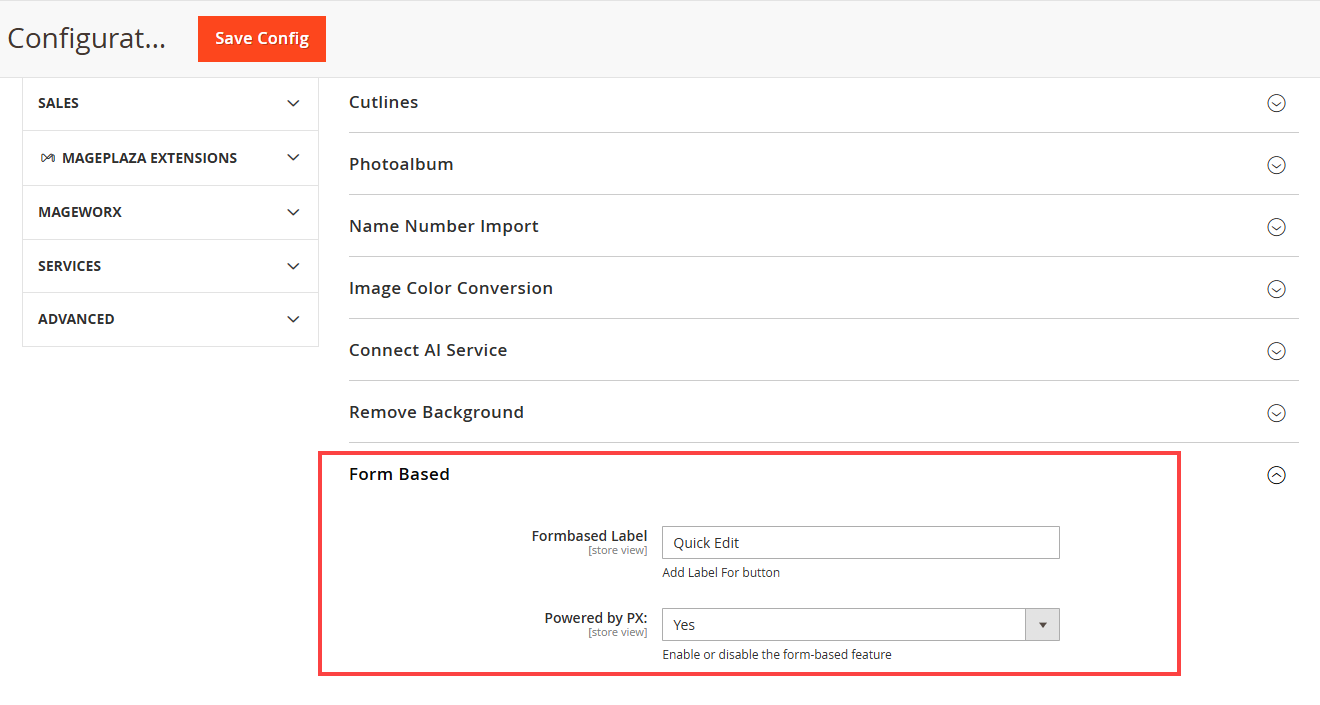
Navigate to the Store > Configuration > Product Designer Settings. Here scroll down to From Based section and configure the following options:[1]
From based label: Enter the label for Form Based button visible on product detail page.
Power by PX: Enable the From Based feature for the designer tool.
Product Detail Page
If you have enabled “Form Based” from the Product Level, then your customers can update the elements from the Product’s Detail Page itself.
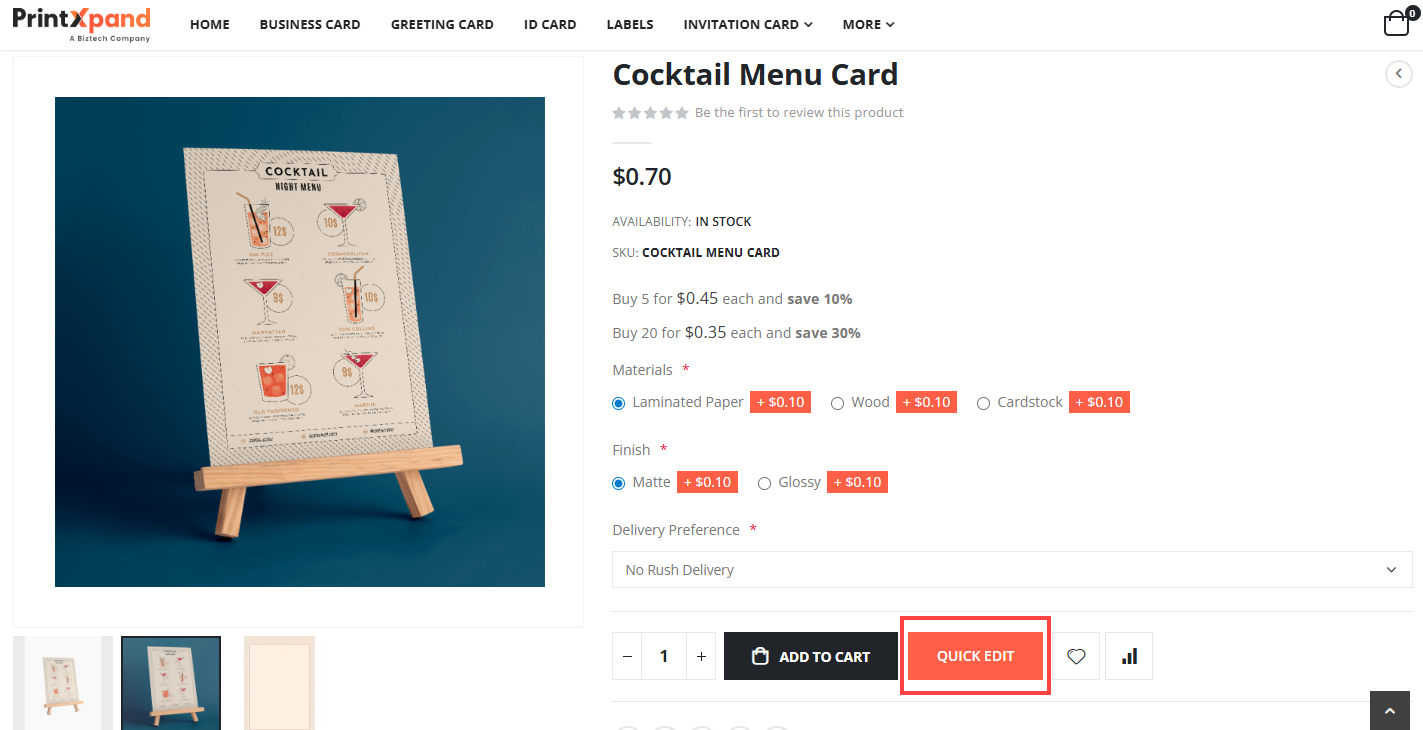
Click on the Quick Edit button this will open Form Based Customization Slider. [1]
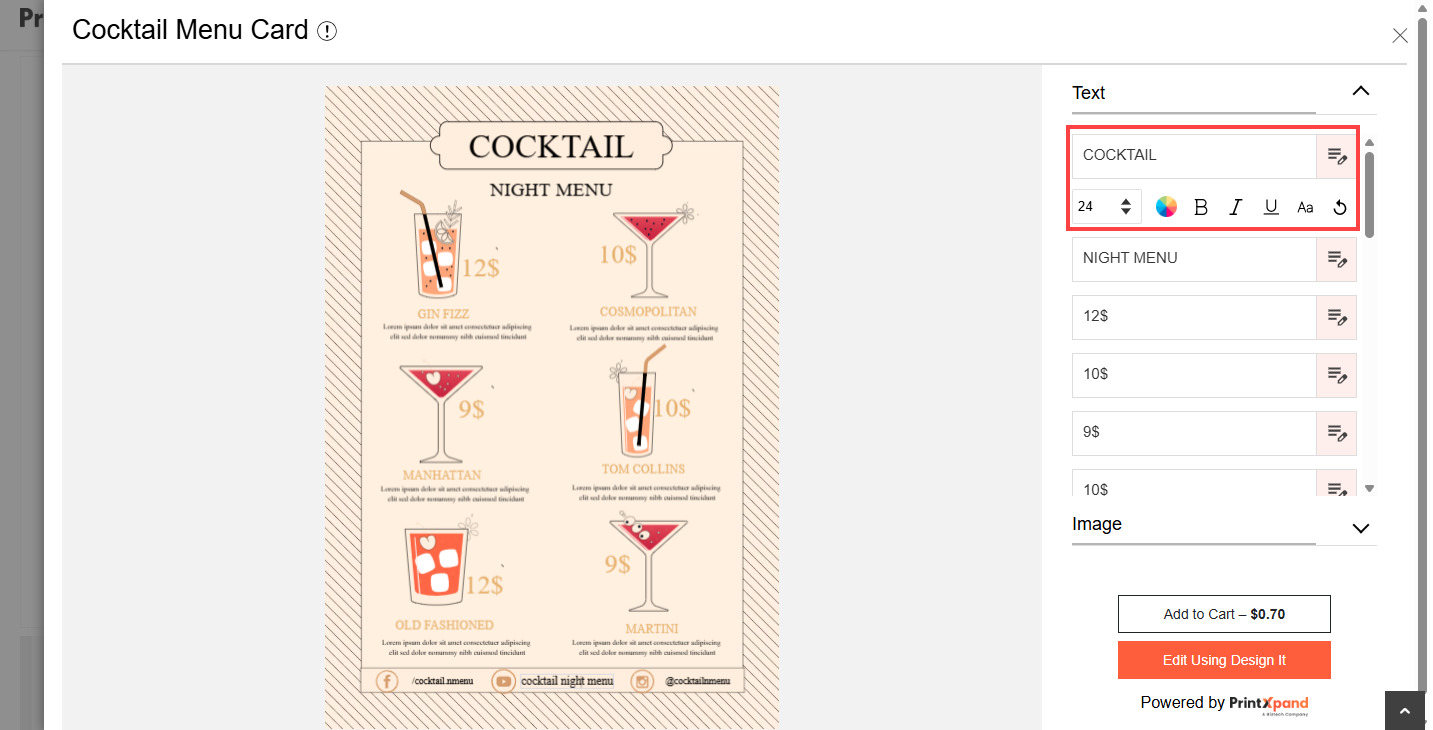
All the template details will be displayed under the design section like text and images of the template.
Text
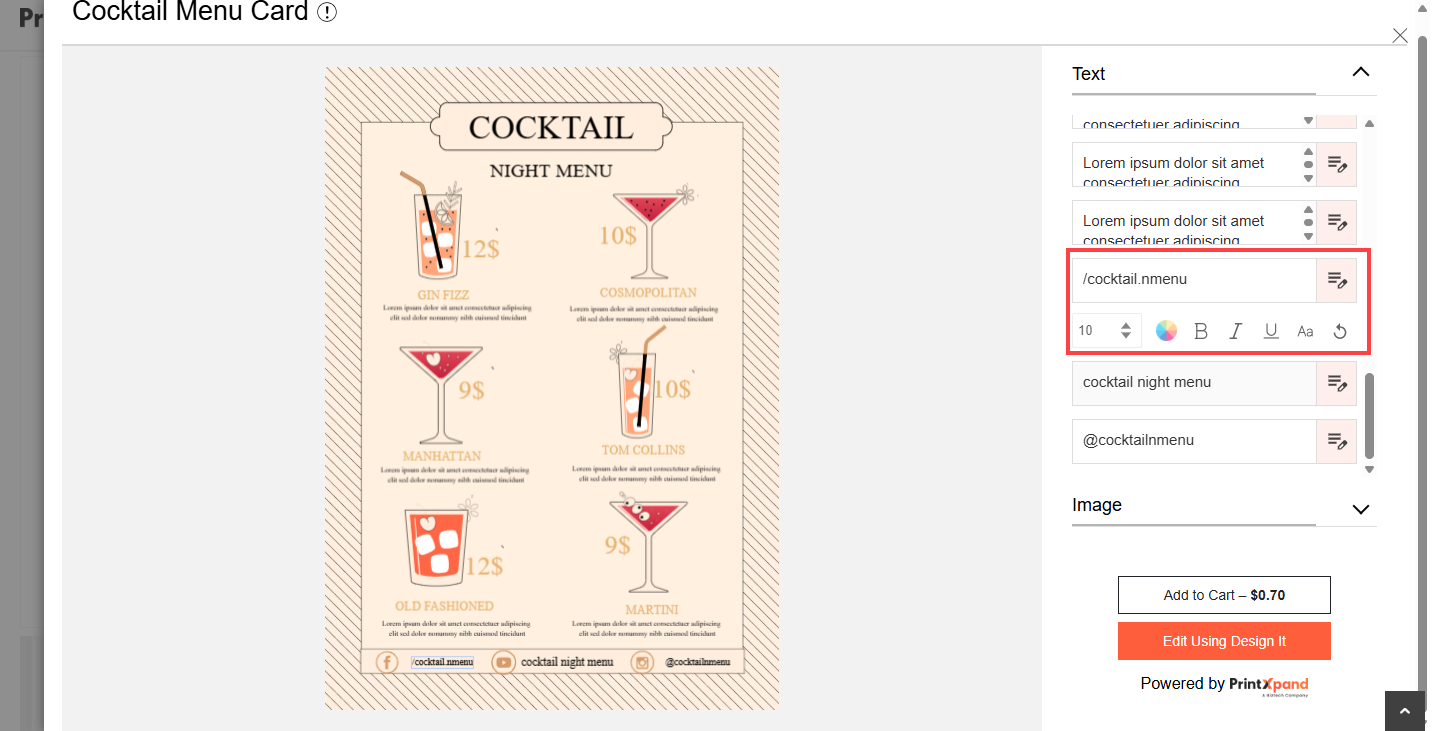
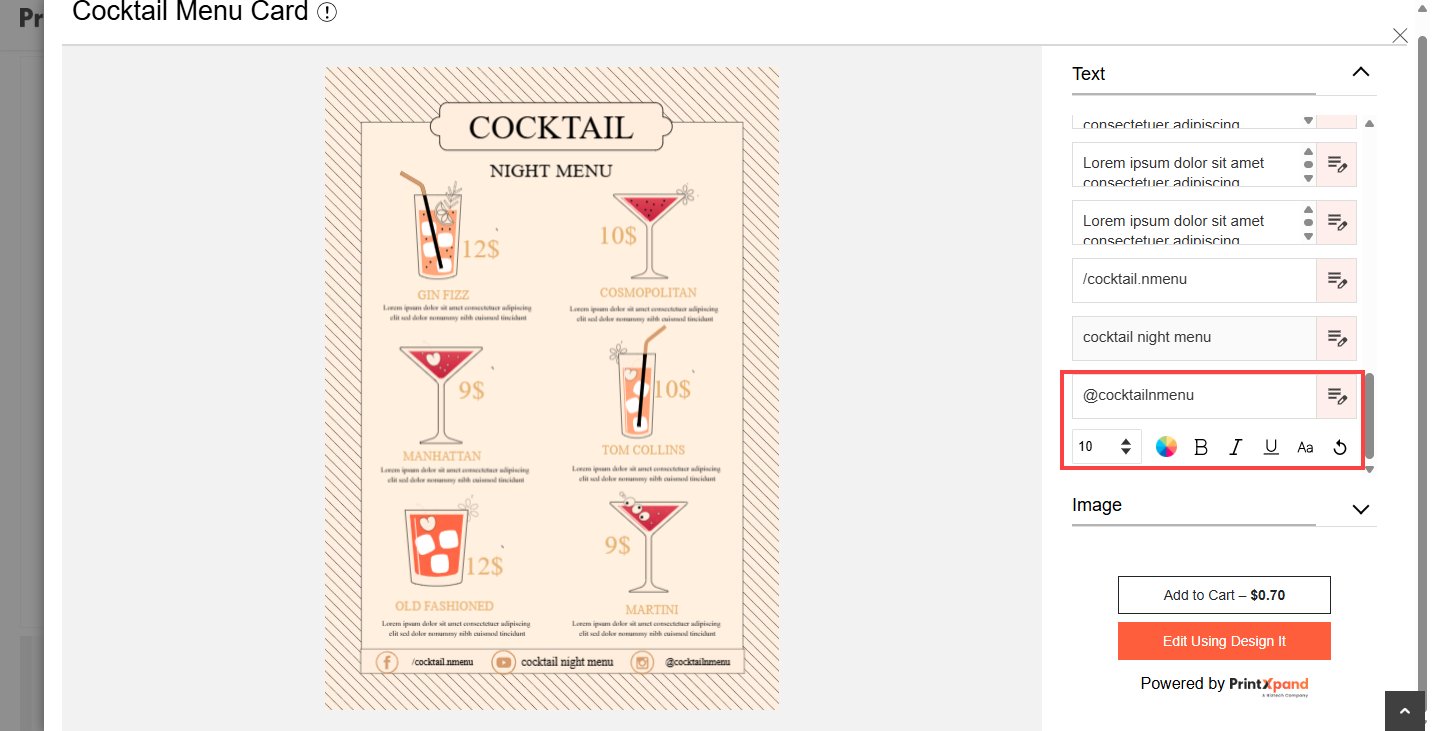
If you want to change the text or their properties like Font, Font size, Color, and apply stylings like Bold, Italic, and Underline.[1]
By clicking on the Reset button, the default text will load again.
If the admin has applied the Property Lock from the Manage Templates while creating the template, then you won’t be able to edit the text properties of that text.[2]
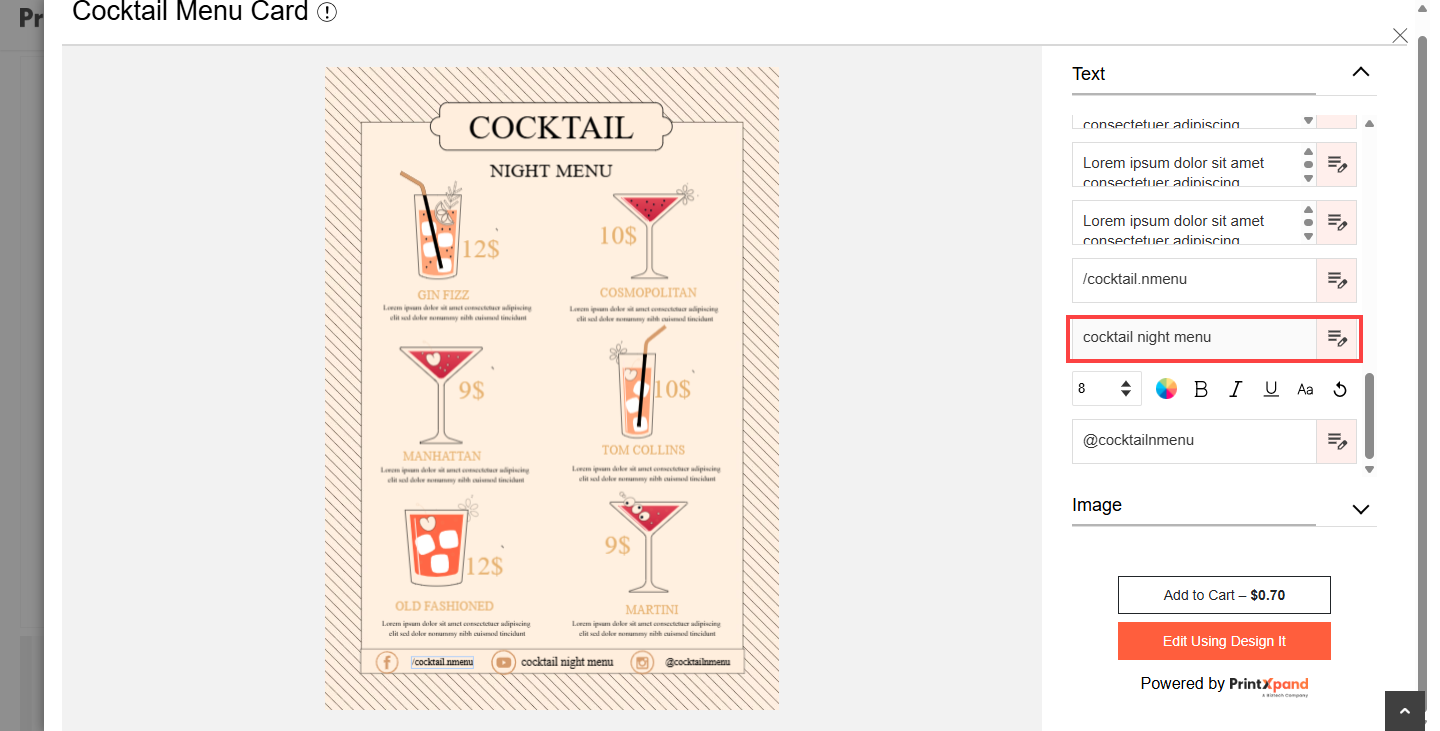
If the admin has applied Edit Lock, then you won’t be able to edit the text.[3]
If admin has applied Position lock, which will lock position of text and images and you won’t be able to move them. [4]
Image
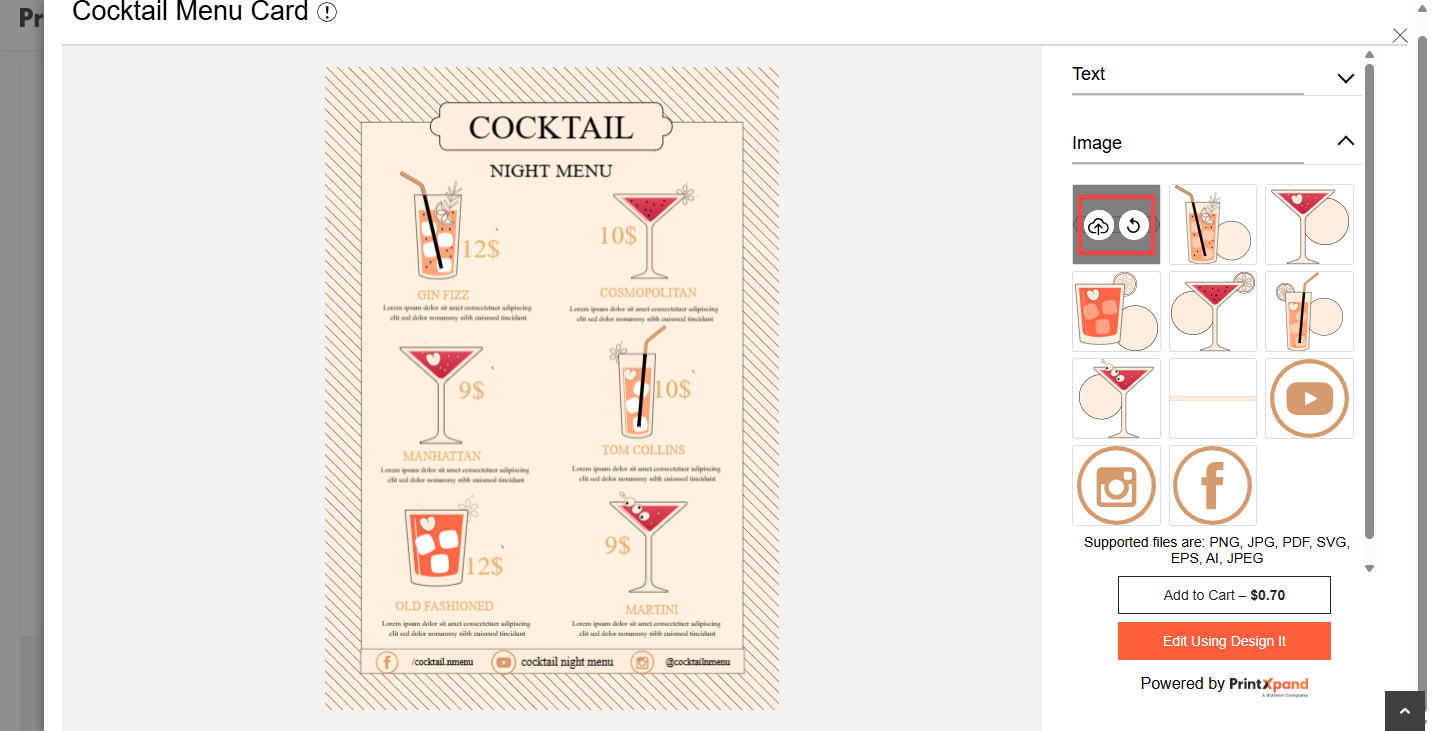
You can change the image by replacing it with a new one and by clicking on the Reset button, the default image will be loaded again.[1]
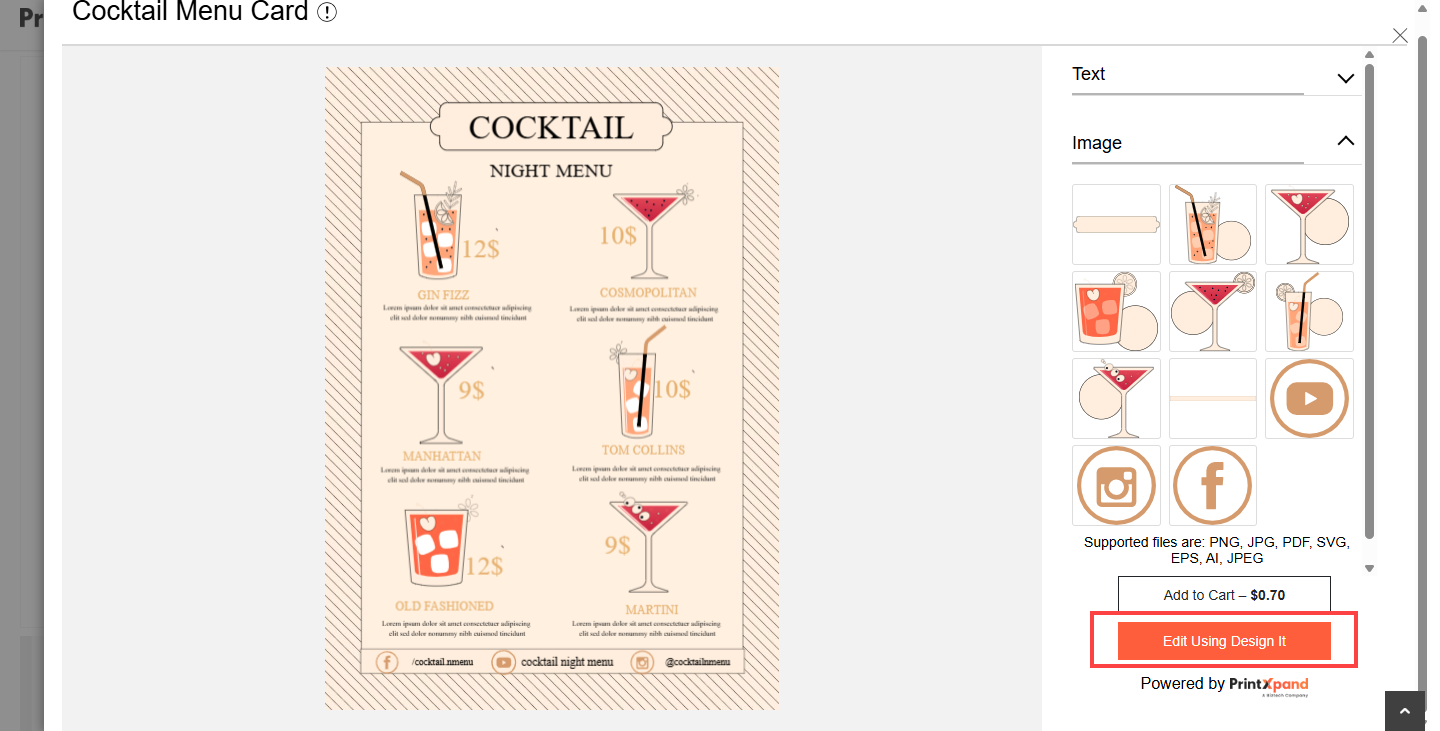
You can edit more things on the product by navigating to the designer tool Click on Edit Using Design it button which is given on the bottom of the Design section. You will be redirected to designer tools. [2]
Now let’s see how form-based works on the Product designer tool.
Product Designer Tool
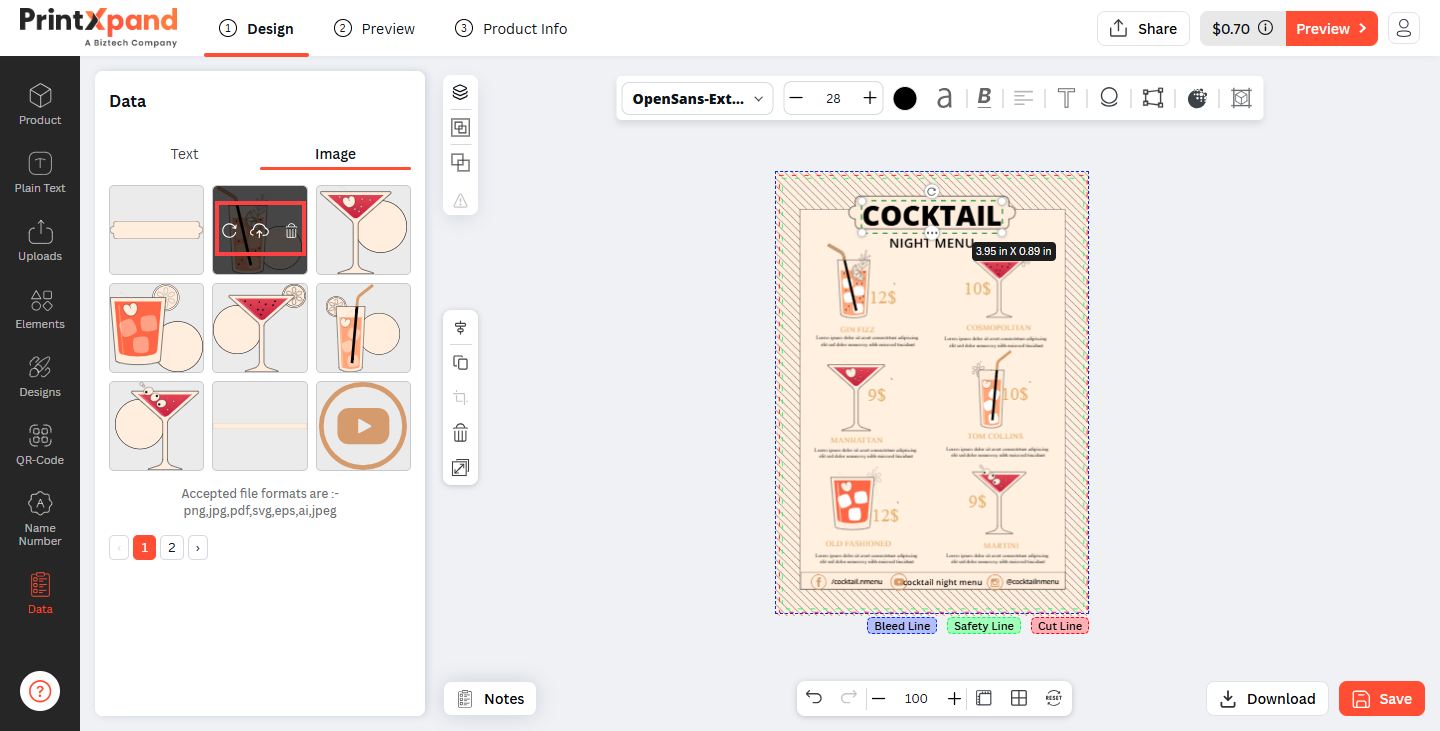
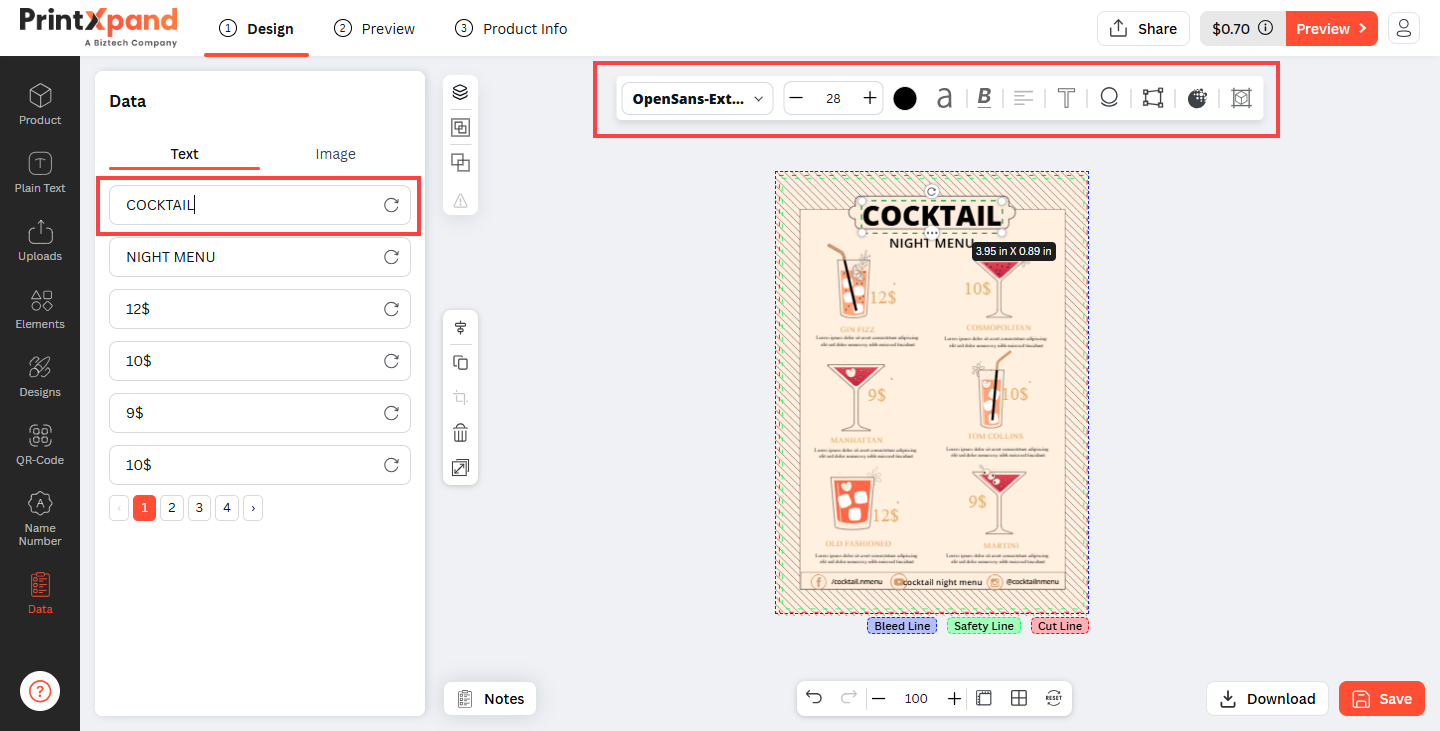
On the Designer page, you can view each and every element present in the Data tab like images and texts [1]
To edit the image just roll over the cursor to the particular image and the “Reset”, “Upload File”, “Delete” options will appear.
Click on the “Reset” icon to reset the image.
Click on the “Upload file” icon to upload the new image file.
Click on the “Delete” icon to edit properties of the image.
Click on the “Edit” icon to edit properties of image.
Once you click on the image, the Edit panel will appear. From here you can apply Image Effects, Image Filters, Skew, Object Position, etc.
To change the text, simply type the new content in the text field. You can also apply different styles to the text by clicking on the Edit icon. [2]