Store Configuration
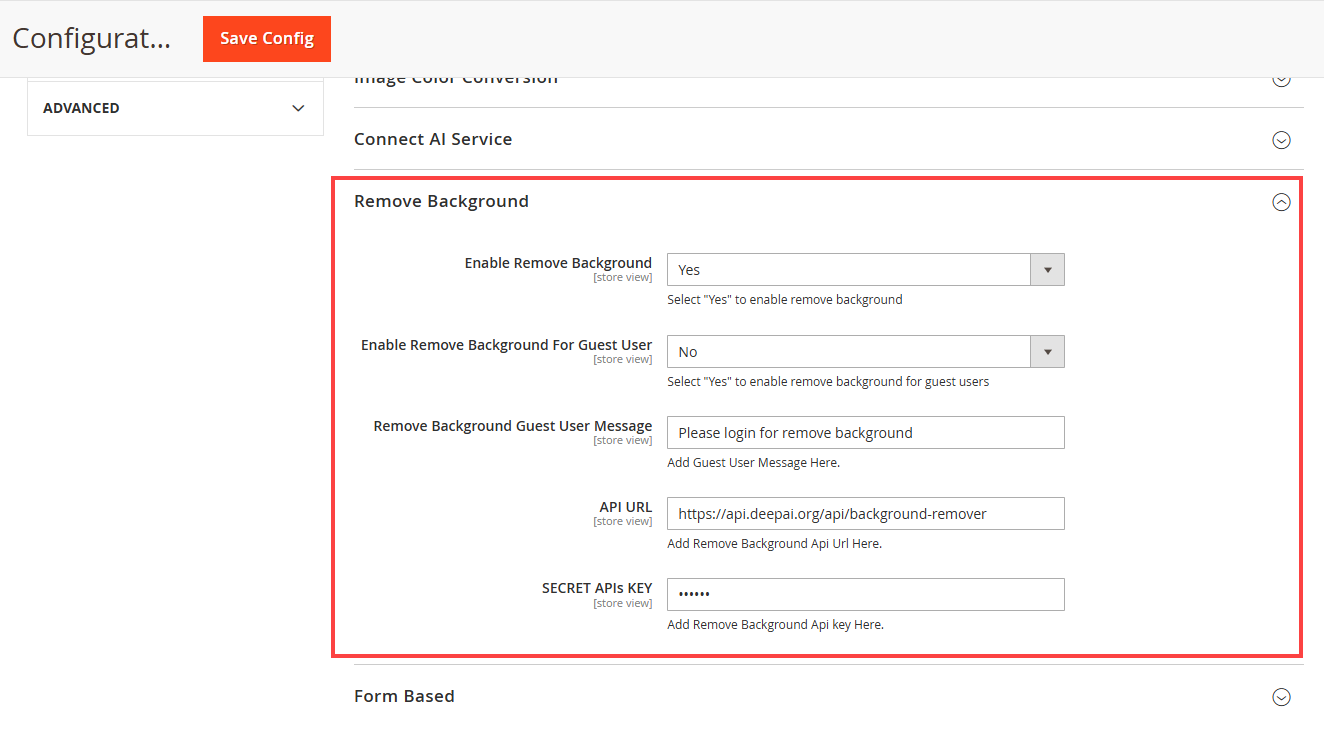
To enable the Background Removal feature, navigate to Store > Configuration. In the Product Designer Settings, go to the Remove Background section.Configure the following fields: [1]
Enable Remove Background: Enable this option to activate background removal.
Enable Remove Background for Guest Users: Enable this option to allow guest users to use the background removal feature.
Remove background Guest User Message : Enter the message for the Guest user. This message will be displayed to the guest user.
SECRET API Key: Enter the API key required for the background removal service.
Product Level Configuration
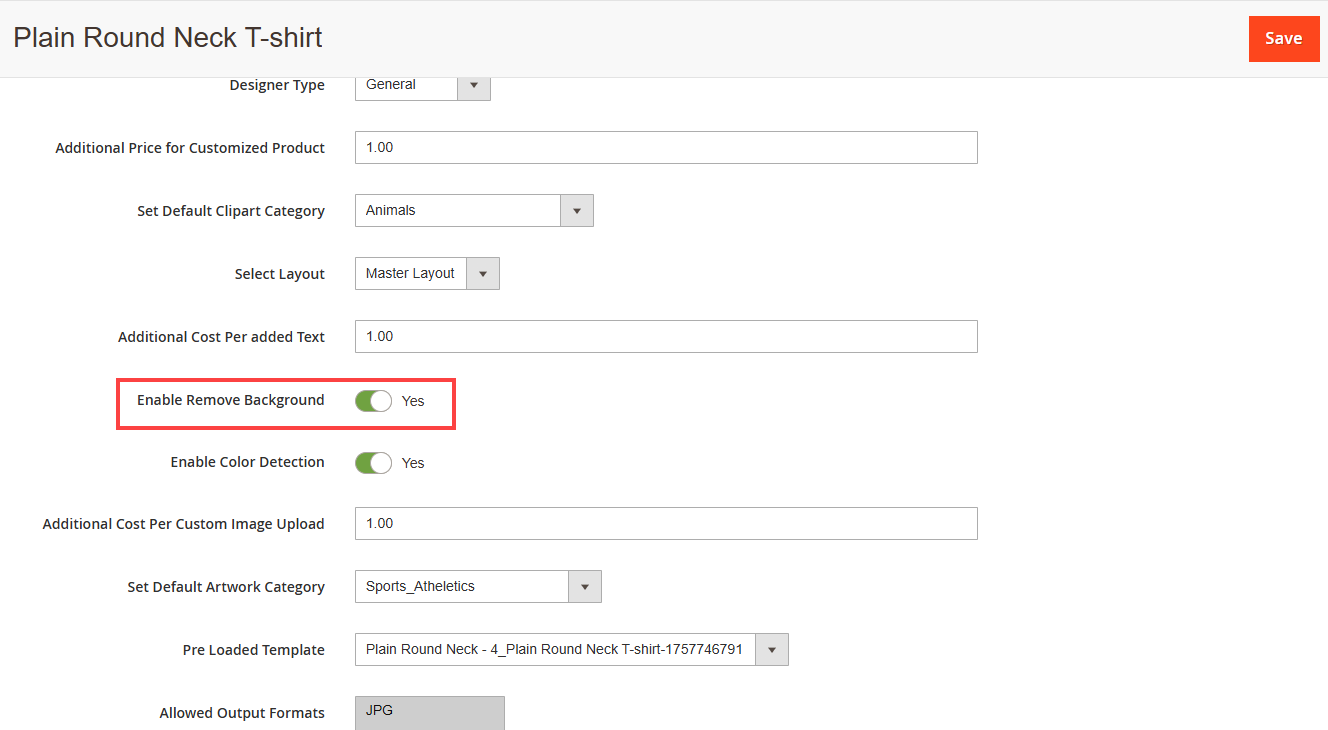
To enable background removal for a product, navigate to Catalog > Product. Open the desired product and go to its Designer Settings. [2]
Within the Designer Settings, enable the Color Detection toggle to activate the background removal feature.
Frontend View
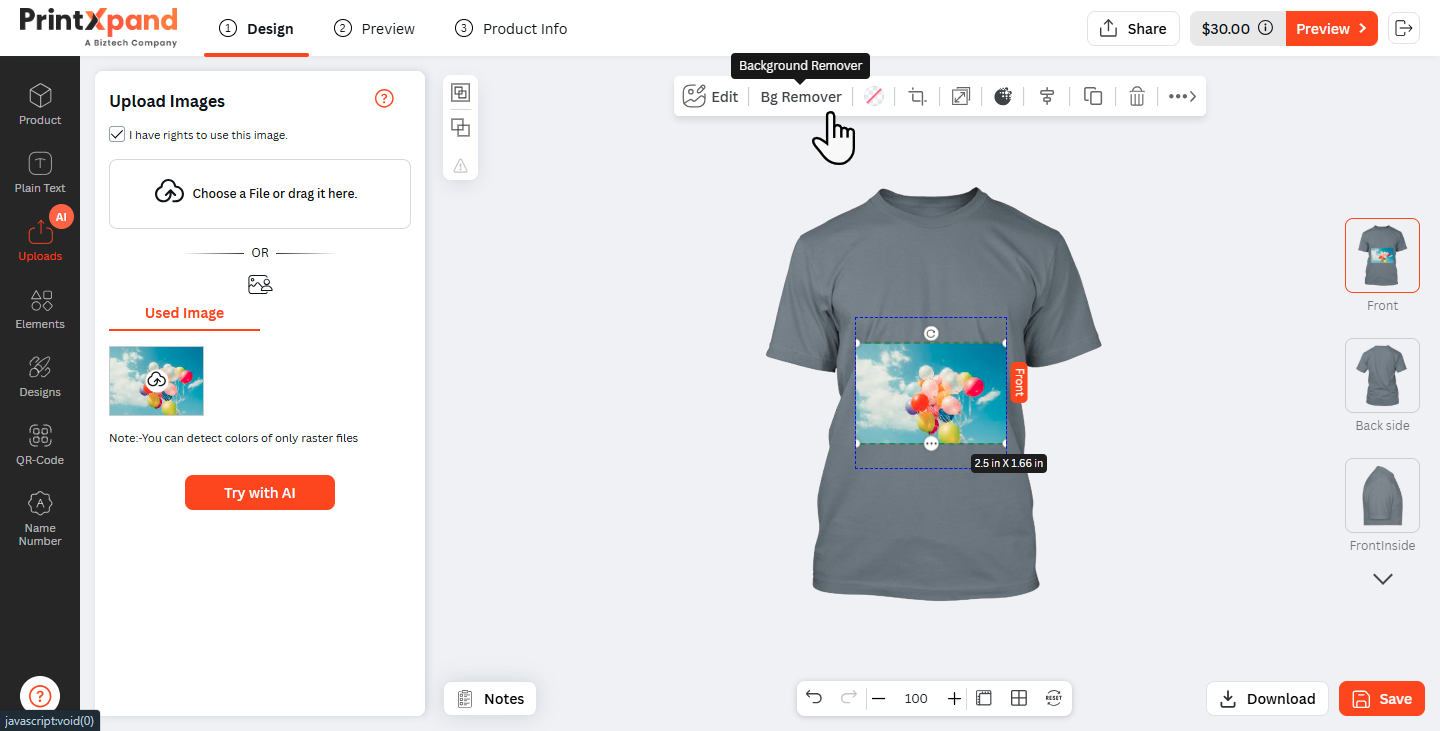
In the Designer Tool, upload the image from the Upload tab to begin the background removal process. After the image is added to the canvas, use the Bg Remove option to automatically remove the background and display the processed image. [1]
In the next step, click the Bg Remove button in the Image Configuration property tab. This action will initiate the background removal process.
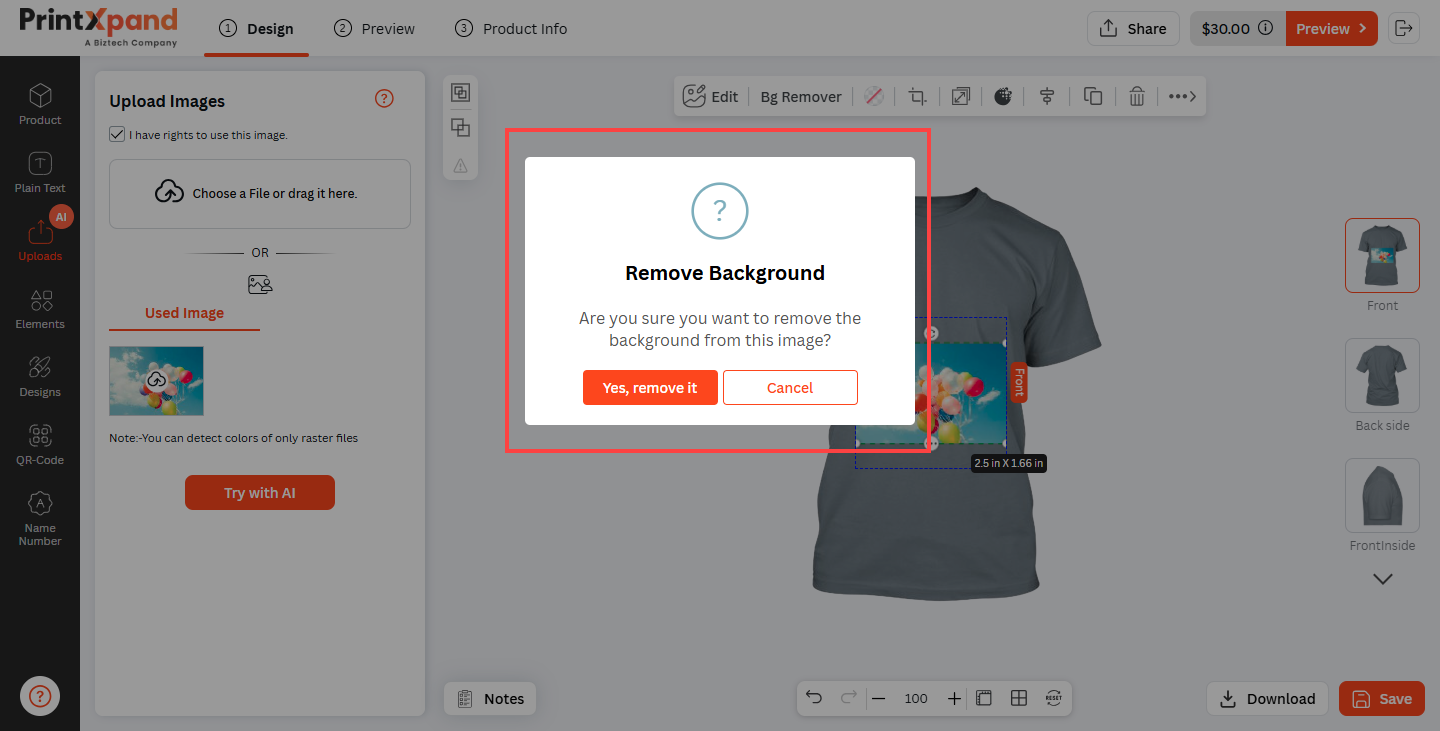
A confirmation pop-up will appear. Click “Yes, Remove It” to start the background removal process.[2]
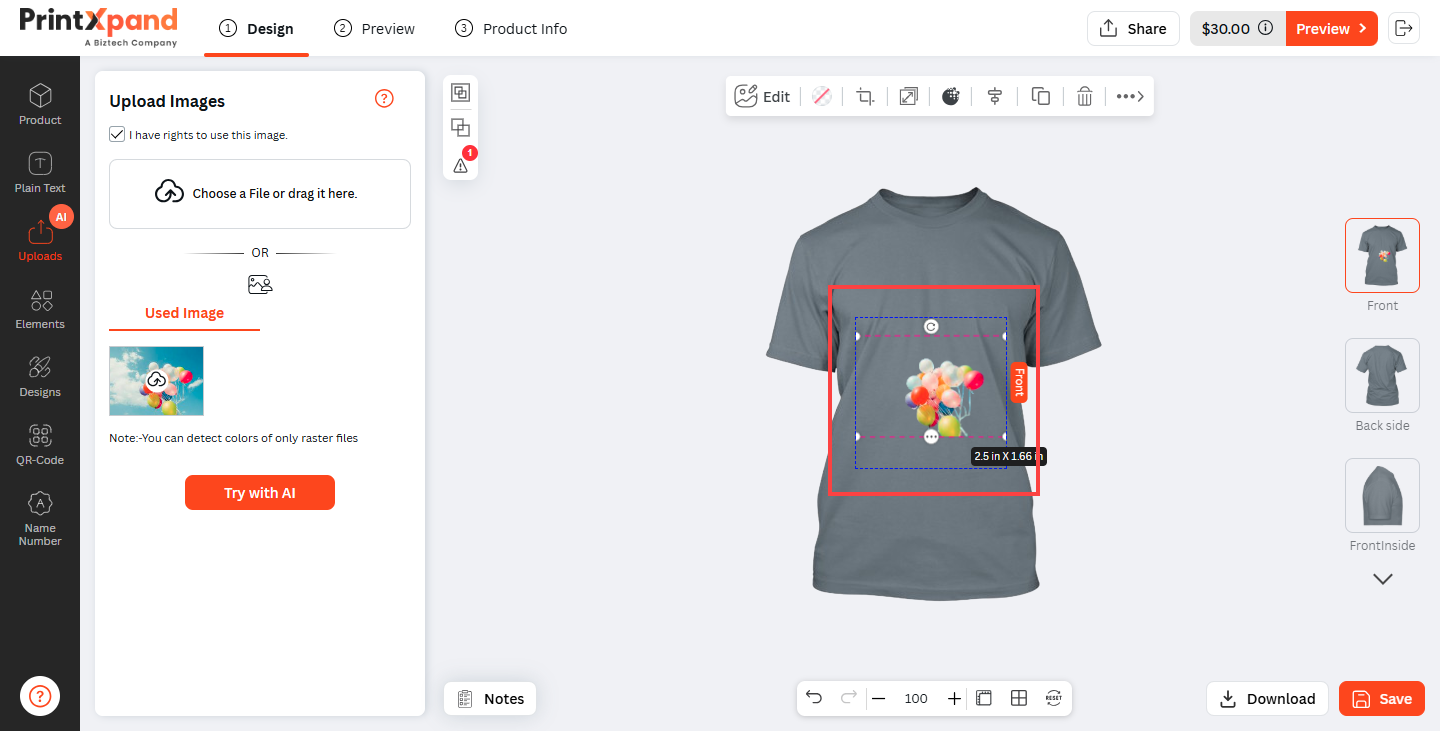
After the confirmation message appears, the background of the image will be removed, and the updated image will be displayed on the canvas.[3]