Product Level Configuration
To enable the CQD (Custom Quantity Driven) option for a product in PrintXpand Designer Tool 4.0, follow the steps below:
Step 1: Add a Configurable Product
First, create a Configurable Product in the system.
You can refer to the following document for detailed instructions on creating a configurable product: Click here
Configurable products allow customers to choose between different attributes such as size, color, or style before placing an order.
Step 2: Enable the CQD Attribute
After successfully adding the configurable product:
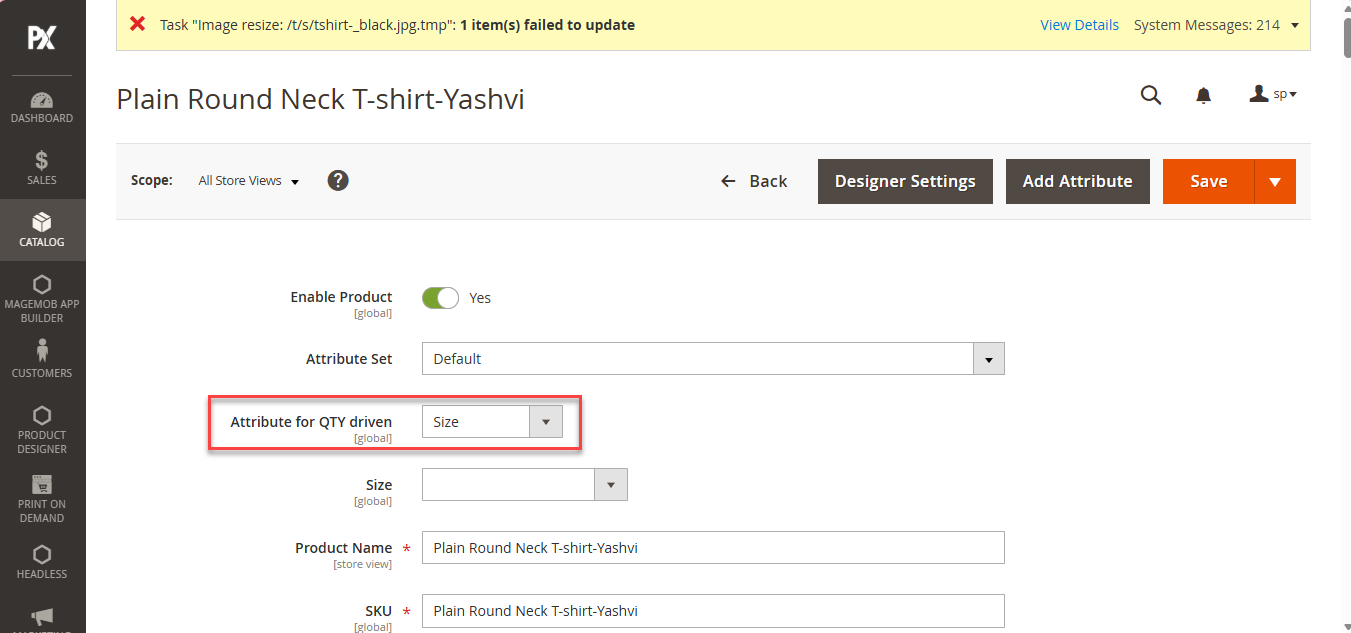
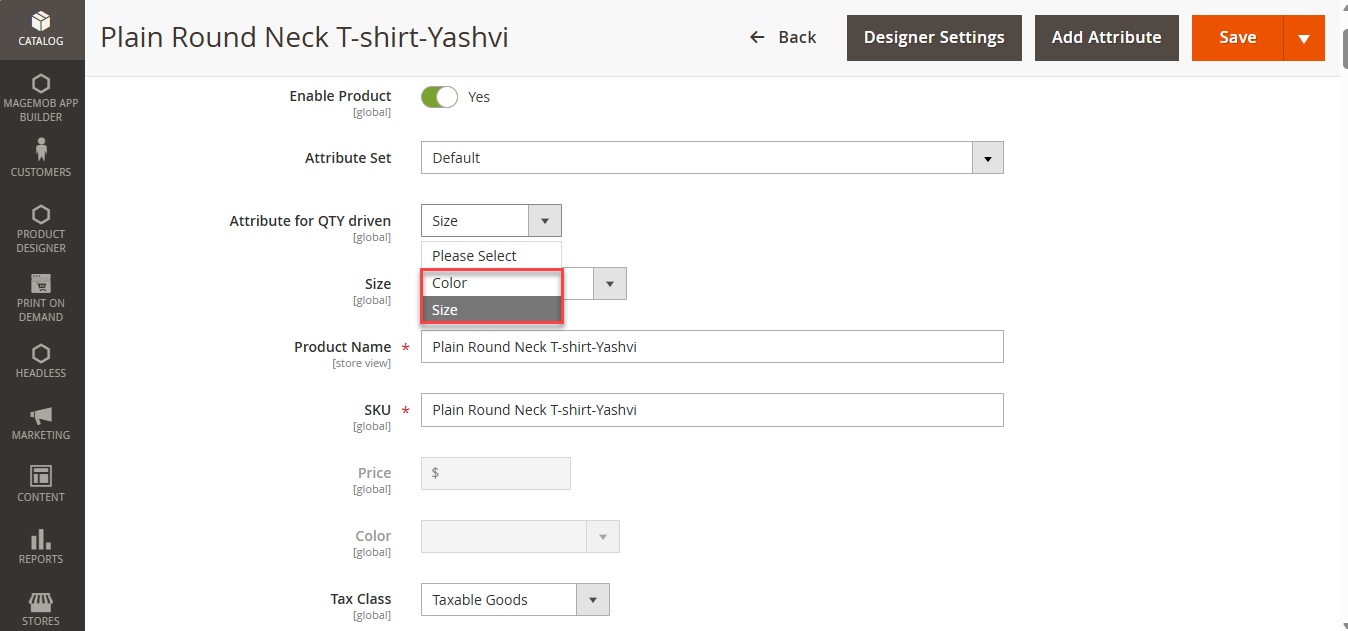
Navigate to the Product Configuration Settings.
Locate the dropdown option labeled “Attribute for QTY Driven.” [1]
On PDP Page
Step 1: Select Product Configuration
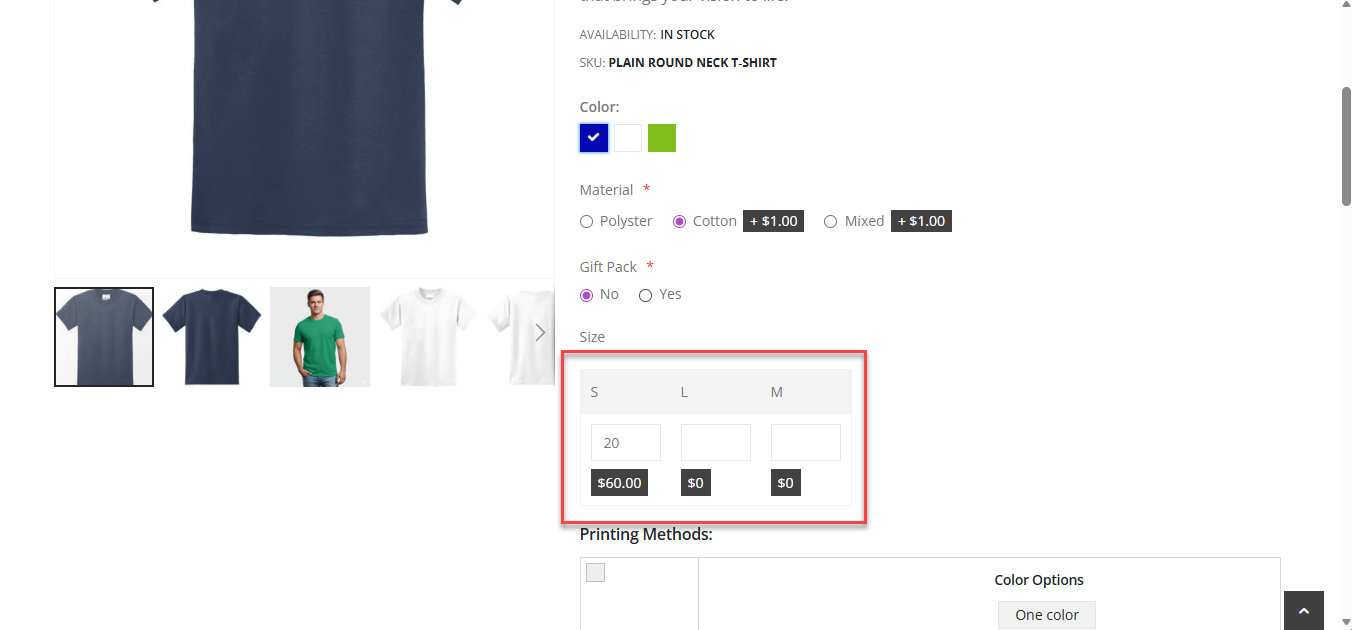
Customers begin by selecting the desired product variations such as:
- Size
- Color
- Any other configurable options like Material, Delivery Preferences etc.
Step 2: Enter Quantity Based on Attribute Configuration
Enter the Quantity of product to be ordered based on the attributes configured. [1]
Customers can also select the printing method, which determines how the design will be applied to the product.
Step 3: Add Design and Proceed
Once the required options and printing locations are selected, the following options will be available:
- Add to Cart
- Design It
On Design Tool
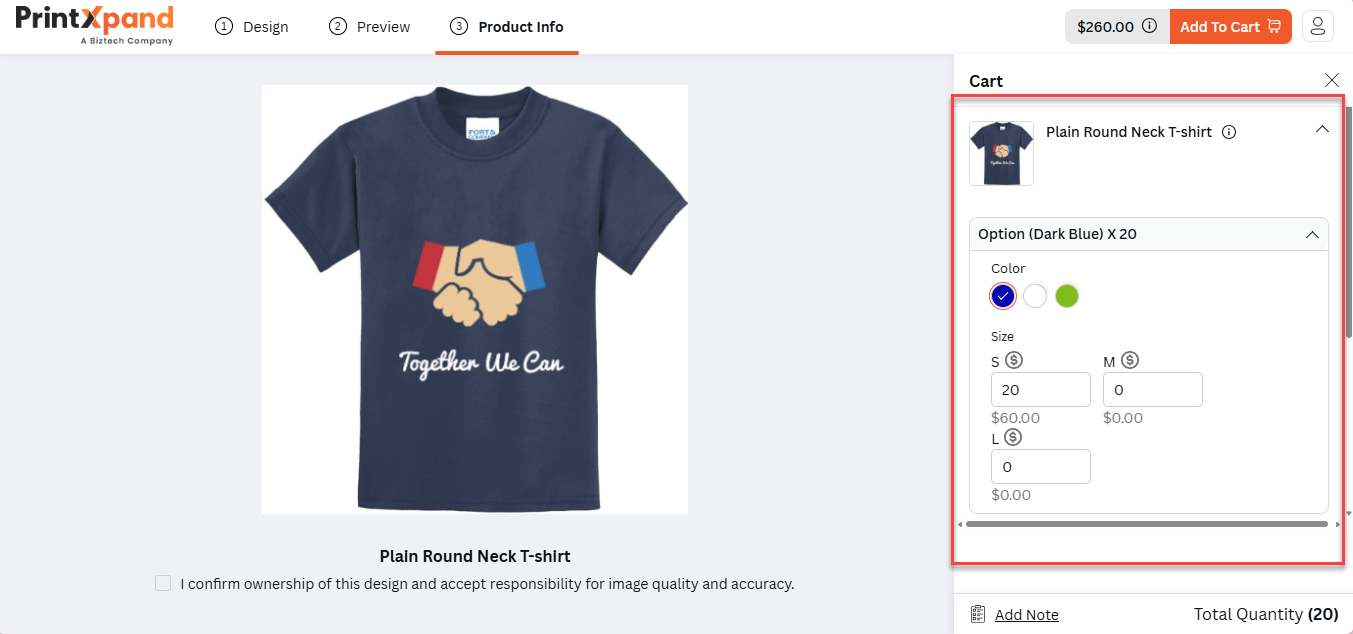
Customers can then proceed to design the product using the Designer Tool. On the Product Info Page, they also have the option to review and modify the quantity of the product from the product info section before completing the order. [1]