Customizable Options
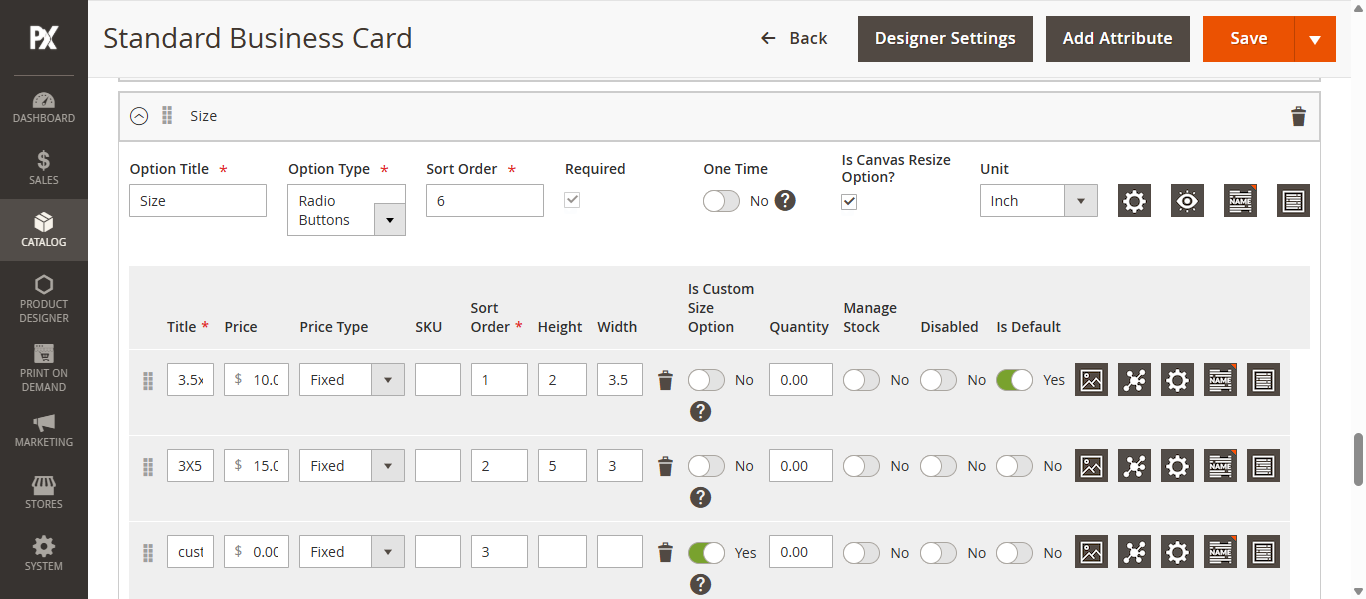
In the Product Configuration Settings, scroll down to the Customizable Options section to add size options. Click the Add Option button to create a custom option. Configure the following fields:
Option Title: Enter the title for the option (e.g., Size).
Option Type: Select the Radio Button option from dropdown.
Sort Order: Enter the sort order value.
Required: Check this box to make the option mandatory.
Is Canvas Resize Option? Check this box to enable canvas resizing for the selected option. Only visible when Radio Button is selected.
Unit: Select the measurement unit for the canvas from the dropdown menu.
This action will create a new grid. First, click the Add Value button to add a row. Then, configure the following fields to define the size:
Title: Enter the size title (e.g., A4).
Price: Specify the price for the size.
Height: Enter the height of the size.
Width: Enter the width.
Is Default: Enable the toggle to set this size as the default.
Is Custom Size Option: Enable this toggle to designate the size as a custom size.
To add multiple sizes, continue clicking the Add Value button. Once all sizes are added, click the Save button to store the fixed sizes.
Designer Settings
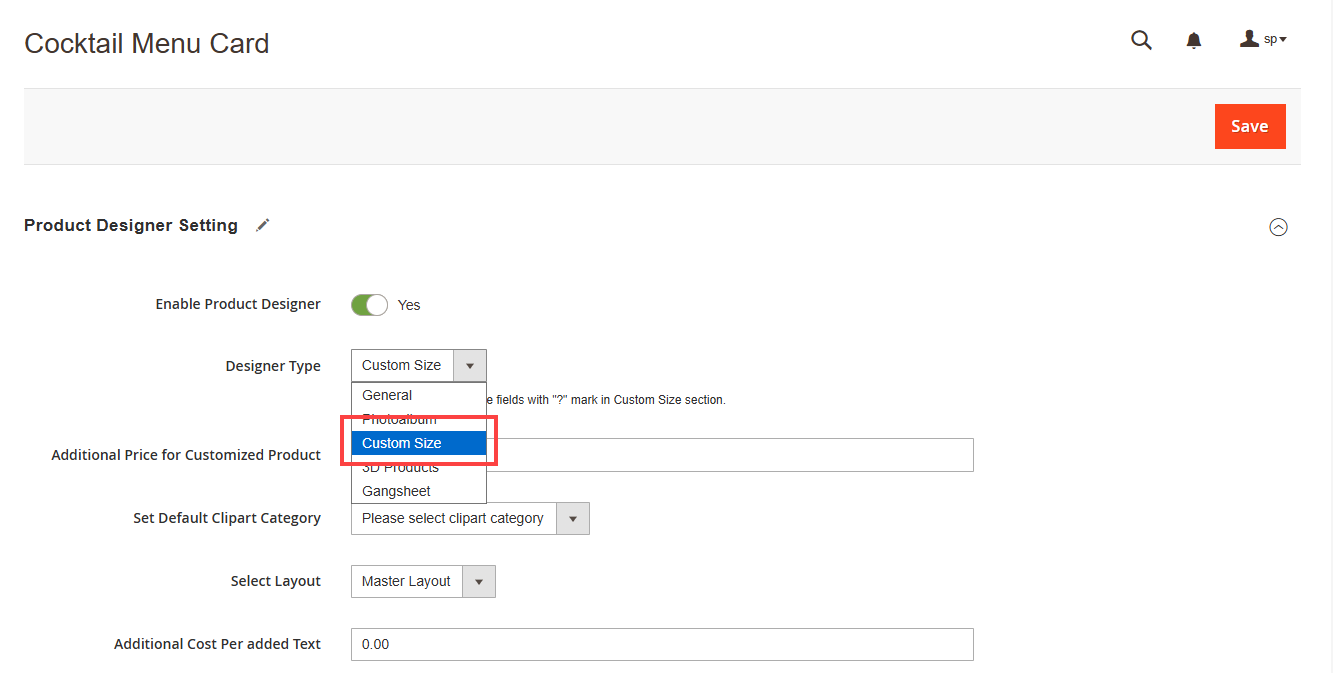
To add a multiple fixed canvas size to any product, navigate to the Product Designer settings. First, select Custom Size from the Designer Type dropdown.[2]
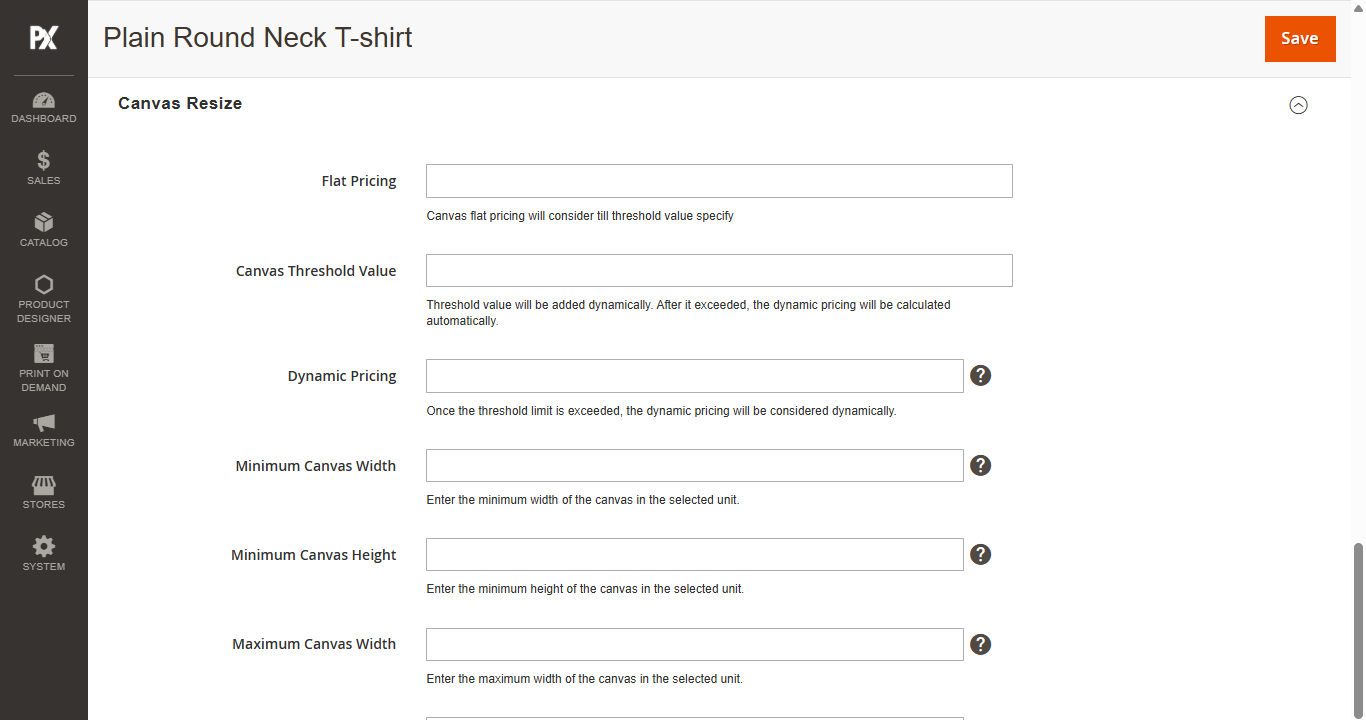
Canvas Resize
Next, scroll down to the Canvas Resize section and complete the following fields:
Flat Pricing: Set the flat rate for the canvas size.
Canvas Threshold: Enter the threshold value. Once this value is exceeded, dynamic pricing will be applied.
Dynamic Pricing: Specify the dynamic pricing, which will be calculated automatically after the threshold is surpassed.
Minimum Canvas Width: Define the minimum allowed width for the canvas.
Minimum Canvas Height: Define the minimum allowed height for the canvas.
Maximum Canvas Width: Set the maximum allowed width for the canvas.
Maximum Canvas Height: Set the maximum allowed height for the canvas.
Contour: Enable contour to create precise outlines, ensuring accurate measurements and perfect shapes.
Click on Save button to save the configuration.
Note:
If you have selected Custom Size as the type of product then you can’t change its type once it is saved.
Any product like a t-shirt, jeans, mug, etc. can’t be changed into Custom Size or Photobook once they are saved.
Frontend View
You can add Canvas Size templates for different types of cards, letters, and cover pages.
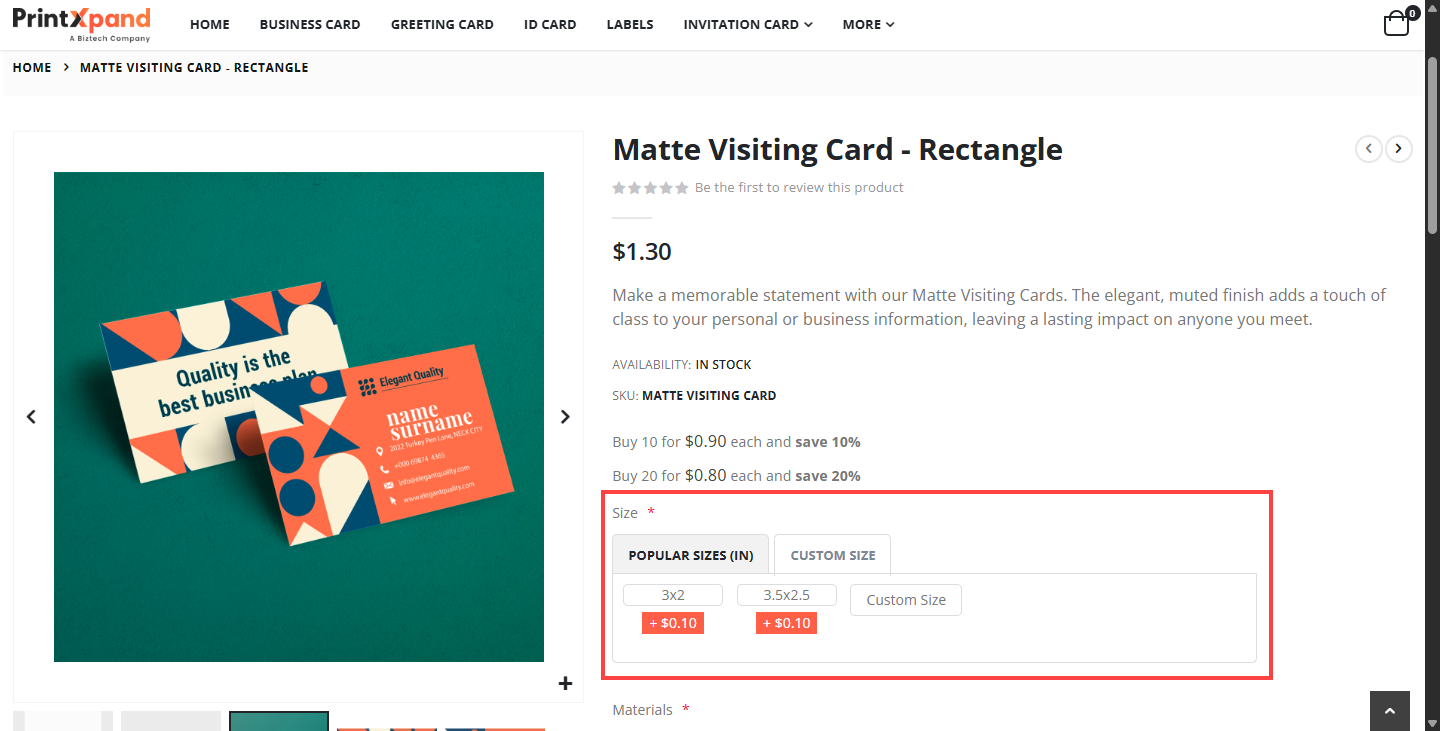
The customers can set the canvas (product size) to design the product. [4]
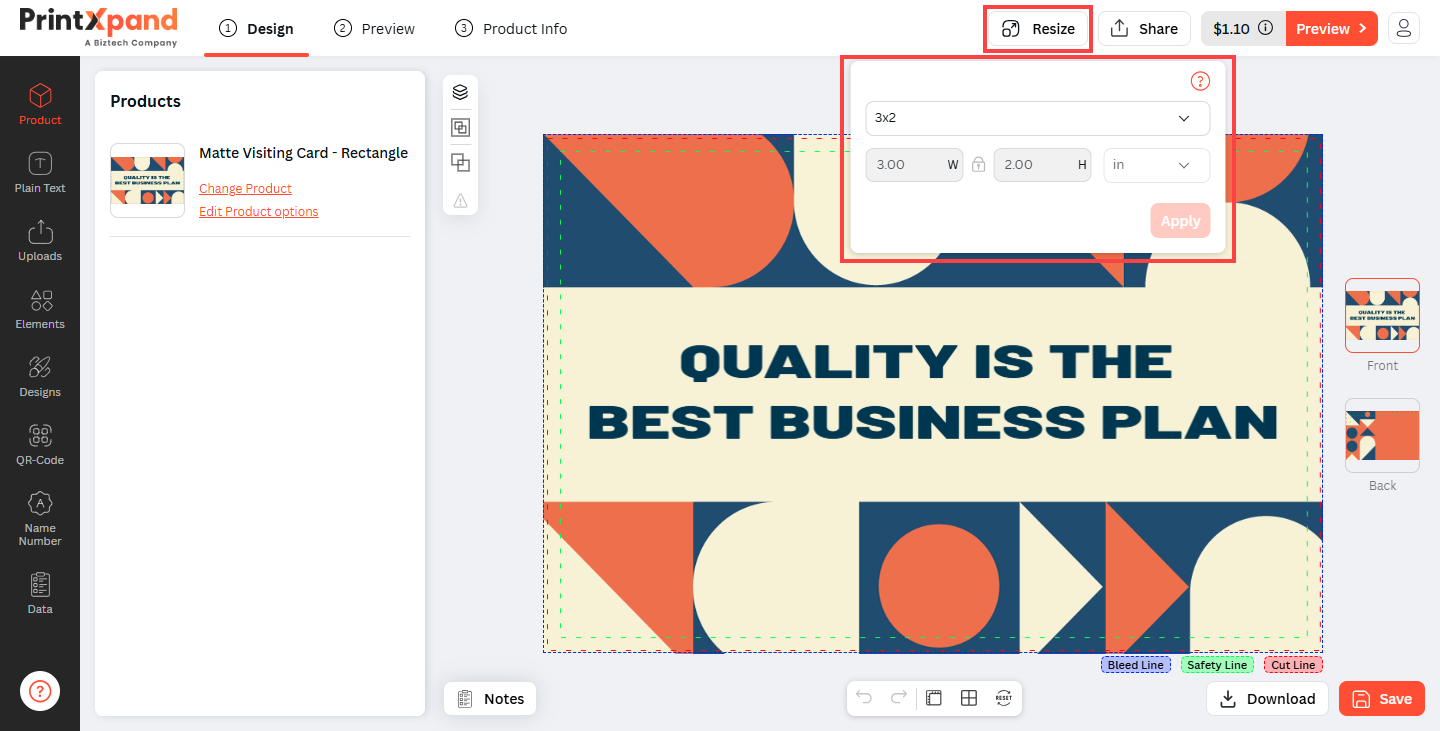
The customer can configure the canvas size in the Designer tool, by clicking on the “Design IT” button, the customers will be navigated to the product designer tool page where they can see the Resize on the header. [5]
The canvas resize will appear as per the inserted details from the product detail page for Canvas. You can customize the height and width, size unit, and aspect ratio manually for product design.
How will Flat & Dynamic prices be calculated?
The Product price will be calculated as per the Flat Pricing, Dynamic Pricing & Canvas Threshold values inserted in the backend in the product details page.
If the canvas area value is less than the Threshold, the Product Price will calculate:
Flat Price X Qty.
If the canvas area value is greater than or equal to the Threshold, the Product Price will calculate:
(l X b X Dynamic Price) X Qty
Suppose from the backend the following Value are inserted:
Flat Pricing: 15 | Dynamic Pricing: 35 | Canvas Threshold Value: 0.05 (meter)
Now, if you inserted Width: 0.10 & Height: 0.15, Flat Rate would calculate.
Area: 0.10*0.15 = 0.015 which is less than the Threshold Value 0.05 m.
So the Flat Rate will calculate Product Price (100€) + Flat Rate(15€) = 115€
Now, if you inserted Width: 0.42 & Height: 0.42, the Dynamic Rate would calculate.
Area: 0.42*0.42 = 0.1764 is greater than or equal to the Threshold 0.05 m.
So the Dynamic Rate will calculate: 100€ + (0.1764*35€)*1 = 100€ + 6.17€ = 106.17€.